# Built-in functions

# Cart synchronization across devices

# ![Screenshot_2020-04-29_at_19.12.41.png](https://knowledge.tauceti-digital.com/uploads/images/gallery/2024-11/14574752461852.png) Getting started

In this article, you can find information about cart synchronization across devices functionality. This change allows you to add the selected products and a discount code to the cart from the URL. Products and a discount code need to exist, and be properly configured in the admin panel - if they are not, they won't be added.

<span class="wysiwyg-color-black" style="color: #44549b;">![info2.svg](https://knowledge.tauceti-digital.com/uploads/images/gallery/2024-11/14574766030492.png) **Remember**</span><span class="wysiwyg-color-black" style="display: block; margin-top: 10px;">You can find more about products in the [Product management](https://knowledge.tauceti-digital.com/books/e-commerce/page/product-management) article.</span><span class="wysiwyg-color-black" style="color: #d23a4e;"></span><span class="wysiwyg-color-black"></span><span class="wysiwyg-color-black"></span><span class="wysiwyg-color-black"></span><span class="wysiwyg-color-black"></span>

<span class="wysiwyg-color-black" style="color: #44549b;">![info2.svg](https://knowledge.tauceti-digital.com/uploads/images/gallery/2024-11/14574766030492.png) **Remember**</span><span class="wysiwyg-color-black" style="display: block; margin-top: 10px;">You can find more about discount codes and the promotion module in the [Promotion module introduction](https://knowledge.tauceti-digital.com/books/e-commerce/page/promotion-module-introduction) article.</span><span class="wysiwyg-color-black" style="color: #d23a4e;"></span><span class="wysiwyg-color-black"></span><span class="wysiwyg-color-black"></span><span class="wysiwyg-color-black"></span><span class="wysiwyg-color-black"></span>

Table of contents:

1. [ Structure of the URL](#bkmrk-structure-of-the-url-1)

---

# ![Screenshot_2020-04-29_at_19.12.41.png](https://knowledge.tauceti-digital.com/uploads/images/gallery/2024-11/14574752461852.png) Structure of the URL

This functionality adds the **/restore/** function into the cart URL with the following parameters:

- **skus** - Adds the selected SKUs to the cart. There can be multiple SKUs separated by commas. Only quantity of 1 of the selected products will be added if the amount of products is not specified in brackets (e.g. **39959(3)** will add 3 times 39959). If the selected product already exists in the cart its quantity won't increase. Gifts can be added to the cart this way. Example: [https://pluat-v6.yr.tauceti.tech/cart/restore/skus/39959(2),55665](https://pluat-v6.yr.tauceti.tech/cart/restore/skus/39959(2),55665)
- **code** - Adds the selected main discount code to the cart. The discount code has to exist and be used by a promotion. Example: [https://pluat-v6.yr.tauceti.tech/cart/restore/code/TEST123](https://pluat-v6.yr.tauceti.tech/cart/restore/code/TEST123)
- **clear** - Removes all of the products from the cart that are not present in the same **skus** parameter. It's a bool, so **1** removes the products. Example: [pluat-v6.yr.tauceti.tech/cart/clear/1](https://pluat-v6.yr.tauceti.tech/cart/clear/1)

Both of these options can be used simultaneously, which would result in adding the selected products and discount code to the cart.

Example:

[https://pluat-v6.yr.tauceti.tech/cart/restore/skus/99291(4),30132/code/TEST123/clear/1](https://pluat-v6.yr.tauceti.tech/cart/restore/skus/99291(4),30132/code/TEST123/clear/1)

# Storelocator

# ![Screenshot_2020-04-29_at_19.12.41.png](https://knowledge.tauceti-digital.com/uploads/images/gallery/2024-11/14666014290972.png) Getting started

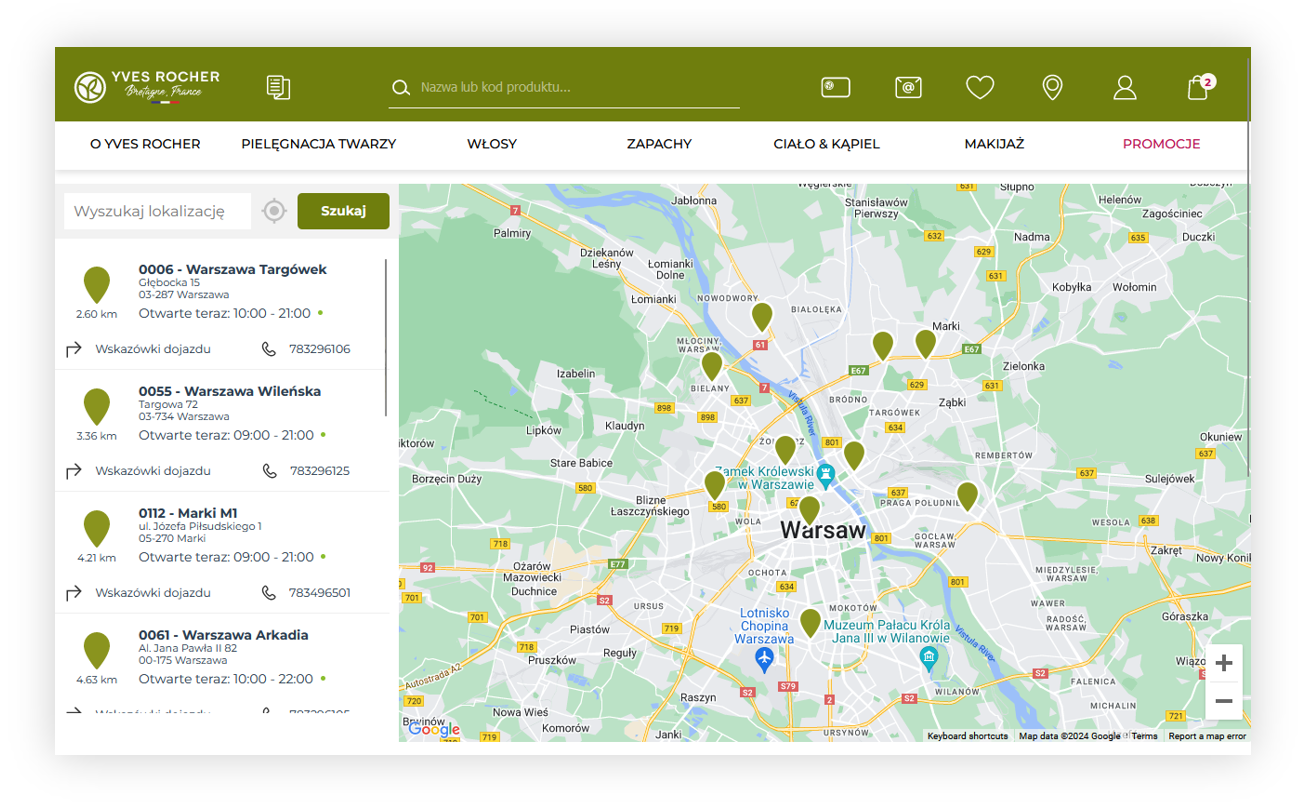
In this article, you can find information about store locator functionality. Storelocator allows customers to access configured url open a Google map of the selected country and see all of the configured stores. The map contains a search field, which allows customers to find their desired street or city as well as an option to get their location automatically.

Visible points on the map are displayed in the left panel with their basic information like name, address, and current opening / closing hours.

<table id="bkmrk-visualization-of-the" style="margin-right: auto; margin-left: auto; height: 44px; width: auto;"><tbody><tr style="height: 22px;"><td class="wysiwyg-text-align-center" style="text-align: center; vertical-align: middle; height: 22px; width: auto;">![POWERPNT_cK9kyfLFFj.png](https://knowledge.tauceti-digital.com/uploads/images/gallery/2024-11/14686525164828.png)</td></tr><tr style="height: 22px;"><td class="wysiwyg-text-align-center" style="text-align: center; vertical-align: middle; height: 22px; width: auto;"><span class="wysiwyg-font-size-medium">*Visualization of the store locator* </span></td></tr></tbody></table>

Table of contents:

1. [ Configuration](#bkmrk-configuration)
    1. [Stores list](#bkmrk-stores-list)
    2. [Store creation](#bkmrk-store-creation)
2. [ Customer perspective](#bkmrk-customer-perspective)

---

# ![Screenshot_2020-04-29_at_19.12.41.png](https://knowledge.tauceti-digital.com/uploads/images/gallery/2024-11/14666014290972.png) Configuration

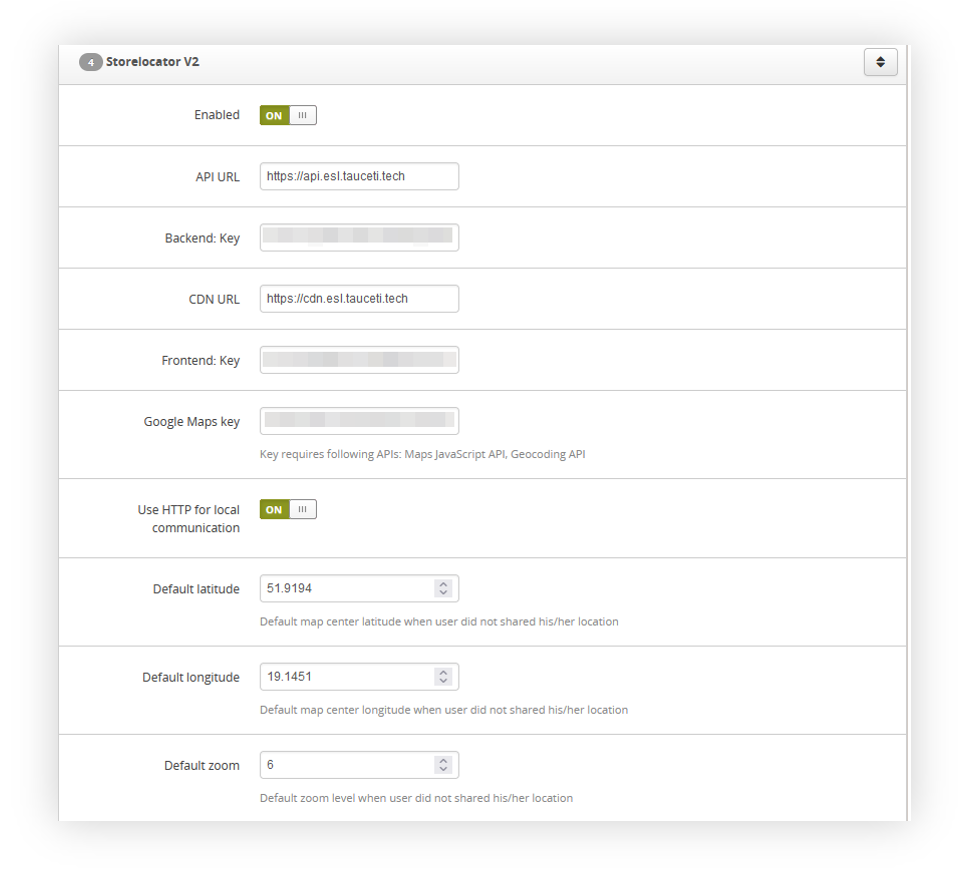
It is possible to configure the storelocator aspects in

***System &gt; System / Settings &gt; Integrations &gt; Storelocator v2**.*

<table id="bkmrk-visualization-of-the-1" style="margin-right: auto; margin-left: auto; height: 44px; width: auto;"><tbody><tr style="height: 22px;"><td class="wysiwyg-text-align-center" style="text-align: center; vertical-align: middle; height: 22px; width: 688px;">![POWERPNT_l4kdk3UuhG.png](https://knowledge.tauceti-digital.com/uploads/images/gallery/2024-11/14685669456284.png)</td></tr><tr style="height: 22px;"><td class="wysiwyg-text-align-center" style="text-align: center; vertical-align: middle; height: 22px; width: 688px;"><span class="wysiwyg-font-size-medium">*Visualization of the storelocator system settings* </span></td></tr></tbody></table>

In the storelocator system settings you can find the following options:

- **Enabled** - A switch that defines if the functionality is enabled. If this switch is set to OFF customers will get an 404 error when accessing the storelocator URL.
- **API URL** - URL of the storelocator API. It shouldn't be modified.
- **Backend: Key** - Backend key of the functionality provided by Tau Ceti.
- **CND URL** - URL of the Tau Ceti CDN. It shouldn't be modified.
- **Frontend: Key** - Frontend key of the functionality provided by Tau Ceti.
- **Google maps Key** - Google maps frontend API key.
- **Use HTTP for local communication** - Switch that defines if HTTP protocol should be used for local communication. This switch shouldn't be modified.
- **Default latitude** - Default latitude of the opened map
- **Default longtitude** - Default longitude of the opened map
- **Default zoom** - Default zoom of the opened map between 1 and 10. The higher the value the closer the map is.

The map URL can be changed in the **System &gt; Translations / list**. You can find it under the translation phrase **storelocator\_url.**

## Stores list

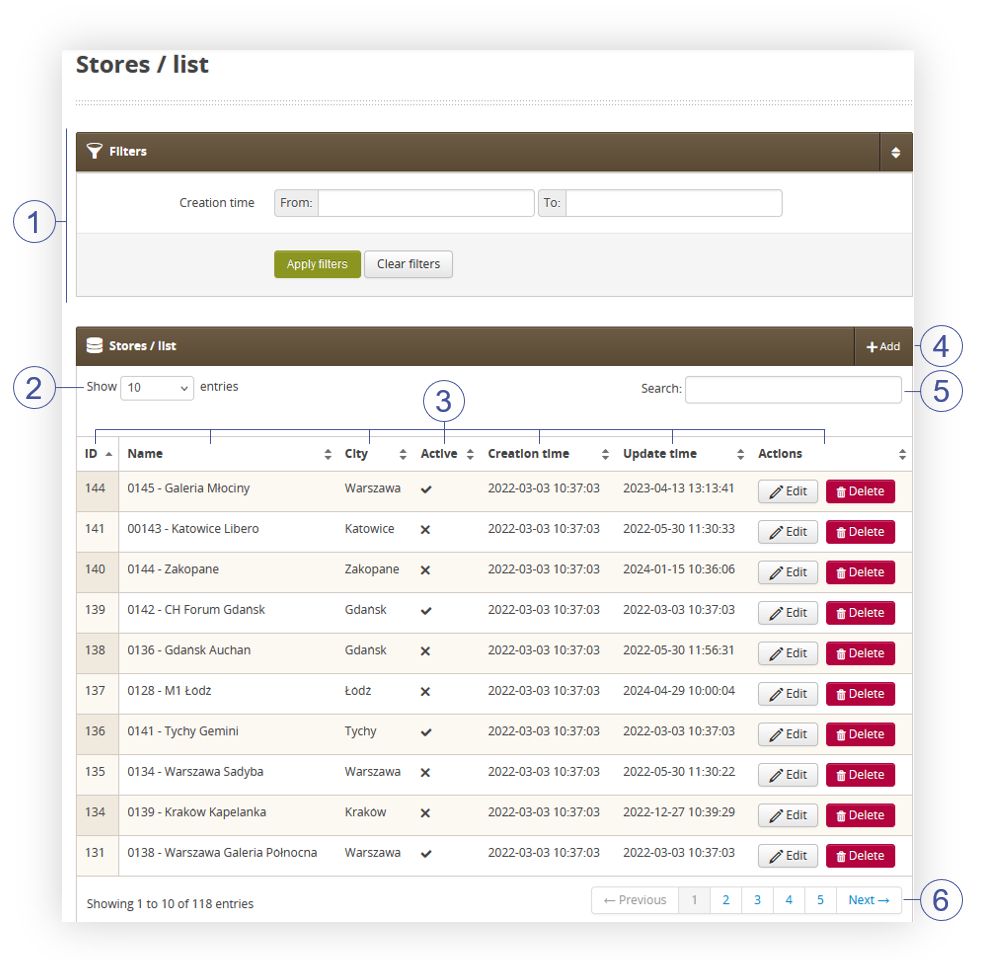
By default store locator doesn't have any stores created. They are managed from the admin panel in

***CMS &gt; Stores / list**.*

<table id="bkmrk-visualization-of-sto" style="margin-right: auto; margin-left: auto;"><tbody><tr style="height: 22px;"><td class="wysiwyg-text-align-center" style="text-align: center; vertical-align: middle; height: 22px; width: 688px;">![POWERPNT_eY0OfHxQ9s.png](https://knowledge.tauceti-digital.com/uploads/images/gallery/2024-11/14686503853084.png)</td></tr><tr style="height: 22px;"><td class="wysiwyg-text-align-center" style="text-align: center; vertical-align: middle; height: 22px; width: 688px;"><span class="wysiwyg-font-size-medium">*Visualization of stores in stores / list* </span></td></tr></tbody></table>

Below you will find a list of possible actions in **Stores / list**.

- **Filters section** **<span style="color: #4054a0;">(1)</span>** allows filtering the visible stores by their creation time range
- **Show X entries <span style="color: #4054a0;">(2)</span>** section defines how many stores per page should be visible.
- **Stores table <span style="color: #4054a0;">(3)</span>** provides basic information about the store. You can find the following columns in the table: 
    - **ID** - The internal identification number of the created store.
    - **Name** - The name of the store. This name is visible to the customers
    - **City** - City where the store is located.
    - **Active** - Activity status of the store. It can be true or false.
    - **Creation time** - A date and time when the selected store was created.
    - **Update time** - A date and time when the store was updated last time.
    - **Actions**
        - **Edit** - Allows to edit the selected store. Store edit form is the same as creating a new one. You can find more about it in the [Store creation](#bkmrk-store-creation) section.
        - **Delete** - A button that allows to delete the selected store from the database. This action cannot be reverted.
- **Add button** **<span style="color: #4054a0;">(4)</span>** allows the creation of a new store entry. You can find more about store creation in the [Store creation](#bkmrk-store-creation) section.
- **Search field** **<span style="color: #4054a0;">(5)</span>** allows to search for the available stores by their names or a city.
- **Page number** **<span style="color: #4054a0;">(6)</span>** section allows to you show more stores by switching to a different page.

## Store creation

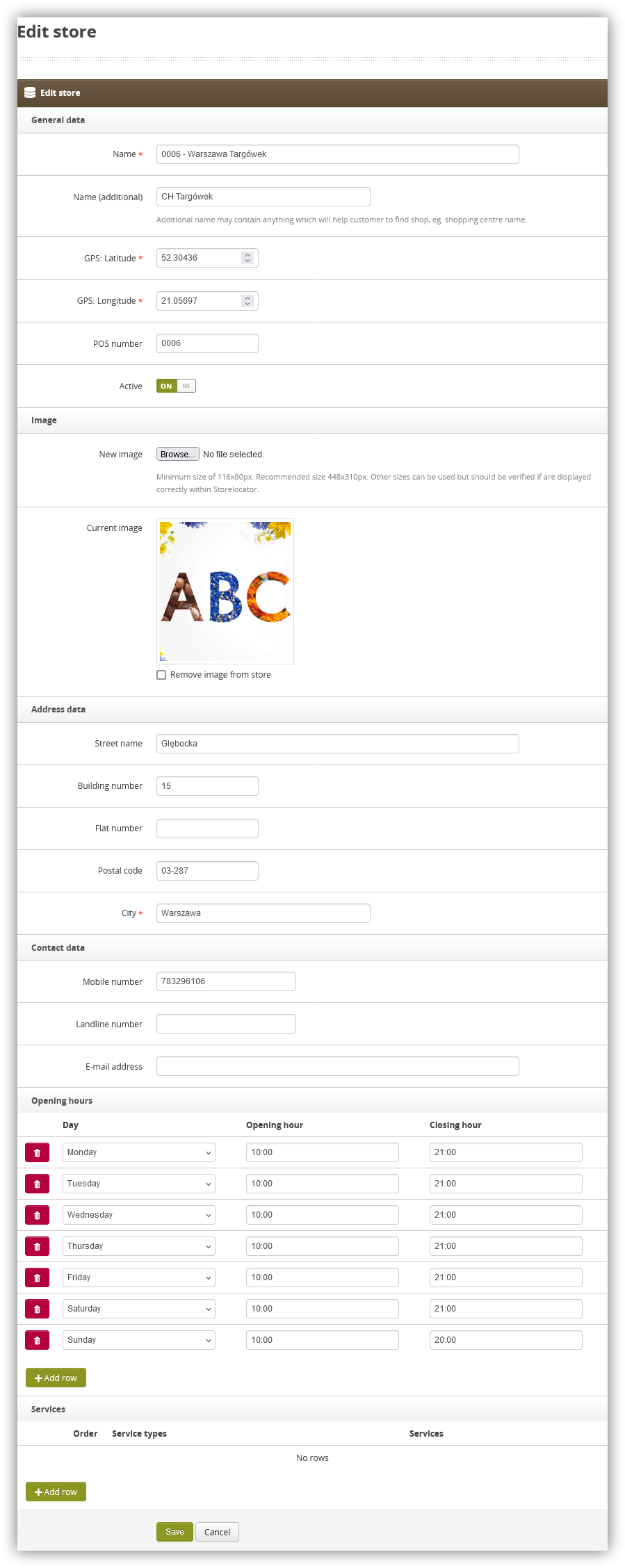
When the **Add** or **Edit** button is selected you will be redirected to the store edit page

<table id="bkmrk-visualization-of-the-2" style="margin-right: auto; margin-left: auto;"><tbody><tr style="height: 22px;"><td class="wysiwyg-text-align-center" style="text-align: center; vertical-align: middle; height: 22px; width: 688px;">![Screenshot 2024-06-27 at 15-42-29 Edit store  - Admin moduleabc.png](https://knowledge.tauceti-digital.com/uploads/images/gallery/2024-11/14686525172124.png)</td></tr><tr style="height: 22px;"><td class="wysiwyg-text-align-center" style="text-align: center; vertical-align: middle; height: 22px; width: 688px;"><span class="wysiwyg-font-size-medium">*Visualization of the store creation* </span></td></tr></tbody></table>

When creating or editing a store you can define the following fields:

- **Name** - The name of the store. This name is visible to the customers.
- **Name (additional)** - Additional name to the store, that will help customers find it.
- **GPS: Latitude** - A latitude where the store pin will be placed at.
- **GPS: Longitude** - A longitude where the store pin will be placed at.
- **POS number** - POS number of the store.
- **Active** - Activity status of the store.
- **Image** - Image of the store that is displayed with the store popup.
- **Mobile number** - The phone number of the store that customers can call
- **Landline number** - The landline number of the store that customers can call
- **E-mail address** - E-mail address of the store
- **Opening hours** - Opening hours of the store. It is possible to define the exact opening hours for the selected day of the week. It is possible to assign multiple opening hours on the same day as long as they do not interfere with each other.
- **Services** - Services that are available in the selected store. Adding a new service only provides a text field that can be filled in with the type of service and it is displayed to the customers on the popup of the store.

---

# ![Screenshot_2020-04-29_at_19.12.41.png](https://knowledge.tauceti-digital.com/uploads/images/gallery/2024-11/14666014290972.png) Customer perspective

Customers can access the storelocator by the storelocator button in the header or by accessing the defined URL from translations.

<table id="bkmrk-visualization-of-the-3" style="margin-right: auto; margin-left: auto; height: 44px; width: auto;"><tbody><tr style="height: 22px;"><td class="wysiwyg-text-align-center" style="text-align: center; vertical-align: middle; height: 22px; width: auto;">![POWERPNT_cK9kyfLFFj.png](https://knowledge.tauceti-digital.com/uploads/images/gallery/2024-11/14686525164828.png)</td></tr><tr style="height: 22px;"><td class="wysiwyg-text-align-center" style="text-align: center; vertical-align: middle; height: 22px; width: auto;"><span class="wysiwyg-font-size-medium">*Visualization of the store locator*</span>

</td></tr></tbody></table>

The storelocator page opens on the default longitude and latitude defined in the system settings. Customers are able to search for their selected street or use the find location functionality to find their current location and display stores around them. The left panel also displays 10 stores with their basic information.

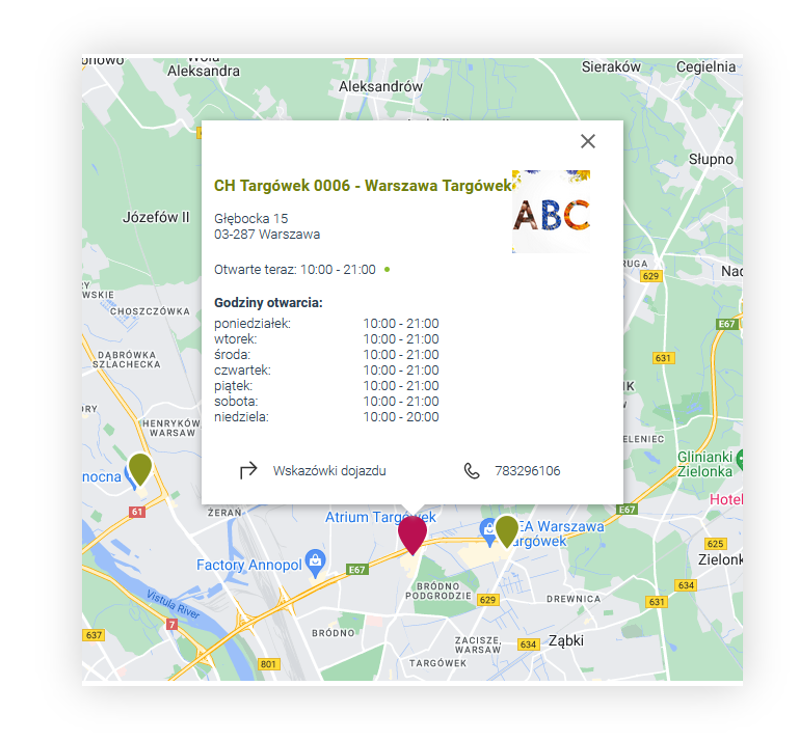
When the customer selects one of the stores from the left panel or selects one of the pins on the map the store popup will show

<table id="bkmrk-visualization-of-the-4" style="margin-right: auto; margin-left: auto; height: 44px; width: auto;"><tbody><tr style="height: 22px;"><td class="wysiwyg-text-align-center" style="text-align: center; vertical-align: middle; height: 22px; width: auto;">![POWERPNT_IoerjMN0W8.png](https://knowledge.tauceti-digital.com/uploads/images/gallery/2024-11/14686525173404.png)</td></tr><tr style="height: 22px;"><td class="wysiwyg-text-align-center" style="text-align: center; vertical-align: middle; height: 22px; width: auto;"><span class="wysiwyg-font-size-medium">*Visualization of the store locator*</span><span class="wysiwyg-font-size-medium"></span>

</td></tr></tbody></table>

Store popup contains all of the configured store information described in [Store creation](#bkmrk-store-creation) section. Customers can select the mobile number to directly call it if they are on a mobile device, or the can press on the **directions** button next to it, to open Google Maps and get automatic directions from their current location to the selected store.

# Newsletters

# ![Screenshot_2020-04-29_at_19.12.41.png](https://knowledge.tauceti-digital.com/uploads/images/gallery/2024-11/11062321618076.png) Getting started

In this article, you can find information about the newsletter functionality, which allows customers to register to a newsletter list, which can be sent to third-party applications via API, like Bloomreach. It is possible to create newsletter groups to categorize types of customers.

Table of contents:

1. [ Functionality configuration](#bkmrk-functionality-config-1)
2. [ Registration for the newsletter subscription](#bkmrk-registration-for-the)
    1. [Logged-out customers](#bkmrk-logged-out-customers)
    2. [During registration](#bkmrk-during-registration)
    3. [Logged-in customers](#bkmrk-logged-in-customers)
3. [ Managing subscribers](#bkmrk-managing-subscribers)
4. [ Managing subscriber groups](#bkmrk-managing-subscriber-)
5. [ Subscribers import](#bkmrk-subscribers-import)
6. [ Subscribers export](#bkmrk-subscribers-export)

---

# ![Screenshot_2020-04-29_at_19.12.41.png](https://knowledge.tauceti-digital.com/uploads/images/gallery/2024-11/11062321618076.png) Functionality configuration

To enable the customers to register for the newsletter on the website it needs to be first enabled in the system settings. Newsletter configuration can be found in:

***System &gt; System / Settings &gt; Built-in Functions &gt; Newsletter***

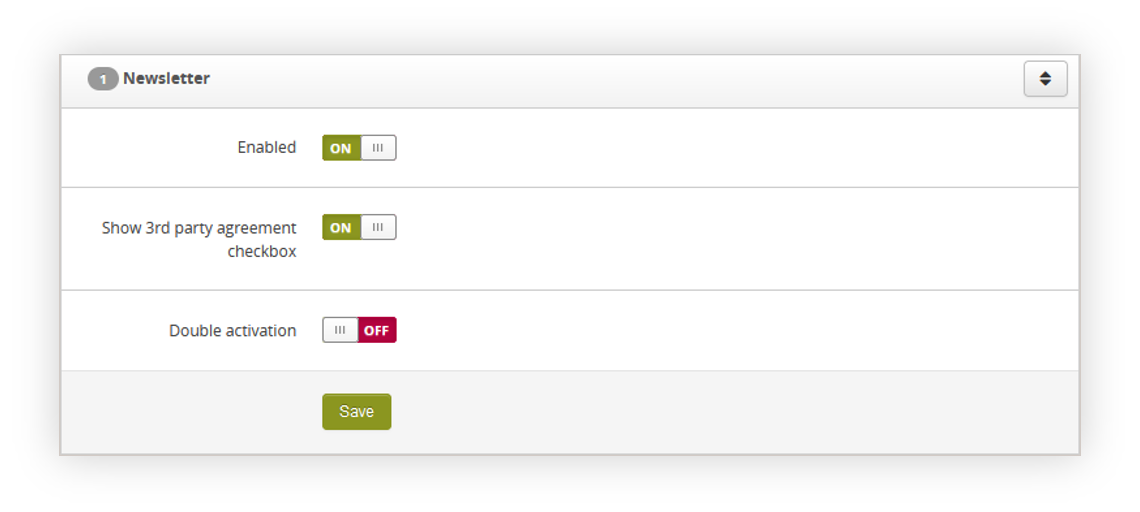
<table id="bkmrk-visualization-of-the" style="margin-right: auto; margin-left: auto; height: 44px; width: auto;"><tbody><tr style="height: 22px;"><td class="wysiwyg-text-align-center" style="text-align: center; vertical-align: middle; height: 22px; width: auto;">![POWERPNT_35eiG9Xvd6.png](https://knowledge.tauceti-digital.com/uploads/images/gallery/2024-11/11075750389276.png)</td></tr><tr style="height: 22px;"><td class="wysiwyg-text-align-center" style="text-align: center; vertical-align: middle; height: 22px; width: auto;"><span class="wysiwyg-font-size-medium">*Visualization of the newsletter functionality system settings* </span></td></tr></tbody></table>

In the Newsletter section you can find three switches:

- **Enabled** - Switch which enables / disables the functionality and the ability to use it by   
    the customers.
- <label class="control-label" for="settings_nlt_3rd_party_agreements_enabled">**Show 3rd party agreement checkbox** - Switch defining if the 3rd party newsletter agreement should be visible while registering a new account instead of a built-in agreement. This option requires properly configuring the agreement on a 3rd party platform.  
    </label>
- <label class="control-label" for="settings_newsletter_double_opt_in">**Double activation** - A switch defining whether unregistered customers should confirm the newsletter subscription in a separate e-mail, before signing them in.</label>

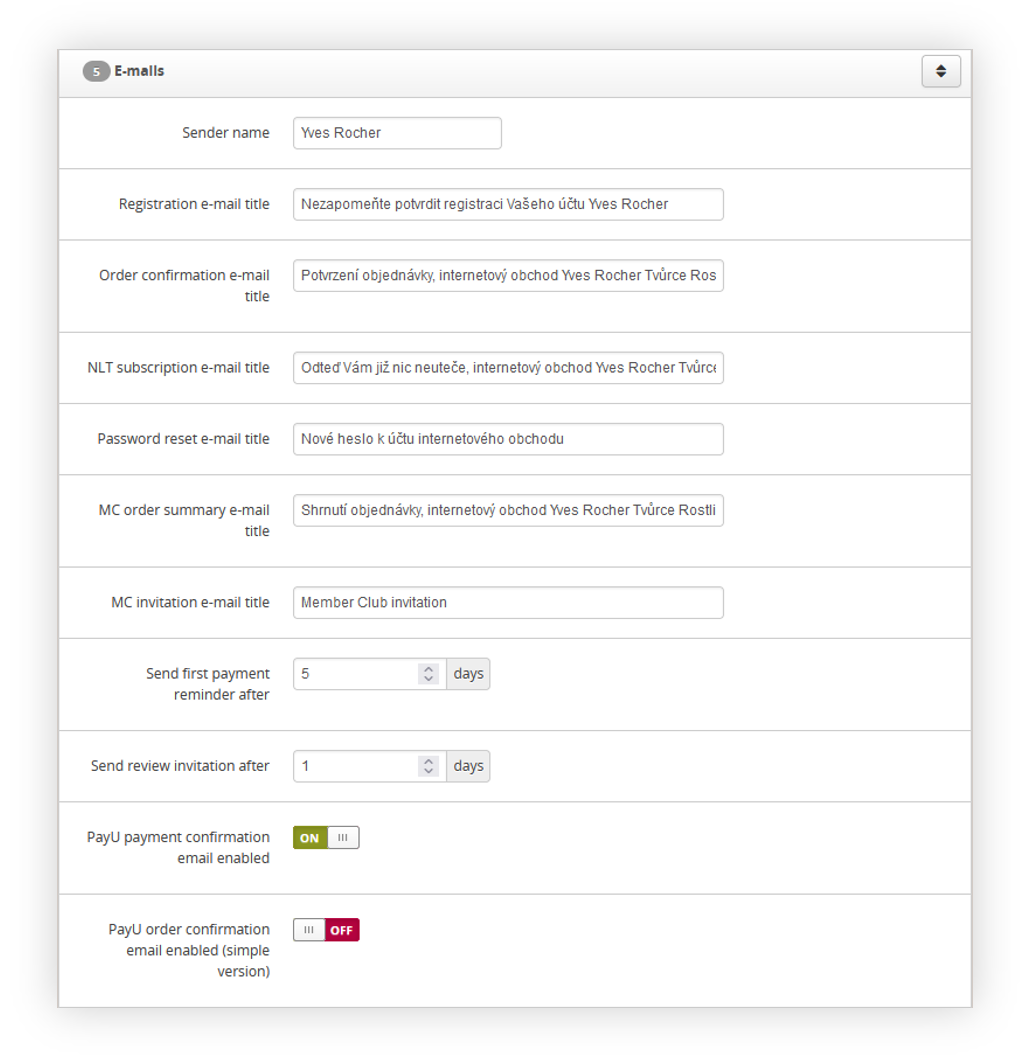
Additionally, the title of the newsletter confirmation e-mail can be changed in the

***System &gt; System / Settings &gt; General &gt; E-mails***

<table id="bkmrk-visualization-of-the-1" style="margin-right: auto; margin-left: auto; height: 44px; width: auto;"><tbody><tr style="height: 22px;"><td class="wysiwyg-text-align-center" style="text-align: center; vertical-align: middle; height: 22px; width: auto;">![POWERPNT_yKuHHrLhKs.png](https://knowledge.tauceti-digital.com/uploads/images/gallery/2024-11/11075745688348.png)</td></tr><tr style="height: 22px;"><td class="wysiwyg-text-align-center" style="text-align: center; vertical-align: middle; height: 22px; width: auto;"><span class="wysiwyg-font-size-medium">*Visualization of the E-mails tab in the System / Settings* </span></td></tr></tbody></table>

---

# ![Screenshot_2020-04-29_at_19.12.41.png](https://knowledge.tauceti-digital.com/uploads/images/gallery/2024-11/11062321618076.png) Registration for the newsletter subscription

## Logged-out customers

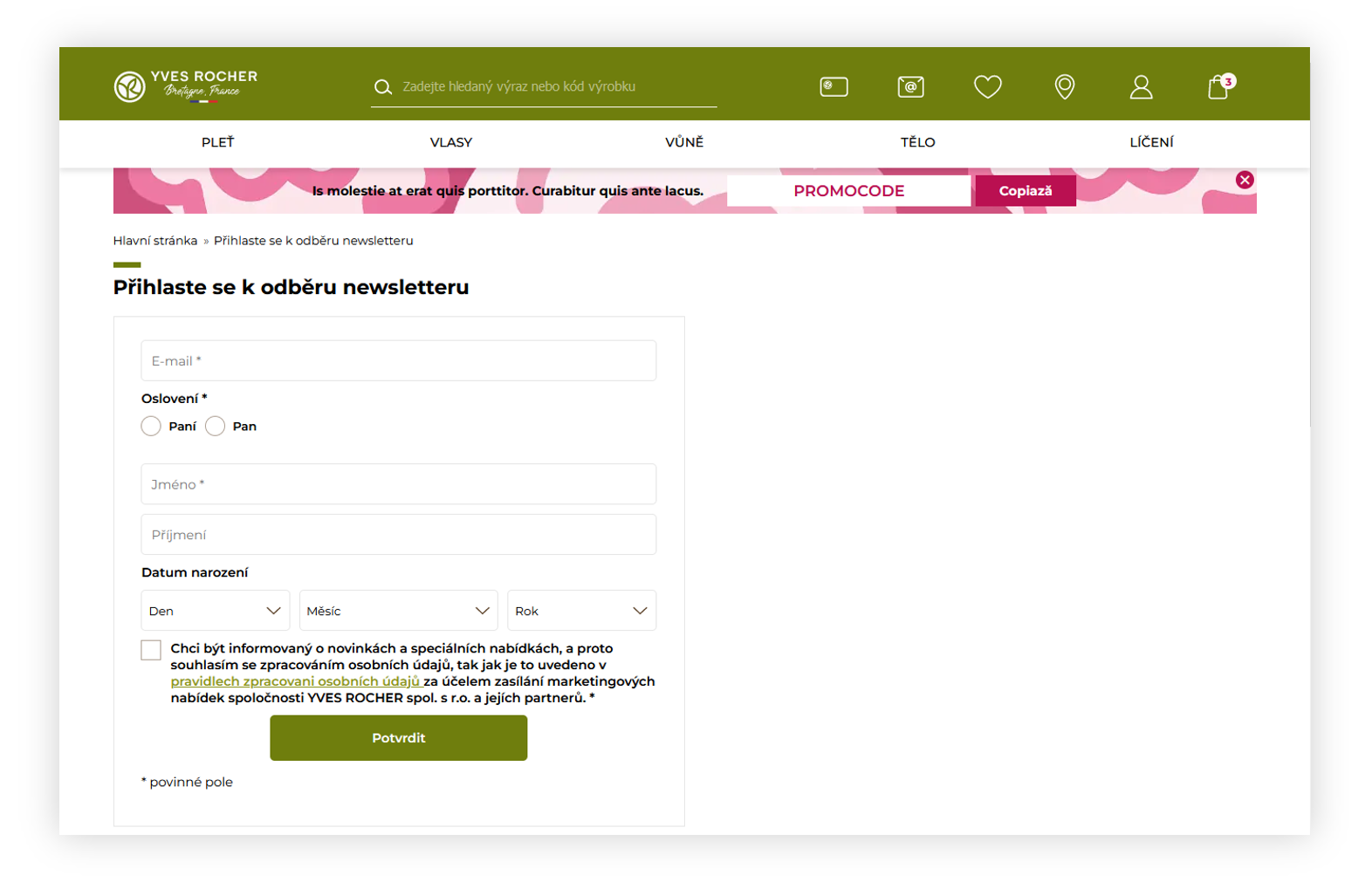
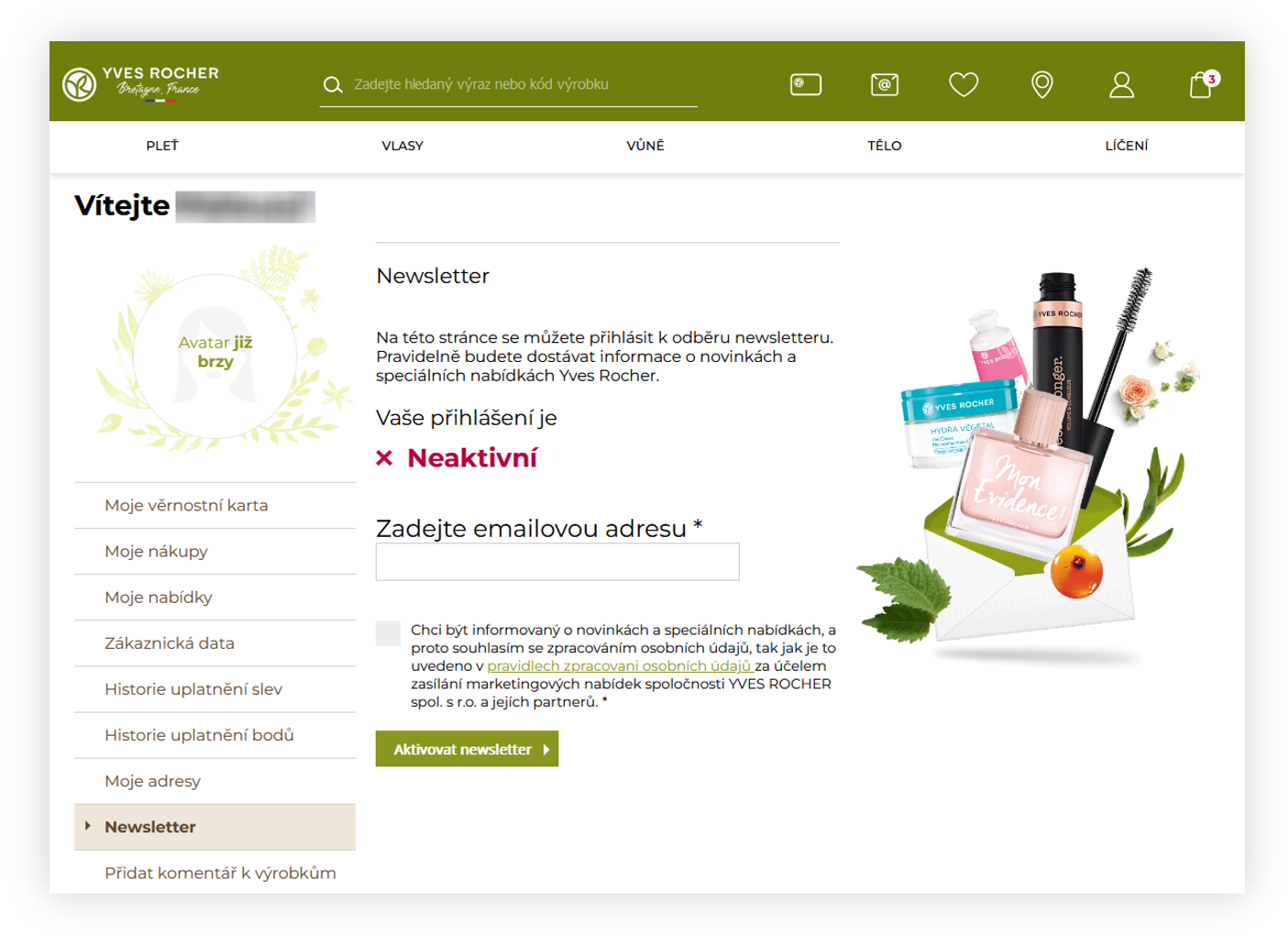
Customers who do not have an account on the e-commerce platform, or are not logged in are able to register for the newsletter using the /newsletter webpage. Usually, the /newsletter webpage is linked in the e-commerce platform footer, but that depends on Yves Rocher needs.

<table id="bkmrk-visualization-of-the-2" style="margin-right: auto; margin-left: auto; height: 44px; width: auto;"><tbody><tr style="height: 22px;"><td class="wysiwyg-text-align-center" style="text-align: center; vertical-align: middle; height: 22px; width: auto;">![POWERPNT_dgZ9rV298A.png](https://knowledge.tauceti-digital.com/uploads/images/gallery/2024-11/11075808199068.png)</td></tr><tr style="height: 22px;"><td class="wysiwyg-text-align-center" style="text-align: center; vertical-align: middle; height: 22px; width: auto;"><span class="wysiwyg-font-size-medium">*Visualization of the /newsletter page* </span></td></tr></tbody></table>

On the /newsletter webpage customers are able to type their e-mail address and their additional information, and register for the newsletters. When the <label class="control-label" for="settings_newsletter_double_opt_in">**Double activation**</label> is activated in the [System / Settings](#bkmrk-functionality-config-1) customers will receive an e-mail confirmation if they want to register for a newsletter. If this functionality is disabled, the customers will instantly join the newsletter list. Customers are unable to cancel their subscription from this page - it has to be done using the URL in the newsletter or from the customer panel described in [Logged-in customers.](#bkmrk-logged-in-customers)

## During registration

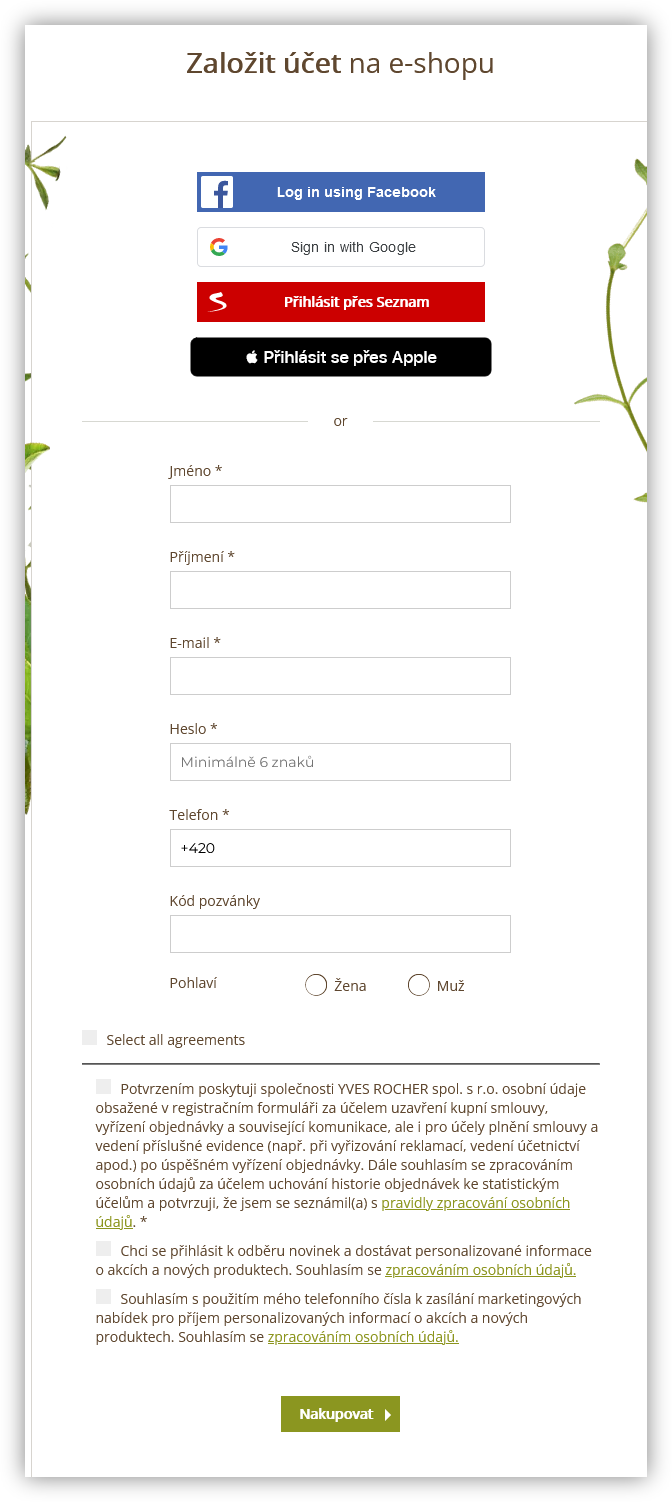
During the registration process, when the customer selects the agreement, that they agree to an e-mail communication they will sign in to the newsletter list.

<table id="bkmrk-visualization-of-the-3" style="margin-right: auto; margin-left: auto; height: 44px; width: auto;"><tbody><tr style="height: 22px;"><td class="wysiwyg-text-align-center" style="text-align: center; vertical-align: middle; height: 22px; width: auto;">![Screenshot 2023-11-03 at 12-18-15 CZ UAT - Yves Rocher internetový prodej kosmetických výrobků na obličej a tělo parfémů a líčení. Kosmetika Yves Rocher pro přírodní krásu.png](https://knowledge.tauceti-digital.com/uploads/images/gallery/2024-11/11123139302172.png)</td></tr><tr style="height: 22px;"><td class="wysiwyg-text-align-center" style="text-align: center; vertical-align: middle; height: 22px; width: auto;"><span class="wysiwyg-font-size-medium">*Visualization of the registration form* </span></td></tr></tbody></table>

Same as for [logged-out customers](#bkmrk-logged-out-customers) when the <label class="control-label" for="settings_newsletter_double_opt_in">**Double activation**</label> is activated in the [System / Settings](#bkmrk-functionality-config-1) customers will receive an e-mail confirmation if they want to register for a newsletter. If this functionality is disabled, the customers will instantly join the newsletter list. Customers are able to cancel their subscription using the URL in the newsletter or from the customer panel described in [Logged-in customers.](#bkmrk-logged-in-customers)

## Logged-in customers

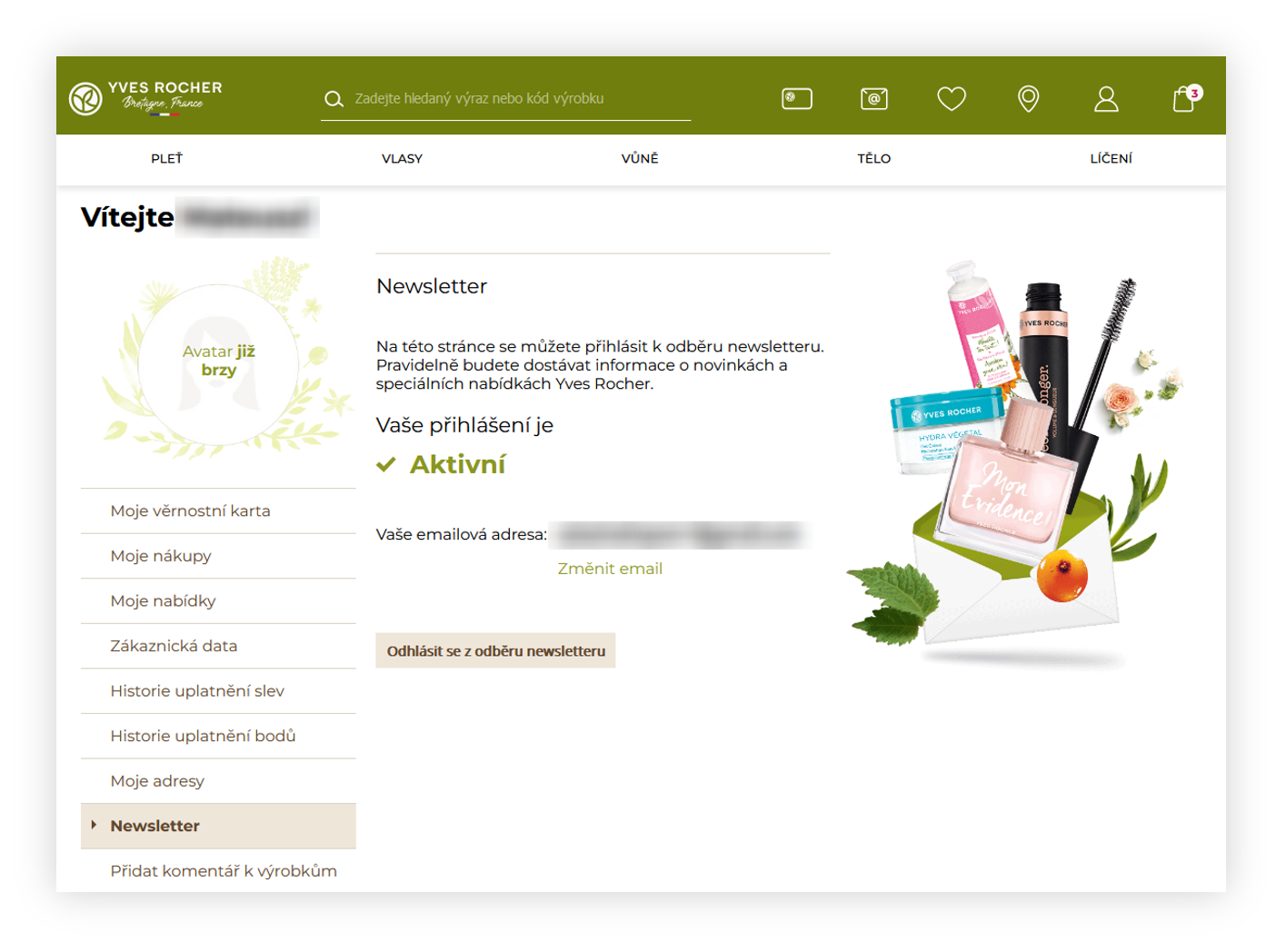
Registered and logged-in customers are able to register to the newsletter functionality in their customer panel by accessing the /customer/newsletter option. Logged-in customers will also get redirected to this webpage when they access the previously mentioned /newsletter URL.

<table id="bkmrk-visualization-of-the-4" style="margin-right: auto; margin-left: auto; height: 44px; width: auto;"><tbody><tr style="height: 22px;"><td class="wysiwyg-text-align-center" style="text-align: center; vertical-align: middle; height: 22px; width: auto;">![POWERPNT_gG2zTq5AAt.png](https://knowledge.tauceti-digital.com/uploads/images/gallery/2024-11/11075776927132.png)</td></tr><tr style="height: 22px;"><td class="wysiwyg-text-align-center" style="text-align: center; vertical-align: middle; height: 22px; width: auto;"><span class="wysiwyg-font-size-medium">*Visualization of the /customer/newsletter page* </span></td></tr></tbody></table>

In the /customer/newsletter webpage customer only has to fill in their e-mail address and are able to register to the newsletter list. Customers registering to the newsletters this way do not have to accept the newsletter registration even if the **Double activation** is enabled.

<table id="bkmrk-visualization-of-the-5" style="margin-right: auto; margin-left: auto; height: 44px; width: auto;"><tbody><tr style="height: 22px;"><td class="wysiwyg-text-align-center" style="text-align: center; vertical-align: middle; height: 22px; width: auto;">![POWERPNT_r8BWDzSDTC.png](https://knowledge.tauceti-digital.com/uploads/images/gallery/2024-11/11075808228380.png)</td></tr><tr style="height: 22px;"><td class="wysiwyg-text-align-center" style="text-align: center; vertical-align: middle; height: 22px; width: auto;"><span class="wysiwyg-font-size-medium">*Visualization of the /customer/newsletter page* </span></td></tr></tbody></table>

When the customer is logged-in and registered to a newsletter functionality they are able to cancel their subscription from the /customer/newsletter webpage.

---

# ![Screenshot_2020-04-29_at_19.12.41.png](https://knowledge.tauceti-digital.com/uploads/images/gallery/2024-11/11062321618076.png) Managing subscribers

All customers that are registered for a newsletter functionality, or have canceled their subscription can be found in the admin panel. Subscribers list is located in the:

***Customers &gt; Subscribers / list***

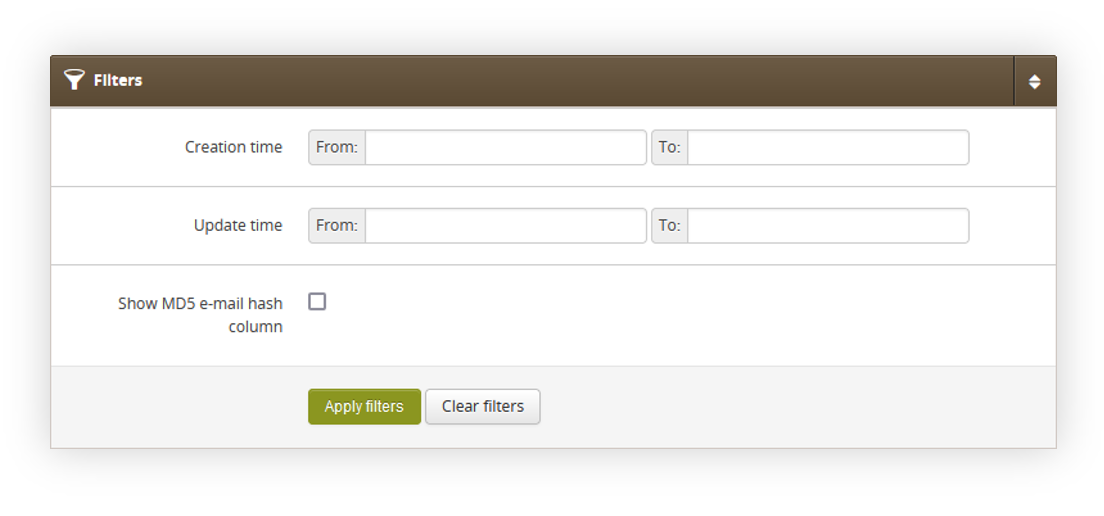
This tab contains filters, which will help manage the desired customers

<table id="bkmrk-visualization-of-the-6" style="margin-right: auto; margin-left: auto; height: 44px; width: auto;"><tbody><tr style="height: 22px;"><td class="wysiwyg-text-align-center" style="text-align: center; vertical-align: middle; height: 22px; width: auto;">![POWERPNT_pcMLm3W3Bn.png](https://knowledge.tauceti-digital.com/uploads/images/gallery/2024-11/11075892969756.png)</td></tr><tr style="height: 22px;"><td class="wysiwyg-text-align-center" style="text-align: center; vertical-align: middle; height: 22px; width: auto;"><span class="wysiwyg-font-size-medium">*Visualization of the Subscribers / list filters* </span></td></tr></tbody></table>

There are the following filters available:

- Creation time - A time range when the subscribers were created
- Update time - A time range when the subscribers were last updated
- Show MD5 e-mail hash column - Adds a new column that contains MD5 e-mail hash

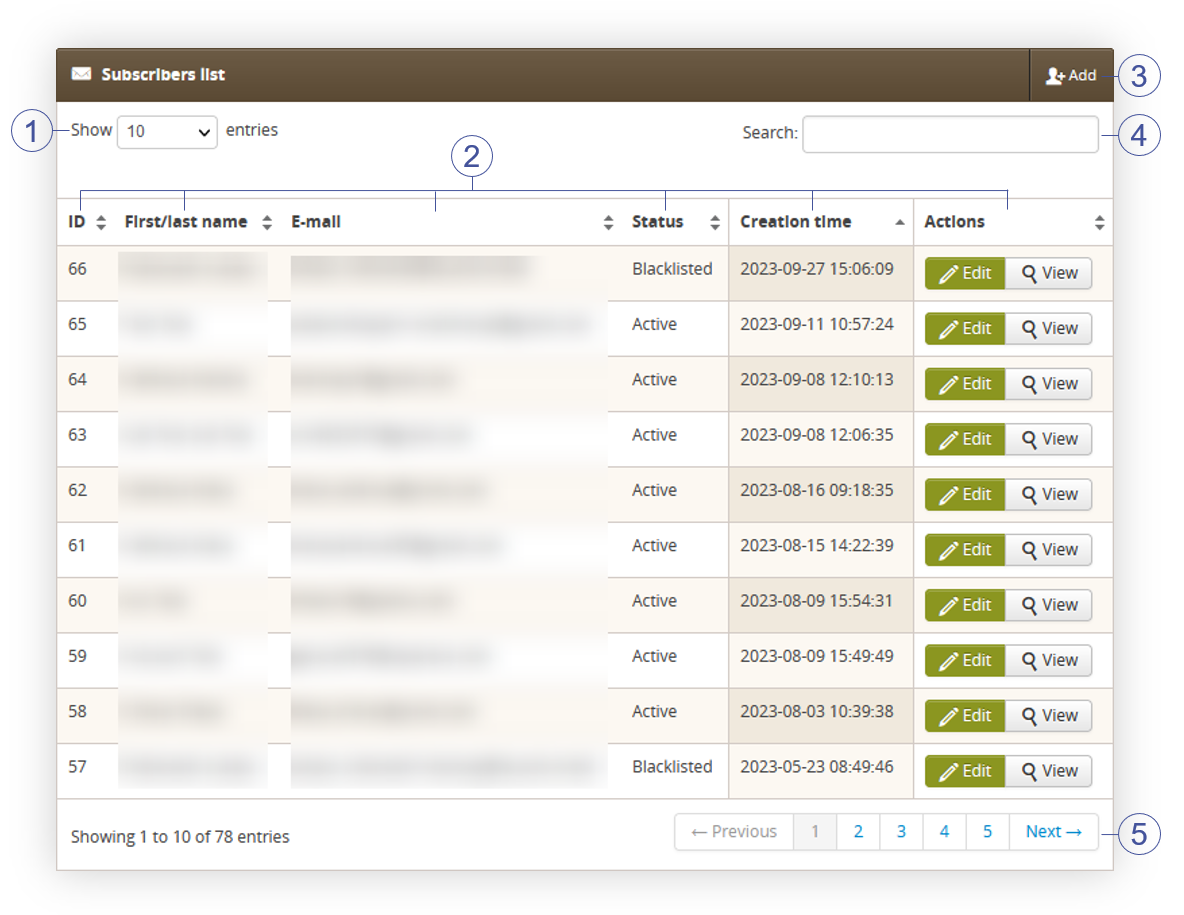
<table id="bkmrk-visualization-of-the-7" style="margin-right: auto; margin-left: auto; height: 44px; width: auto;"><tbody><tr style="height: 22px;"><td class="wysiwyg-text-align-center" style="text-align: center; vertical-align: middle; height: 22px; width: auto;">![POWERPNT_sJbKbgBrRx.png](https://knowledge.tauceti-digital.com/uploads/images/gallery/2024-11/11075892975516.png)</td></tr><tr style="height: 22px;"><td class="wysiwyg-text-align-center" style="text-align: center; vertical-align: middle; height: 22px; width: auto;"><span class="wysiwyg-font-size-medium">*Visualization of the Subscribers list tab* </span></td></tr></tbody></table>

In the subscriber list table you can find the following options:

- **<span style="color: #4054a0;">(1)</span>**<span style="color: #4054a0;"> </span>**Show X Entries** allows to filter how many entries should be visible at once
- **<span style="color: #4054a0;">(2)</span>** Various table columns. All of them can be sorted by clicking on them. 
    - **ID** - Subscribers internal ID
    - **First/last name** - Subscribers first and last name
    - **E-mail** - Subscribers e-mail address
    - **Status** - Subscribers status. Available statuses are **Active** and **Blacklisted**. Blacklisted customer unsubscribed to the newsletter, or was manually blacklisted, and won't receive receive newsletter e-mails.
    - **Creation time** - A date and hour when the customer has subscribed to a newsletter.
    - **Actions** - Two available actions: 
        - **Edit** - Allows to edit the selected customer. More about adding and editing the customer can be found below
        - **View** - View the selected subscriber. Viewing doesn't allow to edit any data.
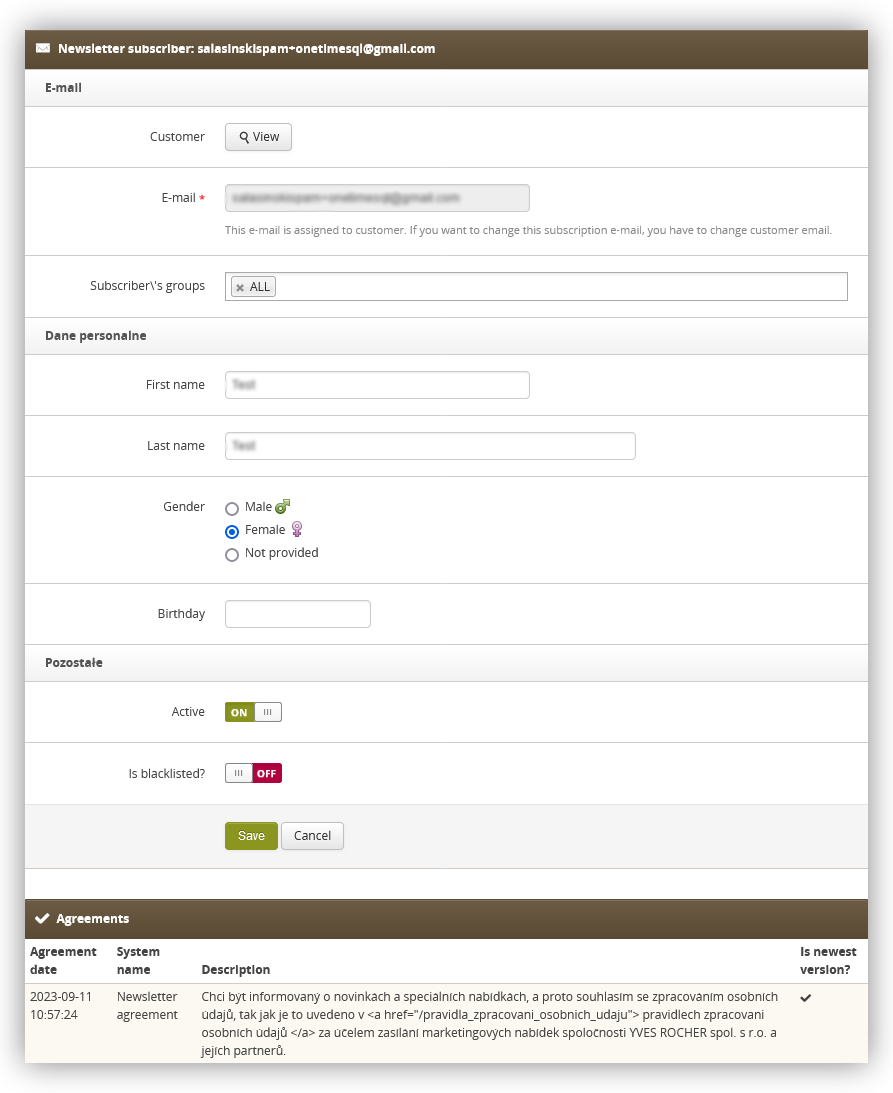
- **<span style="color: #4054a0;">(3) </span>Add** button allows to manually add a new subscriber. Adding and editing a subscriber looks exactly the same. Below you can find more information about the available fields, when adding or editing a new customer.
- **<span style="color: #4054a0;">(4) </span>Search** field allows to search the subscribers by their name / surname as well as their e-mail address.
- **<span style="color: #4054a0;">(5)</span> Pages list** allows to show the next batch of customers on the another pages accoriding to applied sorting option and filters.

<table id="bkmrk-visualization-of-the-8" style="margin-right: auto; margin-left: auto; height: 44px; width: auto;"><tbody><tr style="height: 22px;"><td class="wysiwyg-text-align-center" style="text-align: center; vertical-align: middle; height: 22px; width: auto;">![powerpoint.png](https://knowledge.tauceti-digital.com/uploads/images/gallery/2024-11/11075892978844.png)</td></tr><tr style="height: 22px;"><td class="wysiwyg-text-align-center" style="text-align: center; vertical-align: middle; height: 22px; width: auto;"><span class="wysiwyg-font-size-medium">*Visualization of the customer in the subscribers / list*</span><span class="wysiwyg-font-size-medium"></span>

</td></tr></tbody></table>

When editing or adding a new customer you can find there the following fields:

- **Customer** - A button that redirects to customers e-commerce profile. This option is only available if both subscriber e-mail and e-commerce account e-mail are the same.
- **E-mail** - Subscribers e-mail address. This field is mandatory.
- **Subscriber's groups** - Groups that the subscriber is assigned to. You can find more about the subscriber groups in the [ Managing subscriber groups](#bkmrk-managing-subscriber-) chapter.
- **First name** - Customers first name
- **Last name** - Customers last name
- **Gender** - Customers gender
- **Birthday** - Customers birthday date
- **Active** - A switch that defines if the subscriber is active or not. Not active subscribers won't receive any newsletters.
- **Is blacklisted?** - A switch, which defines if the subscriber is blacklisted. Blacklisted subscribers won't receive any newsletters.

Additionally, all agreements the subscriber has agreed on will be visible at the bottom of the page.

---

# ![Screenshot_2020-04-29_at_19.12.41.png](https://knowledge.tauceti-digital.com/uploads/images/gallery/2024-11/11062321618076.png) Managing subscriber groups

Subscribers can be put in subscriber groups, which allows to easily manage them, and send a desire newsletters to a certain selected group. Subscriber groups can be manged in

***Customers &gt; Subscribers groups***

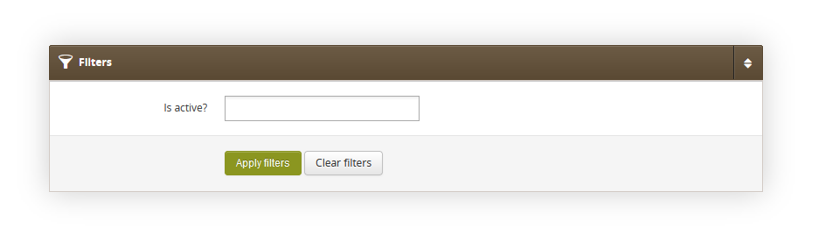
<table id="bkmrk-visualization-of-the-9" style="margin-right: auto; margin-left: auto; height: 44px; width: 699px;"><tbody><tr style="height: 22px;"><td class="wysiwyg-text-align-center" style="text-align: center; vertical-align: middle; height: 22px; width: 687px;">![POWERPNT_uMu4ejcZK6.png](https://knowledge.tauceti-digital.com/uploads/images/gallery/2024-11/11122515828508.png)</td></tr><tr style="height: 22px;"><td class="wysiwyg-text-align-center" style="text-align: center; vertical-align: middle; height: 22px; width: 687px;"><span class="wysiwyg-font-size-medium">*Visualization of the filters in subscribers groups.*</span><span class="wysiwyg-font-size-medium"></span>

</td></tr></tbody></table>

Subscribers groups filters allow to filter by **is active?** flag, which defines if the selected group is set as active or not.

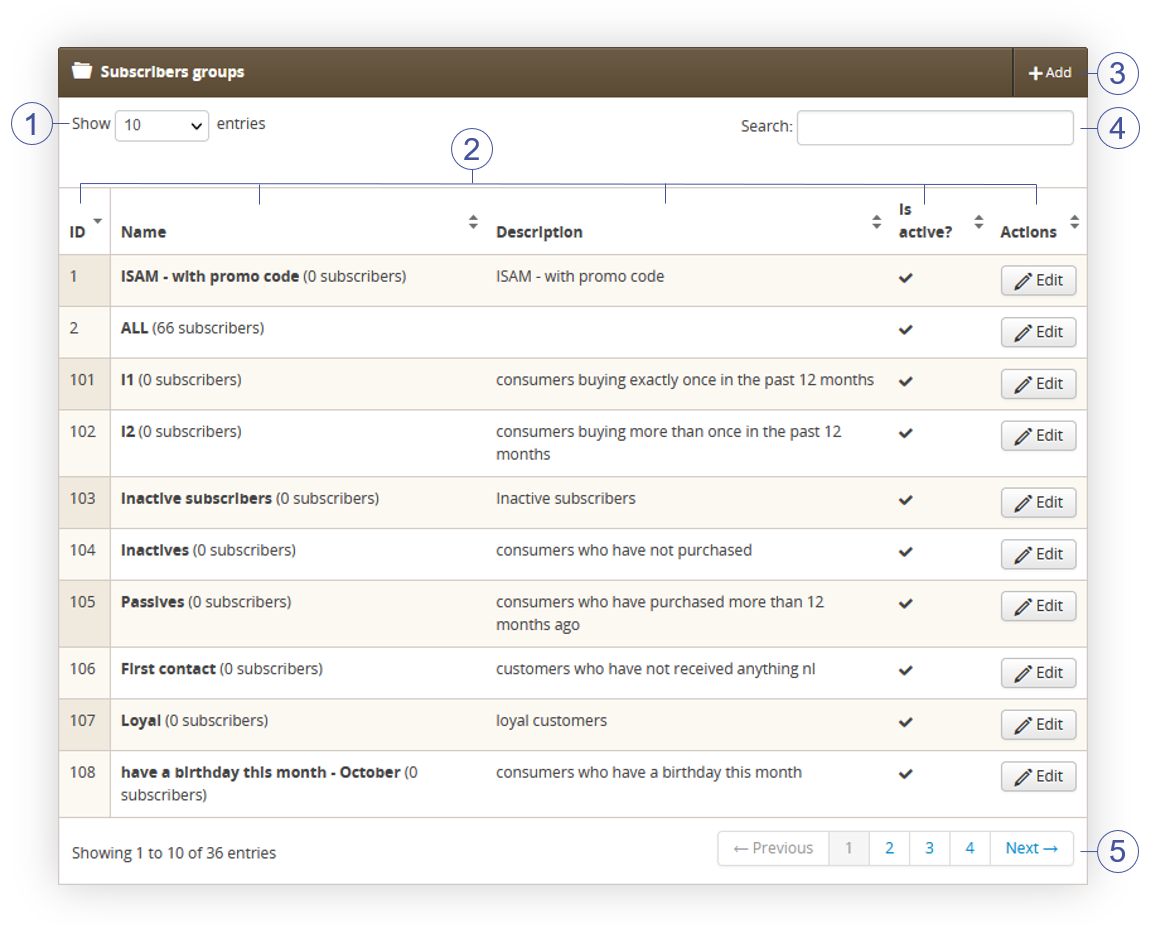
<table id="bkmrk-visualization-of-the-10" style="margin-right: auto; margin-left: auto; height: 44px; width: auto;"><tbody><tr style="height: 22px;"><td class="wysiwyg-text-align-center" style="text-align: center; vertical-align: middle; height: 22px; width: auto;">![POWERPNT_RSYWP4nwWa.png](https://knowledge.tauceti-digital.com/uploads/images/gallery/2024-11/11122515836444.png)</td></tr><tr style="height: 22px;"><td class="wysiwyg-text-align-center" style="text-align: center; vertical-align: middle; height: 22px; width: auto;"><span class="wysiwyg-font-size-medium">*Visualization of the subscribers groups*</span><span class="wysiwyg-font-size-medium"></span>

</td></tr></tbody></table>

In the subscribers groups table you can find the following options:

- **<span style="color: #4054a0;">(1)</span>**<span style="color: #4054a0;"> </span>**Show X Entries** allows to filter how many entries should be visible at once
- **<span style="color: #4054a0;">(2)</span>** Various table columns. All of them can be sorted by clicking on them. 
    - **ID** - Subscriber group internal ID
    - **Name** - Internal name of a subscriber group.
    - **Description** - Short description of a subscriber group.
    - **Is active?** - Subscriber group activity status.
    - **Actions**  
        
        - **Edit** - Allows to edit the selected subscriber group. More about adding and editing the customer can be found below
- **<span style="color: #4054a0;">(3) </span>Add** button allows to addition of a new subscriber group. Adding and editing a subscriber looks exactly the same. Below you can find more information about the available fields, when adding or editing a new group.
- **<span style="color: #4054a0;">(4) </span>Search** field allows to search the subscribers groups by their name.
- **<span style="color: #4054a0;">(5)</span> Pages list** allows to show the next batch of groups on the another pages accoriding to applied sorting option and filters.

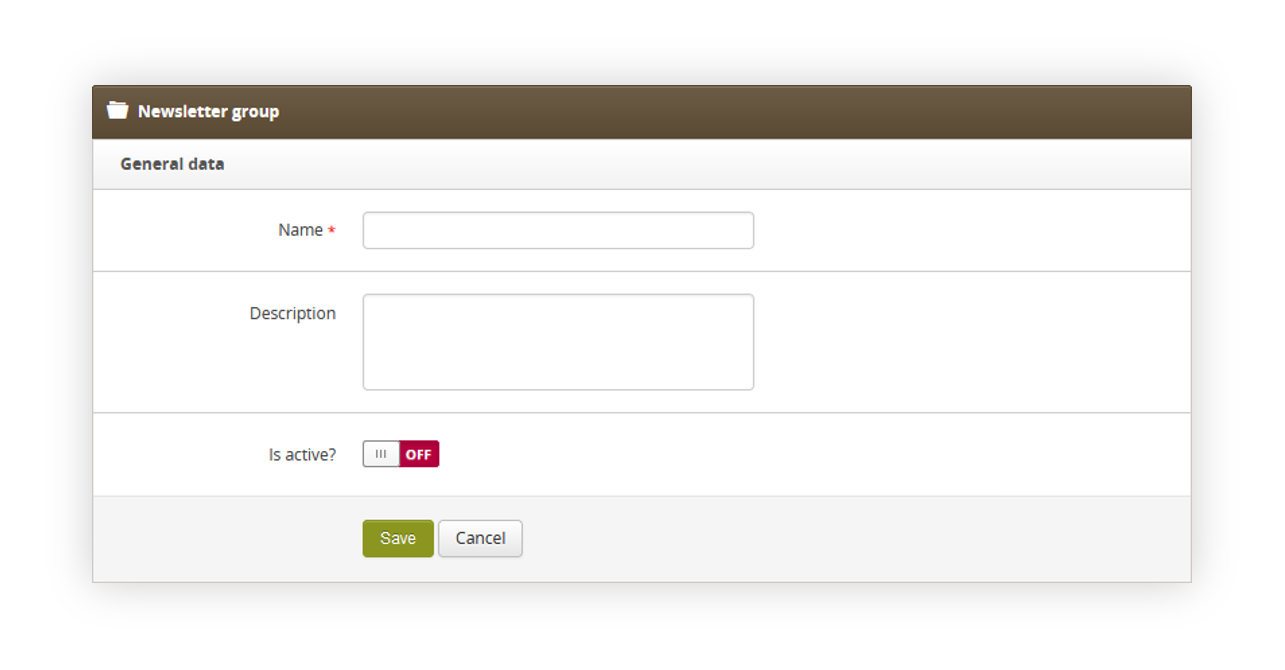
<table id="bkmrk-visualization-of-the-11" style="margin-right: auto; margin-left: auto; height: 44px; width: auto;"><tbody><tr style="height: 22px;"><td class="wysiwyg-text-align-center" style="text-align: center; vertical-align: middle; height: 22px; width: auto;">![POWERPNT_bezhCP487E.png](https://knowledge.tauceti-digital.com/uploads/images/gallery/2024-11/11122606842524.png)</td></tr><tr style="height: 22px;"><td class="wysiwyg-text-align-center" style="text-align: center; vertical-align: middle; height: 22px; width: auto;"><span class="wysiwyg-font-size-medium">*Visualization of the subscriber group creation*</span><span class="wysiwyg-font-size-medium"></span>

</td></tr></tbody></table>

In the subscriber group creation / edition you can define the following fields:

- **Name (mandatory)** - An internal name of a subscriber group.
- **Description** - Internal description of a subscriber group.
- **Is active?** - An activity flag, which defines if the selected group is active for use.

---

# ![Screenshot_2020-04-29_at_19.12.41.png](https://knowledge.tauceti-digital.com/uploads/images/gallery/2024-11/11062321618076.png) Subscribers import

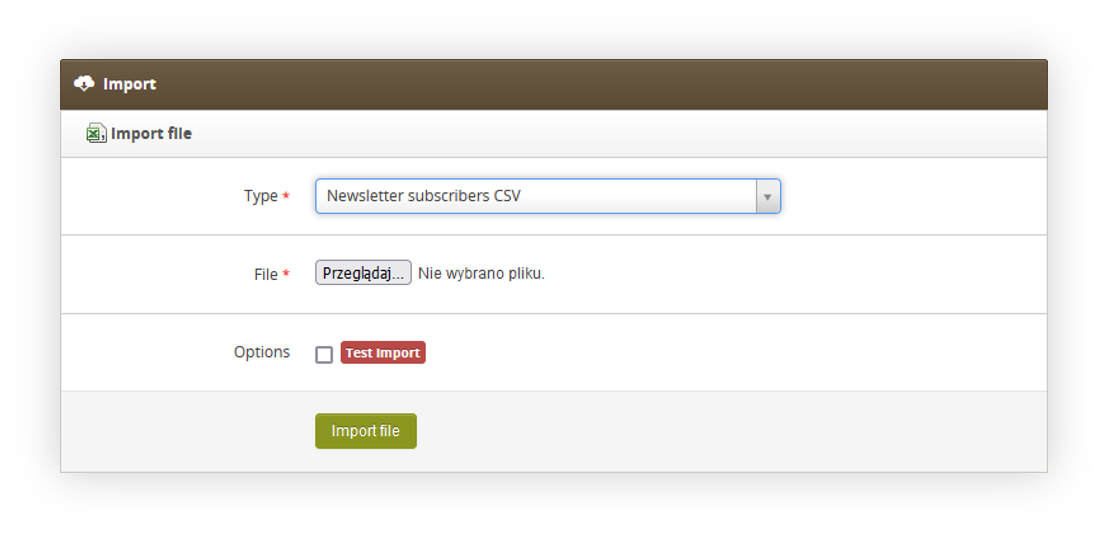
Subscribers can be imported using the import functionality located in

***Import / Export &gt; Import***

<table id="bkmrk-visualization-of-the-12" style="margin-right: auto; margin-left: auto; height: 44px; width: auto;"><tbody><tr style="height: 22px;"><td class="wysiwyg-text-align-center" style="text-align: center; vertical-align: middle; height: 22px; width: auto;">![POWERPNT_uG3PAft4eX.png](https://knowledge.tauceti-digital.com/uploads/images/gallery/2024-11/11123014338076.png)</td></tr><tr style="height: 22px;"><td class="wysiwyg-text-align-center" style="text-align: center; vertical-align: middle; height: 22px; width: auto;"><span class="wysiwyg-font-size-medium">*Visualization of the subscribers import*</span><span class="wysiwyg-font-size-medium"></span>

</td></tr></tbody></table>

In order to import subscribers you have to select the "Newsletter subscribers CSV" option and select the prepared .csv file.

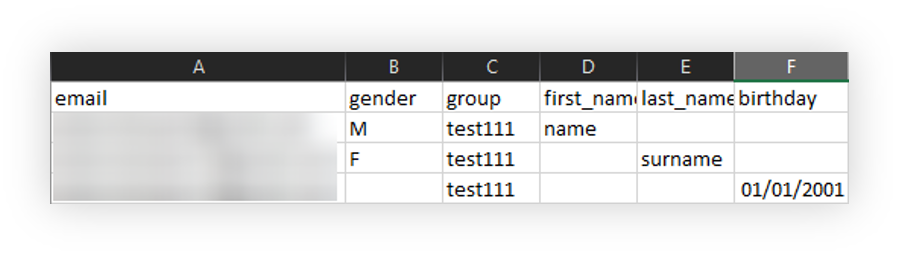
<table id="bkmrk-visualization-of-the-13" style="margin-right: auto; margin-left: auto; height: 44px; width: 699px;"><tbody><tr style="height: 22px;"><td class="wysiwyg-text-align-center" style="text-align: center; vertical-align: middle; height: 22px; width: 687px;">![POWERPNT_GfKViKPmyb.png](https://knowledge.tauceti-digital.com/uploads/images/gallery/2024-11/11123014341532.png)</td></tr><tr style="height: 22px;"><td class="wysiwyg-text-align-center" style="text-align: center; vertical-align: middle; height: 22px; width: 687px;"><span class="wysiwyg-font-size-medium">*Visualization of the subscribers csv file*</span><span class="wysiwyg-font-size-medium"></span>

</td></tr></tbody></table>

Subscribers .csv file can have any file name and must contain the following columns:

- **email (mandatory)** - Customers e-mail address.
- **Gender** - Customers gender. Accepted values are **M** for males and **F** for females.
- **Group** - Subscriber group internal name. This field will assign the selected customer to a selected subscriber group.
- **first\_name** - Customers first name
- **last\_name** - Customers last name
- **birthday** - Customers birthday in DD/MM/YYYY format.

---

# ![Screenshot_2020-04-29_at_19.12.41.png](https://knowledge.tauceti-digital.com/uploads/images/gallery/2024-11/11062321618076.png) Subscribers export

Subscriber lists can be exported using the:

***Import / Export &gt; Export / Subscribers***

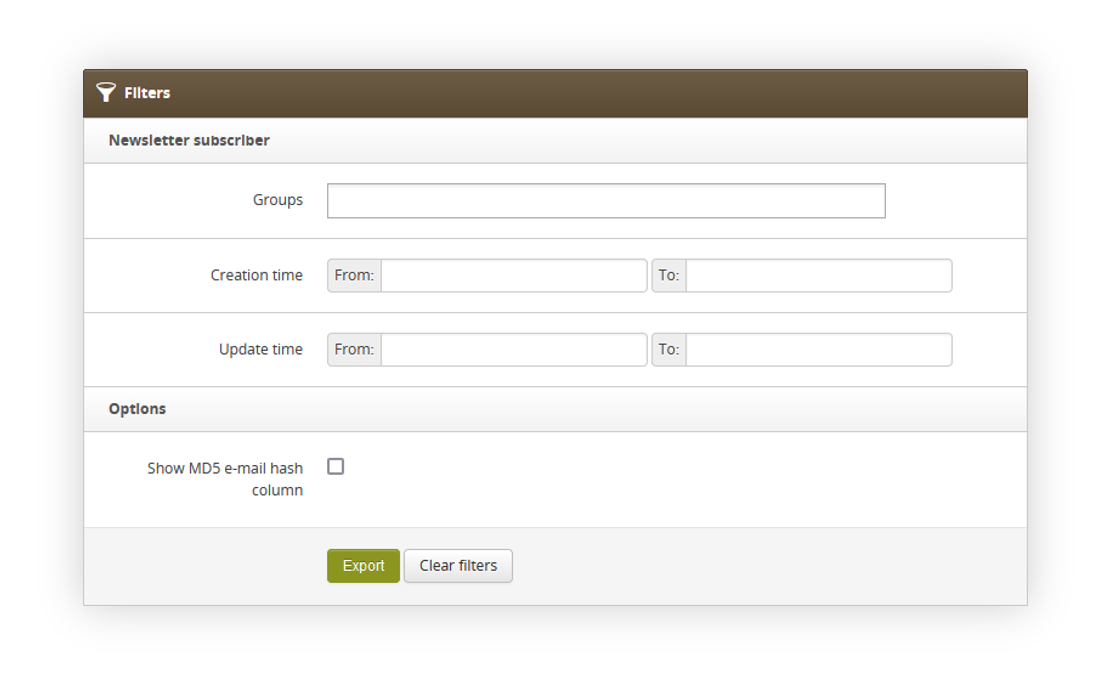
<table id="bkmrk-visualization-of-the-14" style="margin-right: auto; margin-left: auto; height: 44px; width: 699px;"><tbody><tr style="height: 22px;"><td class="wysiwyg-text-align-center" style="text-align: center; vertical-align: middle; height: 22px; width: 687px;">![POWERPNT_eaAt5XqwGR.png](https://knowledge.tauceti-digital.com/uploads/images/gallery/2024-11/11123044809372.png)</td></tr><tr style="height: 22px;"><td class="wysiwyg-text-align-center" style="text-align: center; vertical-align: middle; height: 22px; width: 687px;"><span class="wysiwyg-font-size-medium">*Visualization of the subscribers csv file*</span><span class="wysiwyg-font-size-medium"></span>

</td></tr></tbody></table>

In the Export / Customers you can filter out desirable data by using the selected filters:

- **Groups** - A list of selectable subscriber groups that should be exported.
- **Creation time** - A range of dates whenever the subscriber was created.
- **Update time** - A range of dates whenever the subscriber was updated.
- **Show MD5 e-mail hash column** - Adds the MD5 e-mail hash column in the exported file.

By pressing the "**Export**" button the file will be exported with the selected filters.

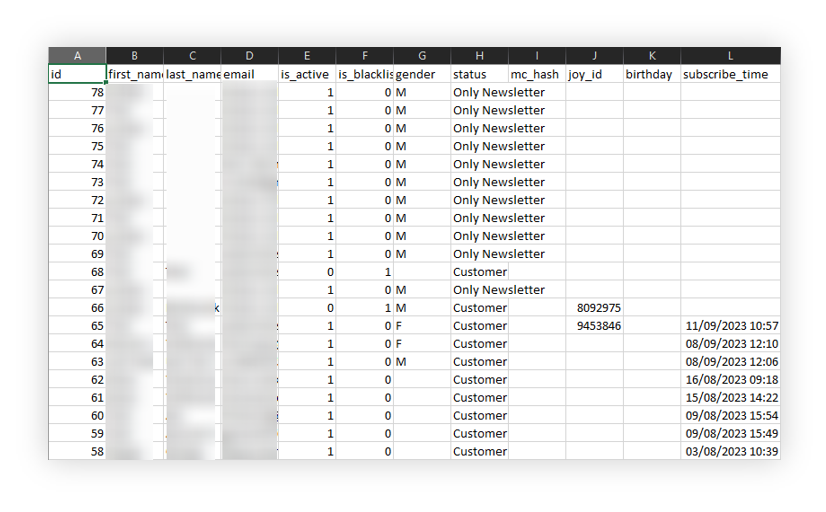
<table id="bkmrk-visualization-of-the-15" style="margin-right: auto; margin-left: auto; height: 43px; width: 699px;"><tbody><tr style="height: 22px;"><td class="wysiwyg-text-align-center" style="text-align: center; vertical-align: middle; height: 22px; width: 687px;">![POWERPNT_CA29rH5hz4.png](https://knowledge.tauceti-digital.com/uploads/images/gallery/2024-11/11123044812316.png)</td></tr><tr style="height: 22px;"><td class="wysiwyg-text-align-center" style="text-align: center; vertical-align: middle; height: 21px; width: 687px;"><span class="wysiwyg-font-size-medium">*Visualization of the exported subscribers file*</span><span class="wysiwyg-font-size-medium"></span>

</td></tr></tbody></table>

In the exported subscribers file you can find the following columns:

- **ID** - Subscriber internal ID.
- **First\_name** - Customers first name.
- **Last\_name** - Customers last name.
- **Email** - Subscribers e-mail address.
- **is\_active** - Activity status of a subscriber. 1 means active, 0 means not active.
- **is\_blacklisted** - blacklisted status of a subscriber. 1 is blacklisted, 0 is not blacklisted.
- **Gender** - Customers gender. M is for Male, F is for Female.
- **Status** - Subscribers status. Available statuses are: 
    - **Only newsletter** - Customer is only registered to the newsletter communication and doesn't have an account on a e-commerce platform.
    - **Customer** - The customer has a created account on an e-commerce platform
- **Mc\_hash** - MD5 e-mail hash. This field is only visible if the **Show MD5 e-mail hash column** filter was selected.
- **Joy\_id** - Customers JOY ID.
- **Birthday** - Customers birthday date.
- **Subscribe time** - A date with an hour when the customer has subscribed to an   
    e-mail communication.

# Rate & Review

# ![Screenshot_2020-04-29_at_19.12.41.png](https://knowledge.tauceti-digital.com/uploads/images/gallery/2024-11/10582898222620.png) Getting started

In this article, you can find information about the rate &amp; review functionality. Rate &amp; Review allows customers to review the products on the website by providing a rating from 1 to 5 and a comment. This review then is accepted or denied by the Yves Rocher employee and in case of acceptance, it is visible on the product page under the Reviews section. Customers can earn FIDEN2 points for providing a review that has been accepted.

<span class="wysiwyg-color-black" style="color: #44549b;">![info2.svg](https://knowledge.tauceti-digital.com/uploads/images/gallery/2024-11/10582909406108.png) **Remember**</span><span class="wysiwyg-color-black" style="display: block; margin-top: 10px;">You can find more about FIDEN2 functionality in the [FIDEN2](https://knowledge.tauceti-digital.com/books/e-commerce/page/fiden2) article.</span><span class="wysiwyg-color-black" style="color: #d23a4e;"></span> <span class="wysiwyg-color-black"></span><span class="wysiwyg-color-black"></span><span class="wysiwyg-color-black"></span><span class="wysiwyg-color-black"></span><span style="color: #4054a0;"></span>

Table of contents:

1. [Customer perspective](#bkmrk-customer-perspective-1)
    1. [Review by purchasing a product](#bkmrk-review-by-purchasing)
    2. [Review by using the product page](#bkmrk-review-by-using-the-)
    3. [Reviews view on the product page](#bkmrk-reviews-view-on-the-)
2. [Configuring the Rate &amp; Review](#bkmrk-configuring-the-rate)
    1. [Built-in fuctions &gt; Reviews](#bkmrk-system-%2F-settings-%3E-)
    2. [E-commerce &gt; e-mails](#h_01HBB3BC9SA18461V600D7QAW7)
    3. [FIDEN2 &gt; Loyalty points](#h_01HBB3BJD6SYN7J246XQWKYK17)
3. [ Reviews moderation](#bkmrk-reviews-moderation)
    1. [Reviews overview](#bkmrk-reviews-overview)
    2. [Moving the reviews](#bkmrk-moving-the-reviews)
4. [ Rate &amp; Review steps diagram](#bkmrk-rate-%26-review-steps-)

---

# ![Screenshot_2020-04-29_at_19.12.41.png](https://knowledge.tauceti-digital.com/uploads/images/gallery/2024-11/10582898222620.png) Customer perspective

When the Rate &amp; Review is enabled customer can review the products according to the options set in system settings and will receive FIDEN2 points for the review, if it is enabled. Customers are unable to edit or remove their reviews by themselves. All of the reviews have to be verified and accepted by Yves Rocher employees. Customer can review products in two ways:

1. [By purchasing a product.](#bkmrk-review-by-purchasing)
2. [On a product page if the functionality is enabled.](#bkmrk-review-by-using-the-)

## Review by purchasing a product

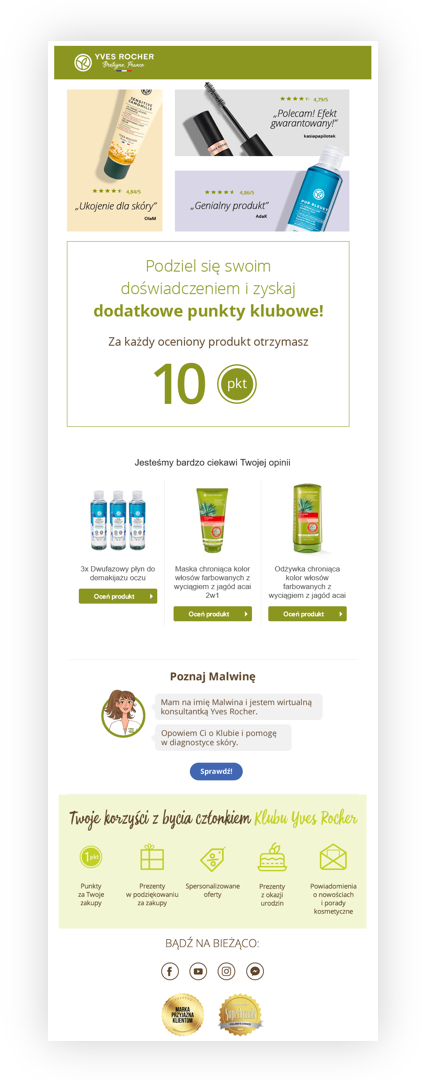
By default when the functionality is enabled customer will receive an invitation on their e-mail with a list of up to three products after purchasing them on the e-commerce platform. When the customer clicks on one of the products they will be redirected to the review page. The invitation to review a product is sent to the customer after a selected amount of time, which is configured in [functionality system settings](#bkmrk-configuring-the-rate).

<table id="bkmrk-visualization-of-the" style="margin-right: auto; margin-left: auto; height: 44px; width: auto;"><tbody><tr style="height: 22px;"><td class="wysiwyg-text-align-center" style="text-align: center; vertical-align: middle; height: 22px; width: auto;">![POWERPNT_NxhiwZcysp.png](https://knowledge.tauceti-digital.com/uploads/images/gallery/2024-11/10597655619356.png)</td></tr><tr style="height: 22px;"><td class="wysiwyg-text-align-center" style="text-align: center; vertical-align: middle; height: 22px; width: auto;"><span class="wysiwyg-font-size-medium">*Visualization of the invitation e-mail* </span></td></tr></tbody></table>

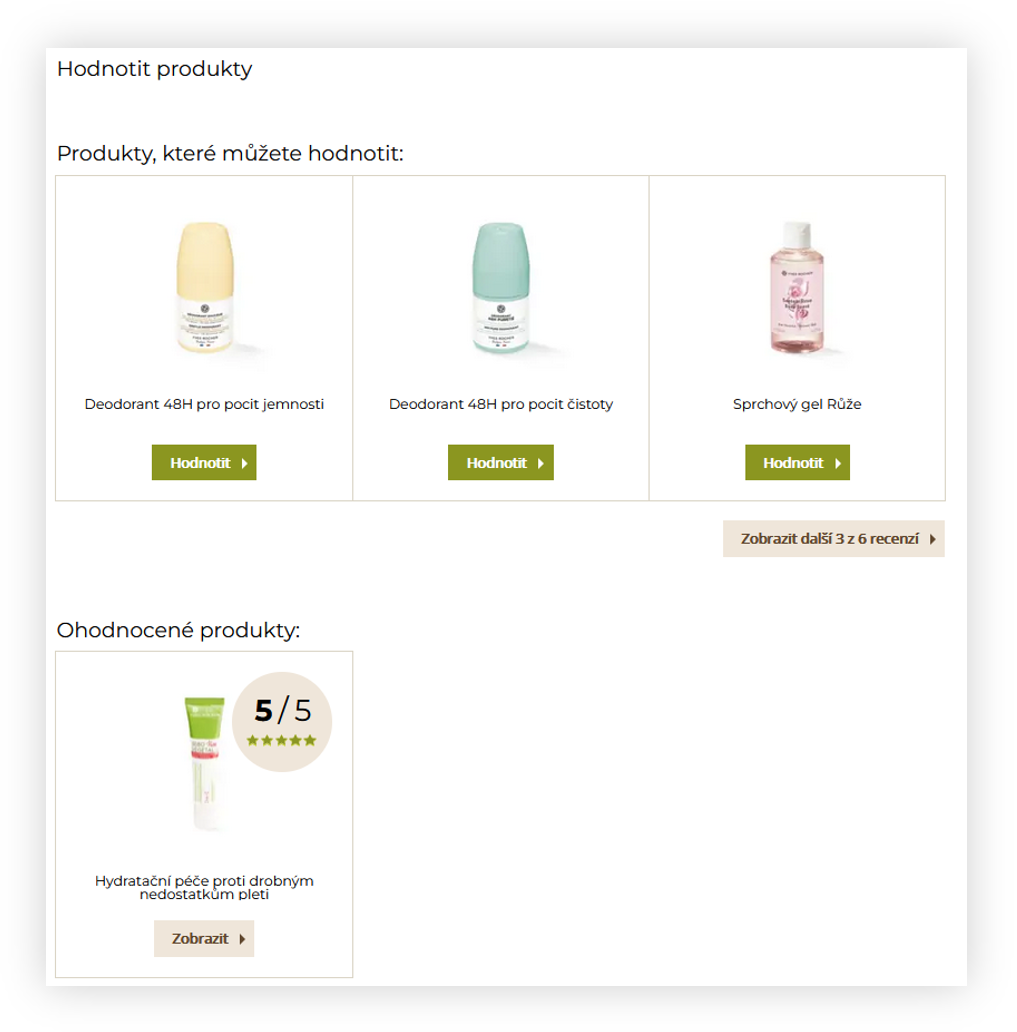
These reviews are additionally visible in the customer panel &gt; rate products (e.g. [https://uat.yves-rocher.pl/reviews/panel](https://uat.yves-rocher.pl/reviews/panel)). Here, the customer can see all of the products they are able to review as well as their already reviewed products.

<table id="bkmrk-visualization-of-the-1" style="margin-right: auto; margin-left: auto; height: 44px; width: auto;"><tbody><tr style="height: 22px;"><td class="wysiwyg-text-align-center" style="text-align: center; vertical-align: middle; height: 22px; width: auto;">![POWERPNT_PNNL3ZmBAz.png](https://knowledge.tauceti-digital.com/uploads/images/gallery/2024-11/10597701947420.png)</td></tr><tr style="height: 22px;"><td class="wysiwyg-text-align-center" style="text-align: center; vertical-align: middle; height: 22px; width: auto;"><span class="wysiwyg-font-size-medium">*Visualization of the customer panel reviews page* </span></td></tr></tbody></table>

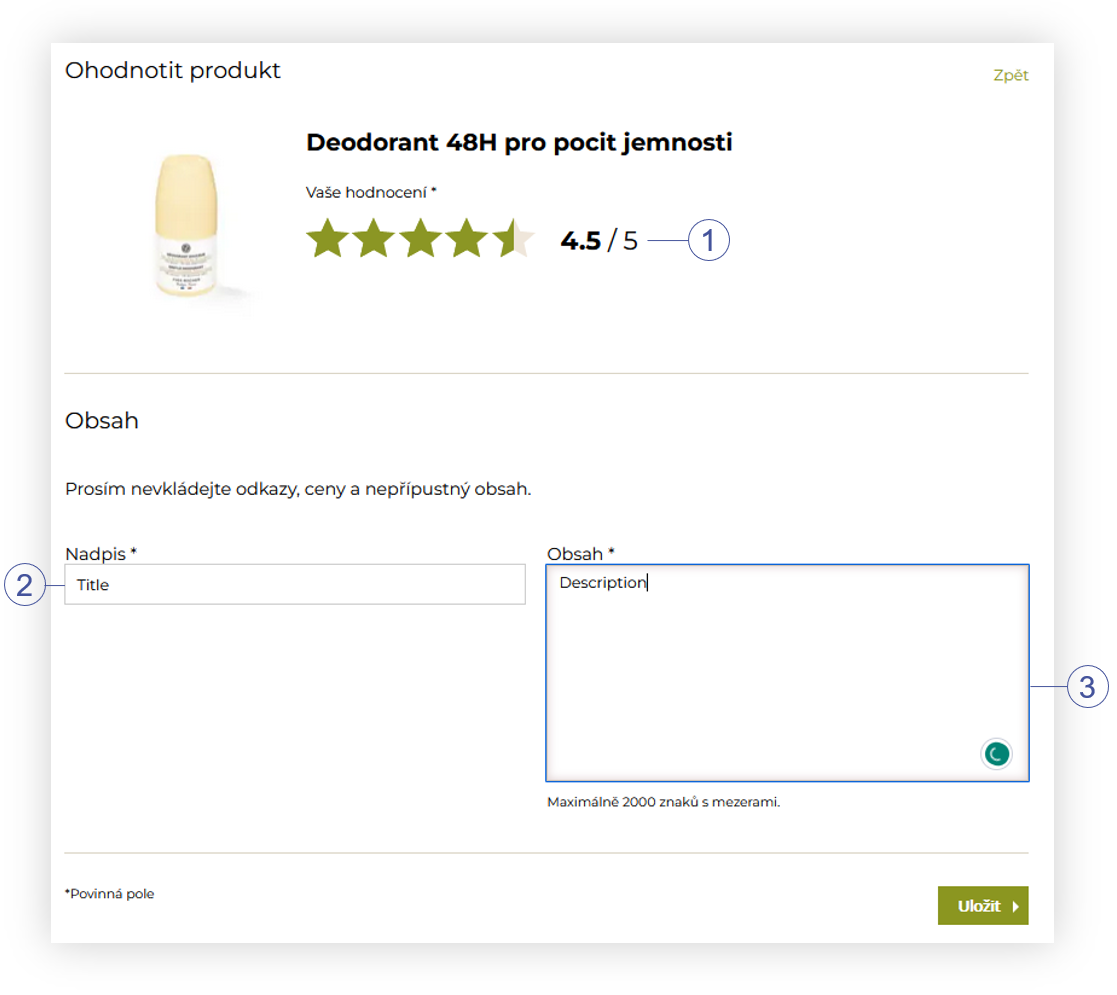
When the customer chooses their product they will be welcomed by the review page, where they are able to:

**<span style="color: #4054a0;">(1)</span>** select their rating

**<span style="color: #4054a0;">(2)</span>** type the review title

**<span style="color: #4054a0;">(3)</span>** Type the review description

Additionally, if the customer doesn't have set up their nickname there will be an additional field to do so, as a nickname is mandatory to place a review.

<table id="bkmrk-visualization-of-the-2" style="margin-right: auto; margin-left: auto; height: 44px; width: auto;"><tbody><tr style="height: 22px;"><td class="wysiwyg-text-align-center" style="text-align: center; vertical-align: middle; height: 22px; width: auto;">![POWERPNT_JhPpUMLME9.png](https://knowledge.tauceti-digital.com/uploads/images/gallery/2024-11/10597655622812.png)</td></tr><tr style="height: 22px;"><td class="wysiwyg-text-align-center" style="text-align: center; vertical-align: middle; height: 22px; width: auto;"><span class="wysiwyg-font-size-medium">*Visualization of the review creation page* </span></td></tr></tbody></table>

When the review is placed it needs to be accepted by the Yves Rocher employee. You can find more about it in the [ Review moderation](#bkmrk-reviews-moderation) chapter.

## Review by using the product page

This option is only enabled if **Everyone can review every product** option described in [Build-in fuctions &gt; Reviews](#bkmrk-system-%2F-settings-%3E-) is turned on. Only logged-in users can review products.

When this option is enabled customers can enter any available product in the product catalog, and press the "**Add review**" **<span style="color: #4054a0;">(4)</span>** button.

Same as in the other review method customers will be welcomed by the reviewing page, which allows them to:

**<span style="color: #4054a0;">(1)</span>** select their rating

**<span style="color: #4054a0;">(2)</span>** type the review title

**<span style="color: #4054a0;">(3)</span>** Type the review description

Additionally, if the customer doesn't have set up their nickname there will be an additional field to do so, as a nickname is mandatory to place a review.

When the review is placed it needs to be accepted by the Yves Rocher employee. You can find more about it in the [ Review moderation](#bkmrk-reviews-moderation) chapter.

## Reviews view on the product page

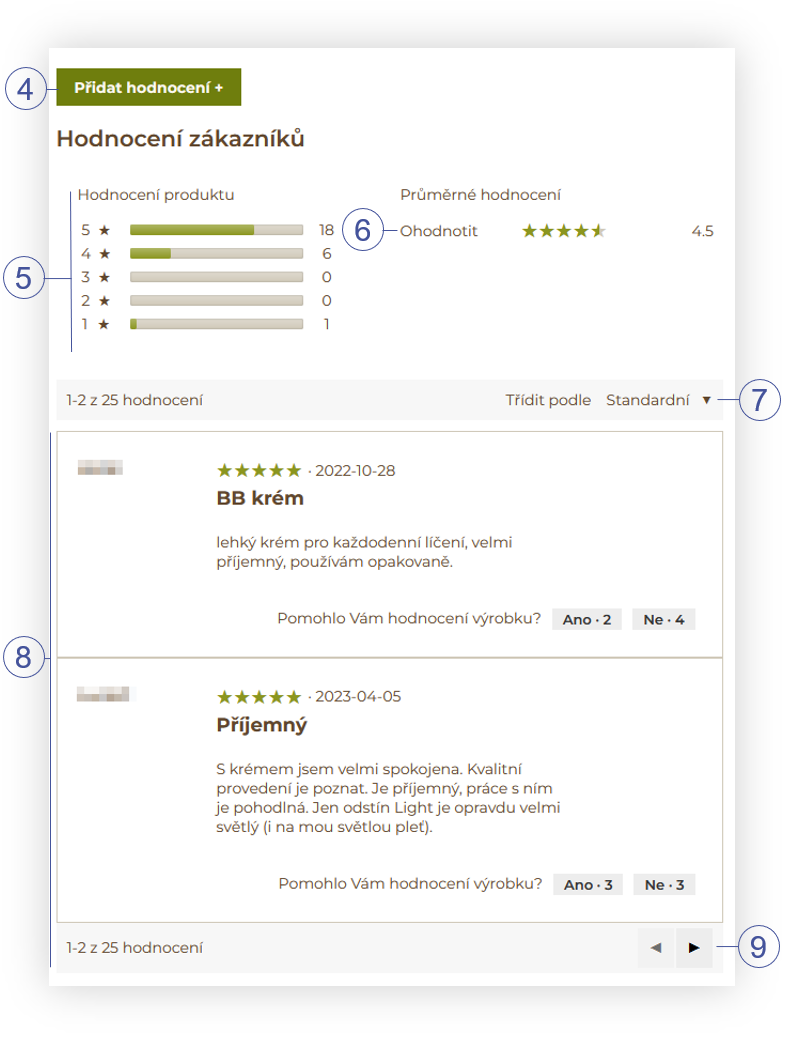
Every accepted review will be visible on the product page.

<table id="bkmrk-visualization-of-the-3" style="margin-right: auto; margin-left: auto; height: 44px; width: auto;"><tbody><tr style="height: 22px;"><td class="wysiwyg-text-align-center" style="text-align: center; vertical-align: middle; height: 22px; width: auto;">![POWERPNT_WnfBd8YhHz.png](https://knowledge.tauceti-digital.com/uploads/images/gallery/2024-11/10597701952412.png)</td></tr><tr style="height: 22px;"><td class="wysiwyg-text-align-center" style="text-align: center; vertical-align: middle; height: 22px; width: auto;"><span class="wysiwyg-font-size-medium">*Visualization of the reviews on the product page*</span></td></tr></tbody></table>

Here customers can find:<span style="color: #4054a0;"></span>

**<span style="color: #4054a0;">(4)</span> Add a review button** - A button that allows customers to review the product. It is described in more detail in the [Review by using the product page](#bkmrk-review-by-using-the-) chapter.

**<span style="color: #4054a0;">(5)</span>** The amount of reviews placed per rating.

**<span style="color: #4054a0;">(6)</span>** The average review rating.

**<span style="color: #4054a0;">(7)</span>** Sort the reviews by:

- **Default** - Sort by combination of highest rating and best usefulness.
- **Date new** - Sort by the newest review date.
- **Date old** - Sort by the oldest review date.
- **Rating high** - Sort by the highest rating
- **Rating low** - Sort by the lowest rating
- **Usefulness best** - Sort by the highest ratio of "**yes**" to "**no**" buttons.
- **Usefulness worst** - Sort by the lowest ratio of "**yes**" to "**no**" buttons.

**<span style="color: #4054a0;">(8)</span>** Customer reviews with an option to rate their usefulness with the "**Yes**" and "**No**" buttons. The ratio of this rating affects the usefulness of sorting.

**<span style="color: #4054a0;">(9)</span>** Change the review page

---

# ![Screenshot_2020-04-29_at_19.12.41.png](https://knowledge.tauceti-digital.com/uploads/images/gallery/2024-11/10582898222620.png) Configuring the Rate &amp; Review

Rate &amp; Review functionality can be turned on / off and configured in system settings. Various functionality options are located in different tabs

### System / settings &gt; System &gt; Built-in fuctions &gt; Reviews

In built-in functions, you can find the main rate &amp; review functionality options described below

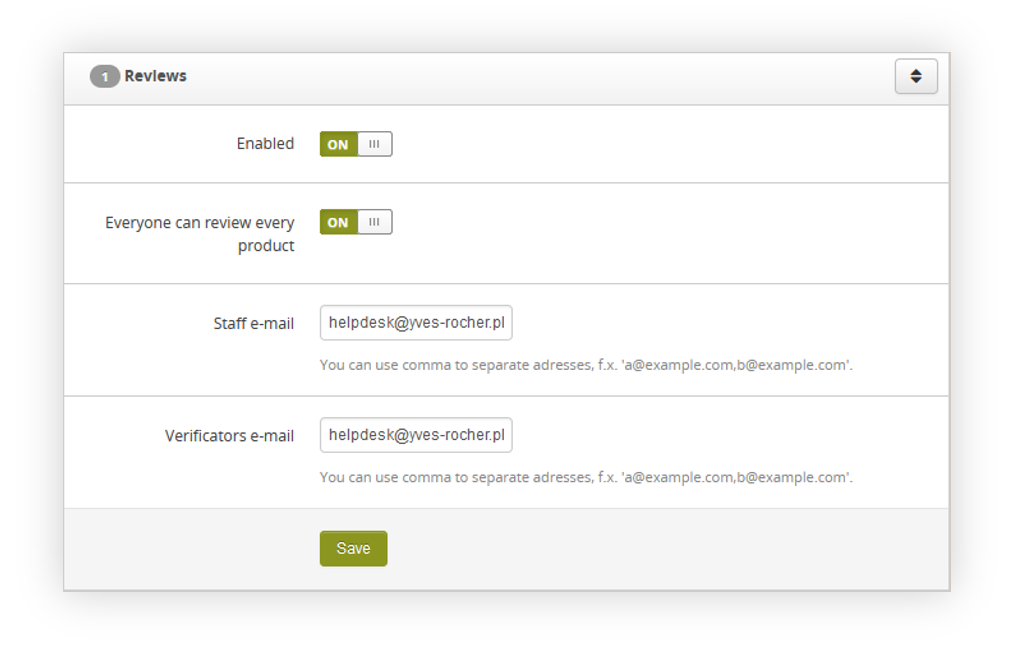
<table id="bkmrk-visualization-of-the-4" style="margin-right: auto; margin-left: auto; height: 44px; width: auto;"><tbody><tr style="height: 22px;"><td class="wysiwyg-text-align-center" style="text-align: center; vertical-align: middle; height: 22px; width: auto;">![POWERPNT_e23v7txRgG.png](https://knowledge.tauceti-digital.com/uploads/images/gallery/2024-11/10597598844572.png)</td></tr><tr style="height: 22px;"><td class="wysiwyg-text-align-center" style="text-align: center; vertical-align: middle; height: 22px; width: auto;"><span class="wysiwyg-font-size-medium">*Visualization of the reviews tab* </span></td></tr></tbody></table>

- **Enabled** - A switch that decides if the reviews should be enabled or disabled
- **Everyone can review every produc**t - A switch that decides if customers should be able to review products without the need to purchase them described in [Review by using the   
    product page.](#bkmrk-review-by-using-the-)
- **Staff e-mail** - An e-mail address separated by a comma (",") where the information e-mails with new reviews should be sent to.
- **Verifications e-mail** - An e-mail address separated by a comma (",") where the information e-mails with new reviews should be sent to.

### System / settings &gt; System &gt; E-commerce &gt; e-mails

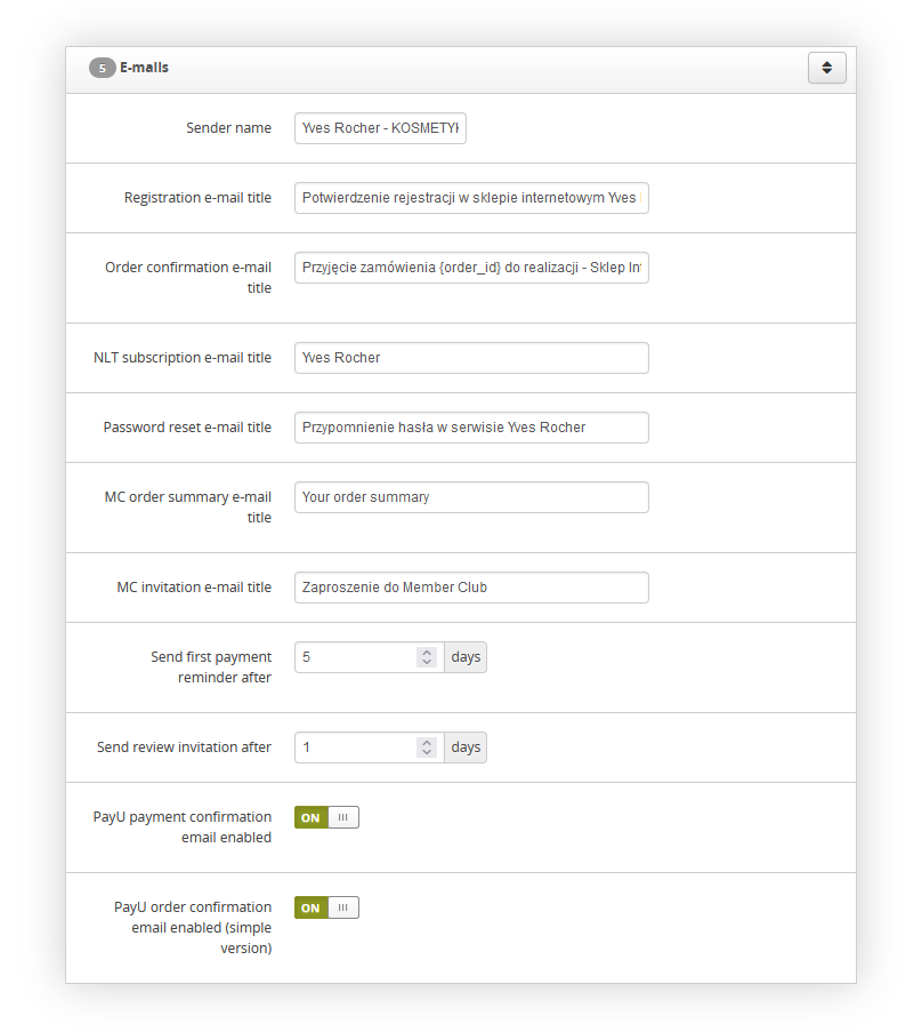
In the e-mails tab you can find two options related to Rate &amp; Reviews functionality

<table id="bkmrk-visualization-of-the-5" style="margin-right: auto; margin-left: auto; height: 44px; width: auto;"><tbody><tr style="height: 22px;"><td class="wysiwyg-text-align-center" style="text-align: center; vertical-align: middle; height: 22px; width: auto;">![POWERPNT_srjkarnV8K.png](https://knowledge.tauceti-digital.com/uploads/images/gallery/2024-11/10597552710300.png)</td></tr><tr style="height: 22px;"><td class="wysiwyg-text-align-center" style="text-align: center; vertical-align: middle; height: 22px; width: auto;"><span class="wysiwyg-font-size-medium">*Visualization of the e-mails tab* </span></td></tr></tbody></table>

**Sender name** - A name that will be visible for the customer in the "Sender" field in their mailbox.

**Send review invitation after** - A number of days counted from the purchase date after which customers will receive their review invitation and will be able to review their product from the customer panel.

### System / settings &gt; System &gt; FIDEN2 &gt; Loyalty points

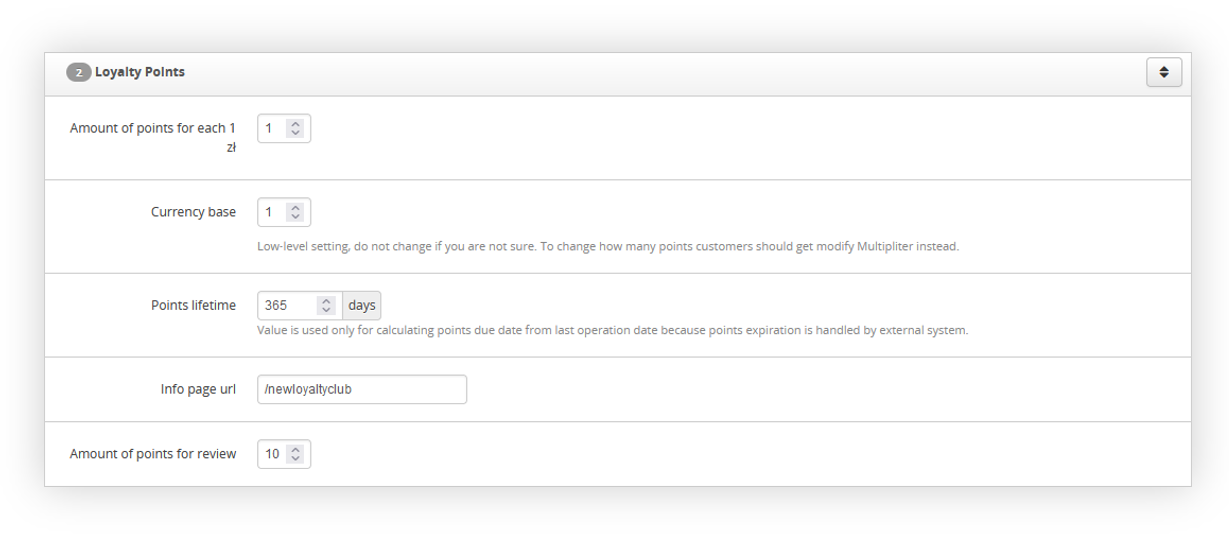
In the Loyalty points tab, you can find the option to choose how many FIDEN2 points a customer should receive per review.

<table id="bkmrk-visualization-of-the-6" style="margin-right: auto; margin-left: auto; height: 44px; width: auto;"><tbody><tr style="height: 22px;"><td class="wysiwyg-text-align-center" style="text-align: center; vertical-align: middle; height: 22px; width: auto;">![POWERPNT_Ut5myqZ7cU.png](https://knowledge.tauceti-digital.com/uploads/images/gallery/2024-11/10597552711964.png)</td></tr><tr style="height: 22px;"><td class="wysiwyg-text-align-center" style="text-align: center; vertical-align: middle; height: 22px; width: auto;"><span class="wysiwyg-font-size-medium">*Visualization of the loyalty points tab* </span></td></tr></tbody></table>

**Amount of points for review** - The amount of FIDEN2 points customers will review per review. If set to 0 customers won't receive any FIDEN2 points per review.

<span class="wysiwyg-color-black" style="color: #44549b;">![info2.svg](https://knowledge.tauceti-digital.com/uploads/images/gallery/2024-11/10582909406108.png) **Remember**</span><span class="wysiwyg-color-black" style="display: block; margin-top: 10px;">You can find more about FIDEN2 functionality in the [FIDEN2](https://knowledge.tauceti-digital.com/books/e-commerce/page/fiden2) article.</span><span class="wysiwyg-color-black" style="color: #d23a4e;"></span> <span class="wysiwyg-color-black"></span><span class="wysiwyg-color-black"></span><span class="wysiwyg-color-black"></span><span class="wysiwyg-color-black"></span><span style="color: #4054a0;"></span>

---

# ![Screenshot_2020-04-29_at_19.12.41.png](https://knowledge.tauceti-digital.com/uploads/images/gallery/2024-11/10582898222620.png) Reviews moderation

Every placed review needs to be moderated and accepted by the Yves Rocher employee. The selected employees will receive e-mail notifications according to the settings in the   
[Build-in fuctions &gt; Reviews.](#bkmrk-system-%2F-settings-%3E-)

All new reviews can be located in the

***Catalog &gt; Reviews / moderation***

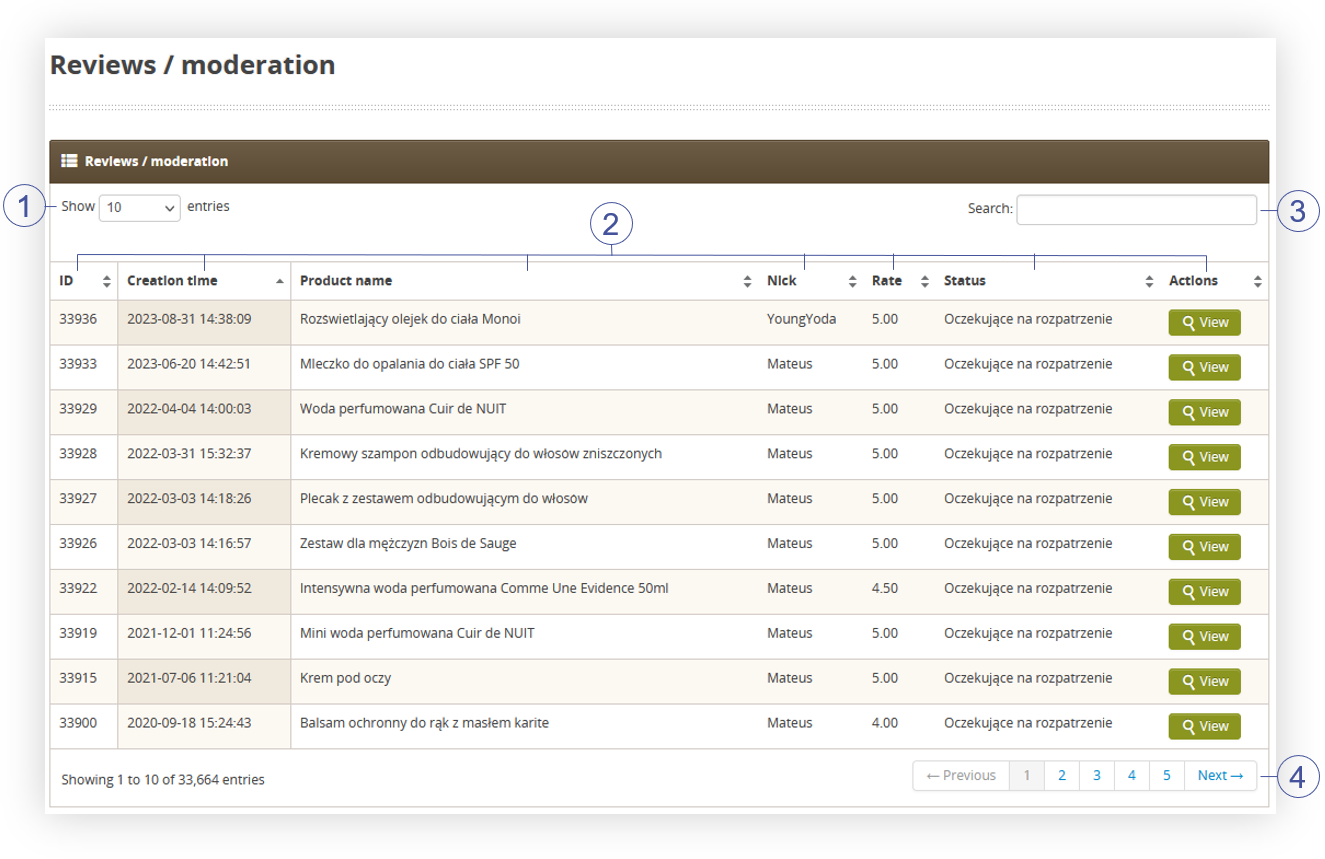
<table id="bkmrk-visualization-of-the-7" style="margin-right: auto; margin-left: auto; height: 44px; width: auto;"><tbody><tr style="height: 22px;"><td class="wysiwyg-text-align-center" style="text-align: center; vertical-align: middle; height: 22px; width: auto;">![POWERPNT_dbyGKfuigC.png](https://knowledge.tauceti-digital.com/uploads/images/gallery/2024-11/10598295227932.png)</td></tr><tr style="height: 22px;"><td class="wysiwyg-text-align-center" style="text-align: center; vertical-align: middle; height: 22px; width: auto;"><span class="wysiwyg-font-size-medium">*Visualization of the reviews moderation page* </span></td></tr></tbody></table>

You can find a following options in reviews / moderation:

- Select the **Show X entries<span style="color: #4054a0;">(1)</span>** field to set the number of reviews, displayed on one page (min 10 / max 100).
- The names of the columns **<span style="color: #4054a0;">(2)</span>** that contain information about target reviews. Each column is susceptible to sorting.  
    To sort the records, click on the title of the column in question.  
    
    - **ID** - TauCeti internal ID of the review
    - **Creation time** - A date and hour of the creation by the customer of the review.
    - **Nick** – Nickname of the reviewer.
    - **Rate** – Review rate applied by the customer.
    - **Status** – Status of the review. Available statuses are:  
        
        - **New**
        - **Awaiting verification**
        - **Rejected**
        - **Needs additional verification**
        - **Accepted**
    - **Actions** - A view button, which will redirect to the review details described below.
- **Search box <span style="color: #4054a0;">(3)</span>** where you can search for reviews by customers nickname, product or  
    review content.
- **Page buttons <span style="color: #4054a0;">(4)</span>**, which allows user to change the page of currently viewed reviews.

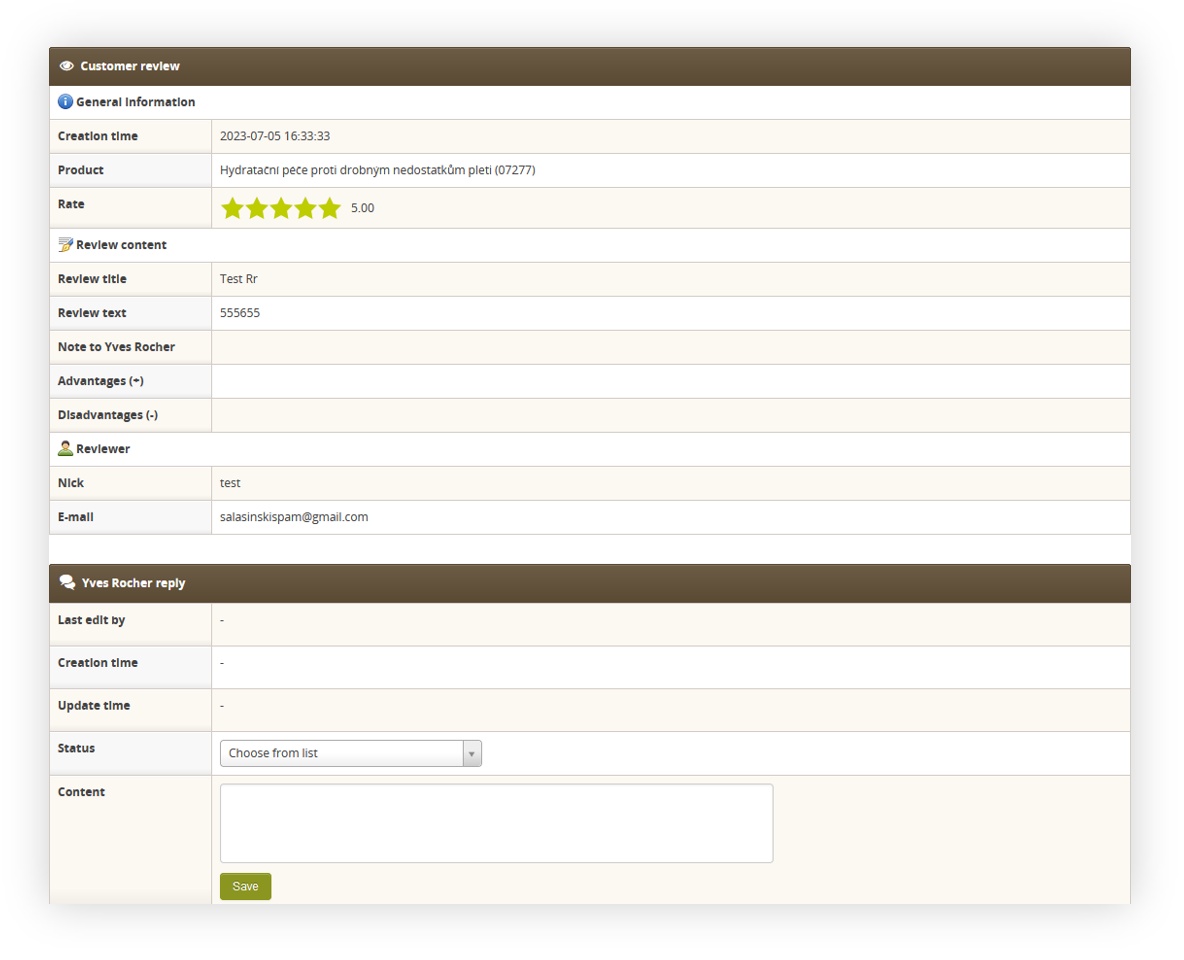
<table id="bkmrk-visualization-of-the-8" style="margin-right: auto; margin-left: auto; height: 44px; width: auto;"><tbody><tr style="height: 22px;"><td class="wysiwyg-text-align-center" style="text-align: center; vertical-align: middle; height: 22px; width: 688px;">![POWERPNT_QYPfGpSamZ.png](https://knowledge.tauceti-digital.com/uploads/images/gallery/2024-11/10598748411292.png)</td></tr><tr style="height: 22px;"><td class="wysiwyg-text-align-center" style="text-align: center; vertical-align: middle; height: 22px; width: 688px;"><span class="wysiwyg-font-size-medium">*Visualization of the review details* </span></td></tr></tbody></table>

When seeing the review details you can find a more detailed view of the review as well as on this page you are able to change the status of the review as well as apply your own comment to the review.

In this section you can find the following information:

- **Creation time** - A date and hour of the creation by the customer of the review.
- **Product** - A product name and SKU to which this review is related.
- **Rate** – Review rate applied by the customer.
- **Review title** - The title of the review applied by the customer.
- **Review text** - The description of the review applied by the customer.
- **Note to Yves Rocher** - no longer supported field.
- **Advantages** - no longer supported field.
- **Disadvantages** - no longer supported field.
- **Nick** – Nickname of the reviewer.
- **E-mail** - Customer's e-mail address.
- **Last edited by** - An e-mail address of Yves Rocher employee who last changed this review.
- **Creation time** (Yves rocher reply tab) - Creation date, when this review has been initially edited by the Yves Rocher employee
- **Update time** - Last date that this review has been edited by the employee.
- **Status** – Status of the Yves Rocher comment. Available statuses are:  
    
    - **Visible** - Comment will be visible on the website.
    - **Hidden** - Comment won't be visible on the website.
- **Content** - Yves Rocher comment. It is visible on the e-commerce platform if the **Status** of the comment is set to **Visible**.

## Reviews overview

The list of all reviews can be found in

***Catalog &gt; Reviews / list***

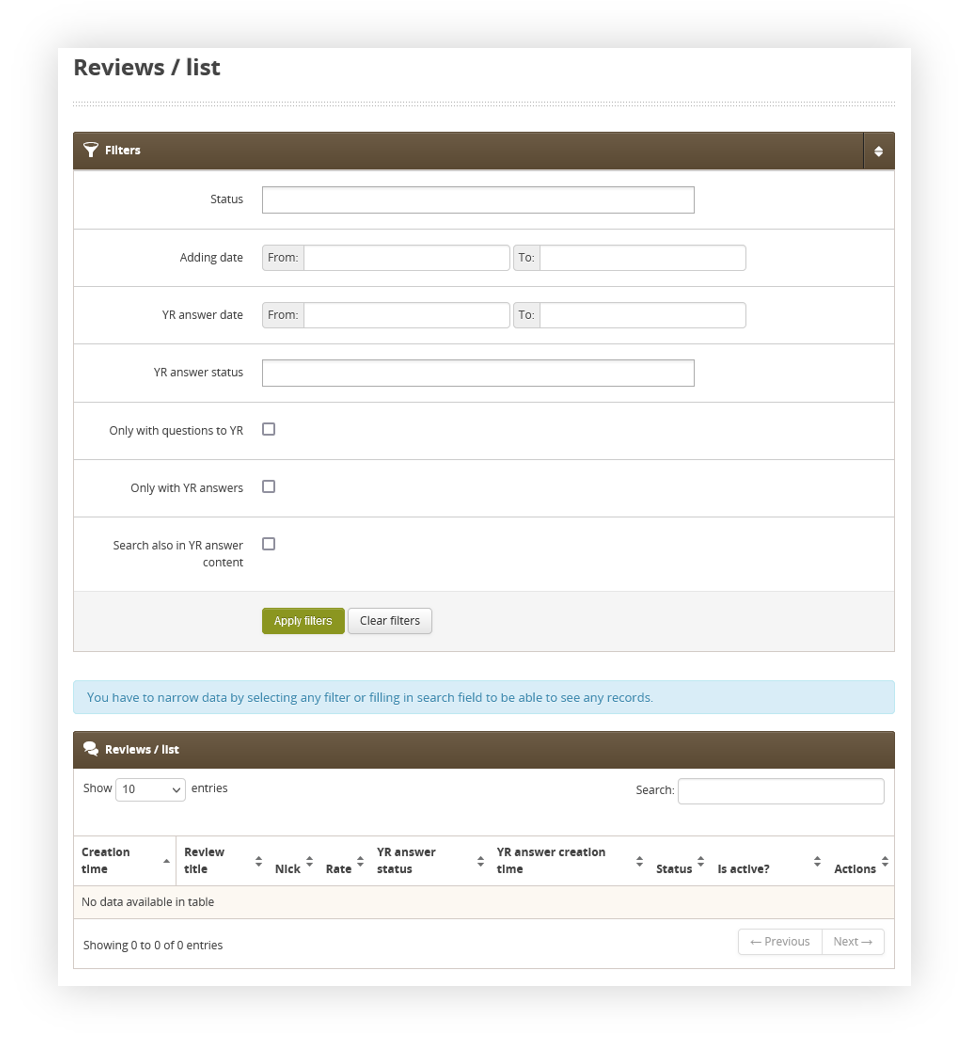
By default, the list is empty and needs to be filtered or searched for in order to see the reviews

<table id="bkmrk-visualization-of-the-9" style="margin-right: auto; margin-left: auto; height: 44px; width: auto;"><tbody><tr style="height: 22px;"><td class="wysiwyg-text-align-center" style="text-align: center; vertical-align: middle; height: 22px; width: auto;">![POWERPNT_uYnqyXgR6r.png](https://knowledge.tauceti-digital.com/uploads/images/gallery/2024-11/10598295229724.png)</td></tr><tr style="height: 22px;"><td class="wysiwyg-text-align-center" style="text-align: center; vertical-align: middle; height: 22px; width: auto;"><span class="wysiwyg-font-size-medium">*Visualization of the* </span></td></tr></tbody></table>

Available filters are:

- **Status** - Current status of the review. Available statuses are: 
    - **New** - A default review status of a newly posted review.
    - **Awaiting verification** - no longer used status.
    - **Rejected** - Reviews that have been rejected by moderators.
    - **Needs additional verification** - No longer used status.
    - **Accepted** - Reviews that have been accepted by moderators
- **Adding date** - A range of dates when the review was added
- **YR answer date** - A range of dates when the Yves Rocher employee applied a comment to the review.
- **YR answer status** - status of the answer. Available statuses are: 
    - **Hidden** - The YR comment is hidden to customers.
    - **Visible** - The YR Comment is visible to customers.
- **Only with questions to YR** - No longer used option. doesn't do anything anymore.
- **Only with YR answers** - Shows only reviews that have Yves Rocher comments.
- **Search also in YR answer content** - allows to search the YR comment content when using the search **<span style="color: #4054a0;">(3) </span>**functionality.

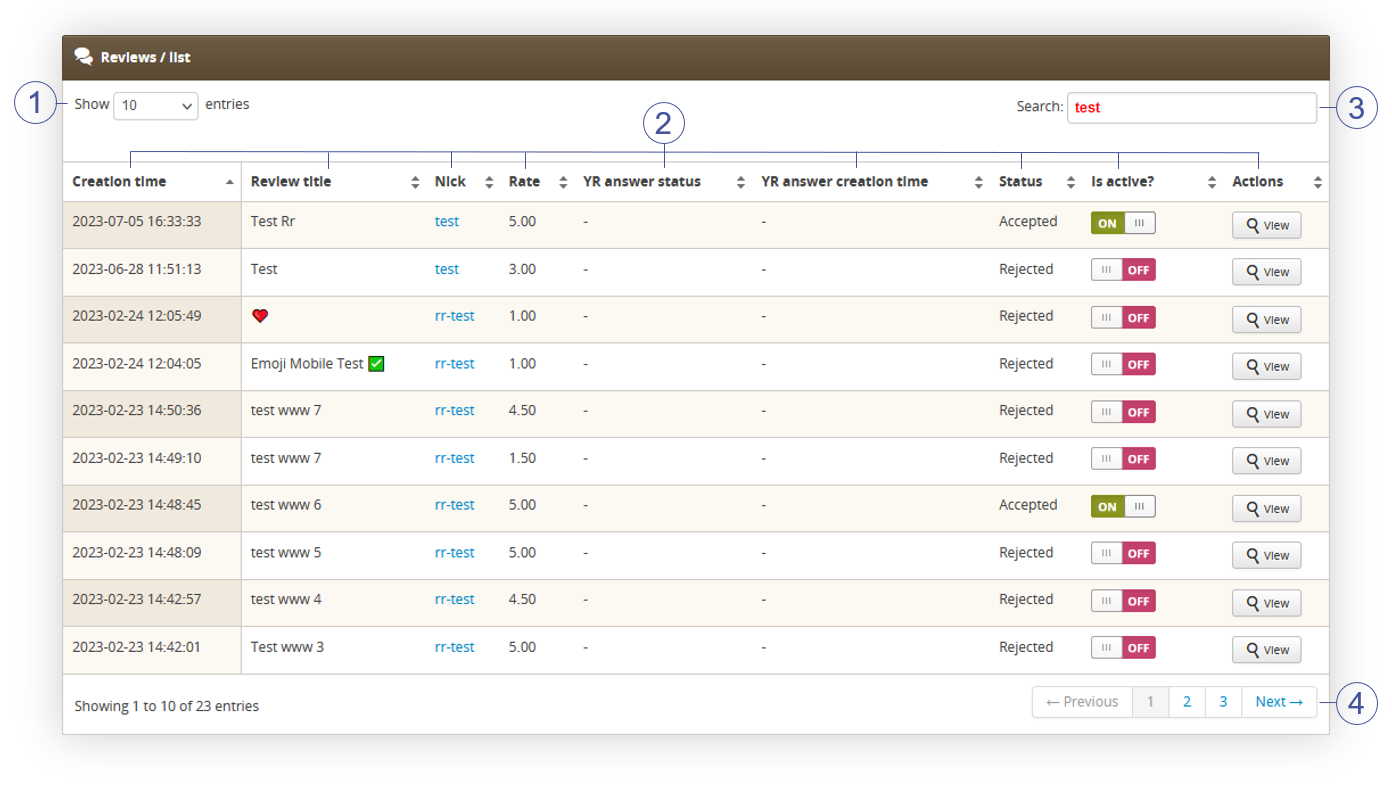
With applied filters, the reviews that fit the criteria will be visible in the Reviews / list tab. It is possible to show them without applying any filters if there is content in the search box **<span style="color: #4054a0;">(3)</span>**.

<table id="bkmrk-visualization-of-the-10" style="margin-right: auto; margin-left: auto; height: 44px; width: auto;"><tbody><tr style="height: 22px;"><td class="wysiwyg-text-align-center" style="text-align: center; vertical-align: middle; height: 22px; width: auto;">![POWERPNT_pAS26nZZU9.png](https://knowledge.tauceti-digital.com/uploads/images/gallery/2024-11/10598295232668.png)</td></tr><tr style="height: 22px;"><td class="wysiwyg-text-align-center" style="text-align: center; vertical-align: middle; height: 22px; width: auto;"><span class="wysiwyg-font-size-medium">*Visualization of the* </span></td></tr></tbody></table>

You can find the following options in reviews / list:

- Select the **Show X entries<span style="color: #4054a0;">(1)</span>** field to set the number of reviews, displayed on one page (min 10 / max 100).
- The names of the columns **<span style="color: #4054a0;">(2)</span>** that contain information about target reviews. Each column is susceptible to sorting.  
    To sort the records, click on the title of the column in question.  
    
    - **Creation time** - A date and hour of the creation by the customer of the review.
    - **Review title** - The title of the review.
    - **Nick** – Nickname of the reviewer.
    - **Rate** – Review rate applied by the customer.
    - **YR answer status** - the status of the YR comment. Available statuses are: 
        - **Hidden**
        - **Visible**
    - **YR answer creation time** - a date and an hour when the YR comment was applied
    - **Status** – Status of the review. Available statuses are:  
        
        - New
        - Awaiting verification
        - Rejected
        - Needs additional verification
        - Accepted
    - **Is active?** - A switch, which allows to enable or disable the review. When the review is disabled it is no longer visible on the website.
    - **Actions** - A view button, which will redirect to the review details described below.
- **Search box <span style="color: #4054a0;">(3)</span>** where you can search for reviews by customers nickname, product or  
    review content.
- **Page buttons <span style="color: #4054a0;">(4)</span>**, which allows user to change the page of currently viewed reviews.

<table id="bkmrk-visualization-of-the-11" style="margin-right: auto; margin-left: auto; height: 44px; width: auto;"><tbody><tr style="height: 22px;"><td class="wysiwyg-text-align-center" style="text-align: center; vertical-align: middle; height: 22px; width: 688px;">![POWERPNT_QYPfGpSamZ.png](https://knowledge.tauceti-digital.com/uploads/images/gallery/2024-11/10598748411292.png)</td></tr><tr style="height: 22px;"><td class="wysiwyg-text-align-center" style="text-align: center; vertical-align: middle; height: 22px; width: 688px;"><span class="wysiwyg-font-size-medium">*Visualization of the review details* </span></td></tr></tbody></table>

When seeing the review details you can find a more detailed view of the review as well as on this page you are able to change the status of the review as well as apply your own comment to  
the review.

The status option allows you to select if the YR comment should be visible on the website. Available statuses are **hidden** and **visible**.

## Moving the reviews

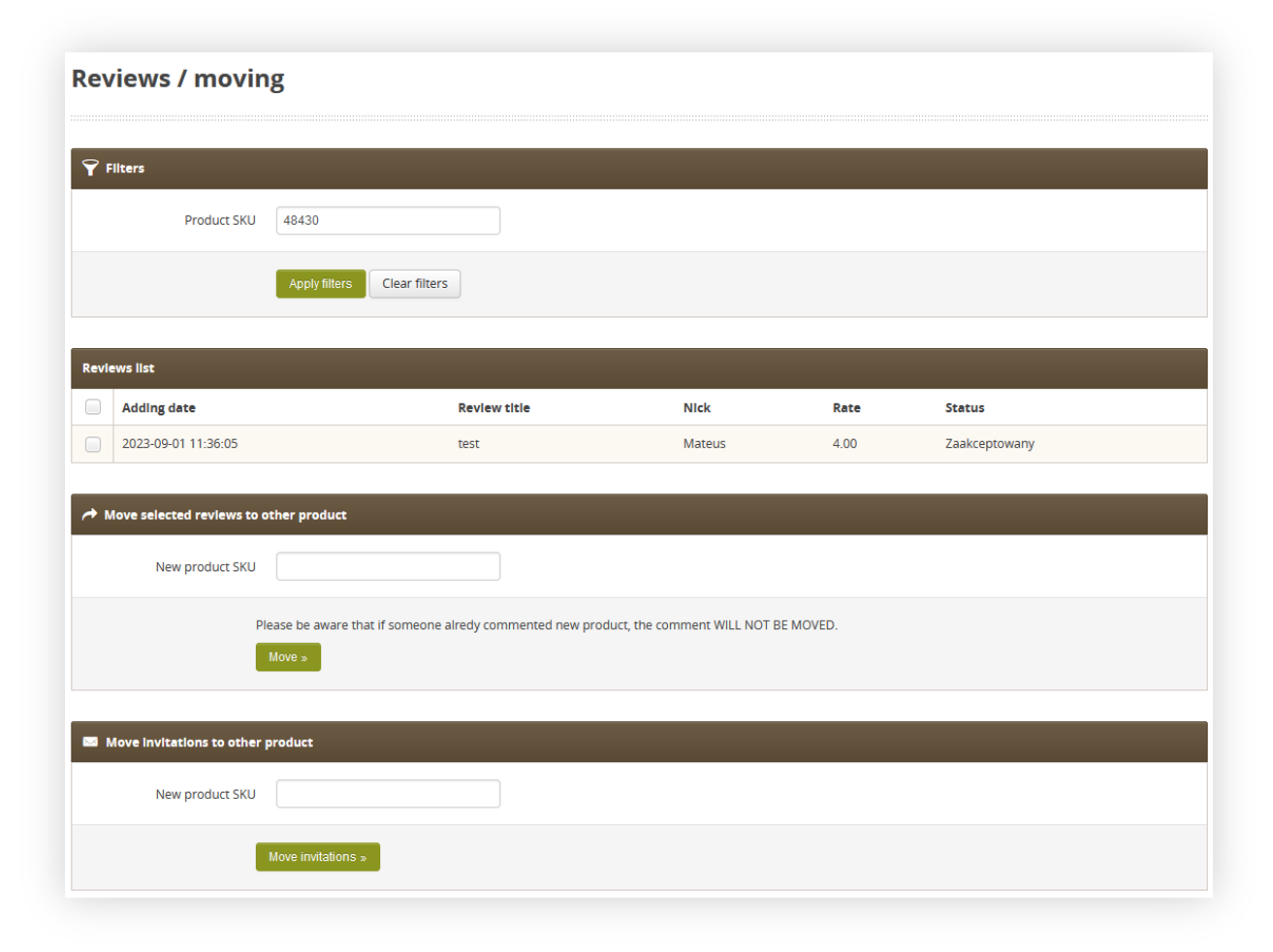
Rate &amp; Review functionality allows you to move the existing reviews or future reviews from one product to another. Whenever a customer has placed a review on product X it will be moved to product Y. In the same way, it can be done for future reviews, so in the future, if the customer tries to post a review on product X it will be posted on product Y instead.

<table id="bkmrk-visualization-of-the-12" style="margin-right: auto; margin-left: auto; height: 44px; width: auto;"><tbody><tr style="height: 22px;"><td class="wysiwyg-text-align-center" style="text-align: center; vertical-align: middle; height: 22px; width: auto;">![POWERPNT_8b9Juaztsn.png](https://knowledge.tauceti-digital.com/uploads/images/gallery/2024-11/10598008112668.png)</td></tr><tr style="height: 22px;"><td class="wysiwyg-text-align-center" style="text-align: center; vertical-align: middle; height: 22px; width: auto;"><span class="wysiwyg-font-size-medium">*Visualization of the reviews moving page* </span></td></tr></tbody></table>

In the reviews / moving tab you can find the following options:

**Filters**

Only visible tab by default. In this tab, you have to specify the product SKU you want to move the reviews from. After typing the SKU and applying the filter the other tabs will be visible.

**Reviews list**

The list of available reviews assigned to this product. Here it is possible to select the desired reviews that should be moved to another product.

**Move selected reviews to another product**

In this tab, you have to specify the product SKU to which you want to move the selected reviews. After pressing the "Move" button, the selected reviews will be moved.

**Move invitations to another product**

In this tab, you are able to specify the SKU of the product to which all future review invitations should be sent after a review was placed on the SKU in the Filters tab.

For example, if in the Filters tab, there is SKU **123456** and in Move invitations to another product tab SKU **654321** by purchasing the product **123456** customers will receive an invite to review the **654321** product.

---

# ![Screenshot_2020-04-29_at_19.12.41.png](https://knowledge.tauceti-digital.com/uploads/images/gallery/2024-11/10582898222620.png) Rate &amp; Review steps diagram

Rate &amp; Review functionality has multiple steps and ways of handling, so to make it easier to follow and understand you can find below the diagram, which visualizes the functionality.

<table id="bkmrk-r%26r-diagram" style="margin-right: auto; margin-left: auto; height: 44px; width: auto;"><tbody><tr style="height: 22px;"><td class="wysiwyg-text-align-center" style="text-align: center; vertical-align: middle; height: 22px; width: auto;">![Untitled Diagram.webp](unsupported%20File:%2012293825663516)</td></tr><tr style="height: 22px;"><td class="wysiwyg-text-align-center" style="text-align: center; vertical-align: middle; height: 22px; width: auto;"><span class="wysiwyg-font-size-medium">*R&amp;R diagram* </span></td></tr></tbody></table>

# Public JS API

# ![Screenshot_2020-04-29_at_19.12.41.png](https://knowledge.tauceti-digital.com/uploads/images/gallery/2024-11/9105771723036.png) Getting started

This article contains information regarding access to Public JS API and examples of its usage.

Table of contents:

1. [ API methods](#bkmrk-api-methods)
    1. [cart: TcApiCart](#bkmrk-cart%3A-tcapicart)
    2. [localization: TcApiLocalization](#bkmrk-localization%3A-tcapil)
    3. [customer: TcApiCustomer](#bkmrk-customer%3A-tcapicusto)
2. [ Examples](#bkmrk-examples)

# ![Screenshot_2020-04-29_at_19.12.41.png](https://knowledge.tauceti-digital.com/uploads/images/gallery/2024-11/9105771723036.png) API methods

The API contains three main types of objects: **cart**, **localization** and **customer**. They are accessible through the **window.tcApi**. The object **window.tcApi** returns Promise with **TcApi** class instance.

## **cart**: TcApiCart

**getTotalValue(): Promise&lt;number&gt;** - method returns total value of cart.

**getProductsValue(): Promise&lt;number&gt;** - method returns total value of all products in cart.

**getProductsQuantity(): Promise&lt;number&gt;** - method returns quantity of products in cart (product \* quantity).

**getGiftsQuantity(): Promise&lt;number&gt;** - method returns quantity of gifts in cart.

**totalProducts(): Promise&lt;number&gt;** - method returns number of product rows in cart.

**totalGifts(): Promise&lt;number&gt;** - method returns number of gift rows in cart.

**getProductsSummary(): Promise&lt;ProductSummary&gt;** - method returns **ProductsSummary** object

```
interface ProductSummary {<br></br>totalValue: number;<br></br>productsValue: number;<br></br>totalProductsQuantity: number;<br></br>totalGiftsQuantity: number;<br></br>totalProducts: number;<br></br>totalGifts: number;<br></br>}
```

## **localization**: TcApiLocalization

**getLocale(): string** - current env locale. For example: **pl**, **cs** or **sk**.

**getCurrency(): string** - current locale currency. For example **zł** in PL environment.

**getCurrencyIso(): string** - current locale currency in **ISO 4217** standard. For example **PLN**.

**getDecimalDigits(): number** - number of decimal digits in prices.

**getMinGiftPrice(): number** - miminum price for a gift.

**getMobileRegex(): string** - mobile phone number regex pattern.

**getMobileDefaultPrefix(): string** - mobile phone number prefix. For example: **+48**.

**getMobilePlaceholder(): string** - mobile phone number placeholder. For example: **+48000000000**

**getPostalCodePlaceholder(): string** - postal code placeholder. For example: **00-000**.

**getPostalCodeRegex(): string** - postal code regex. For example: **^(\[0-9\]{2}-\[0-9\]{3})$**.

## **customer**: TcApiCustomer

**isLoggedIn(): Promise&lt;boolean&gt;** - method returns authentication state of current customer.

**getFirstName(): Promise&lt;string|null&gt;** - method returns first name of customer if logged in.

**getState(): Promise&lt;CustomerState&gt;** - method return **CustomerState** object.

```
interface CustomerState {<br></br>loggedIn: boolean;<br></br>firstName: string|null;<br></br>}
```

# ![Screenshot_2020-04-29_at_19.12.41.png](https://knowledge.tauceti-digital.com/uploads/images/gallery/2024-11/9105771723036.png) Examples

Example usage of TC public JS API in CMS Blocks and CMS Pages.

Methods returning a Promise type may return the target value with a slight delay. This fact should be taken into account when designing views to avoid potential issues related to Cumulative Layout Shift or empty HTML elements.

**Fetch and display current cart value in span element**

```
<script><br></br>window.tcApi().then(async (api) => {<br></br>if (api.localization === null) { /* Localization object can be null */<br></br>return;<br></br>}<br></br><br></br>const cartValue = await api.cart.getTotalValue(); /* Example: 14.99 */<br></br>const currency = api.localization.getCurrency(); /* Example: "zł" */<br></br>const cartValueElement = document.querySelector('.cart-value');<br></br>if (!cartValueElement) {<br></br>return;<br></br>}<br></br>cartValueElement.innerText = `${cartValue} ${currency}`;<br></br>});<br></br></script><br></br><br></br>The value of your cart is <span class="cart-value"></span>
```

**Check if user is logged in and display the appropriate banner based on their status**

```
<script><br></br>window.tcApi().then(async (api) => {<br></br>const {loggedIn, firstName} = await api.customer.getState();<br></br><br></br>const loggedElement = document.querySelector('.logged');<br></br>const unloggedElement = document.querySelector('.unlogged');<br></br>if (!loggedElement || !unloggedElement) {<br></br>return;<br></br>}<br></br><br></br>if (loggedIn && firstName) {<br></br>loggedElement.style.display = 'block';<br></br>unloggedElement.style.display = 'none';<br></br>loggedElement.innerText = `Welcome ${firstName}`;<br></br>} else {<br></br>loggedElement.style.display = 'none';<br></br>unloggedElement.style.display = 'block';<br></br>}<br></br>});<br></br></script><br></br><br></br><div class="logged" style="display: none;"></div><br></br><div class="unlogged" style="display: none;">Welcome guest!</div>
```

# Catalog categorization

# ![Screenshot_2020-04-29_at_19.12.41.png](https://knowledge.tauceti-digital.com/uploads/images/gallery/2024-11/12041014834716.png) Getting started

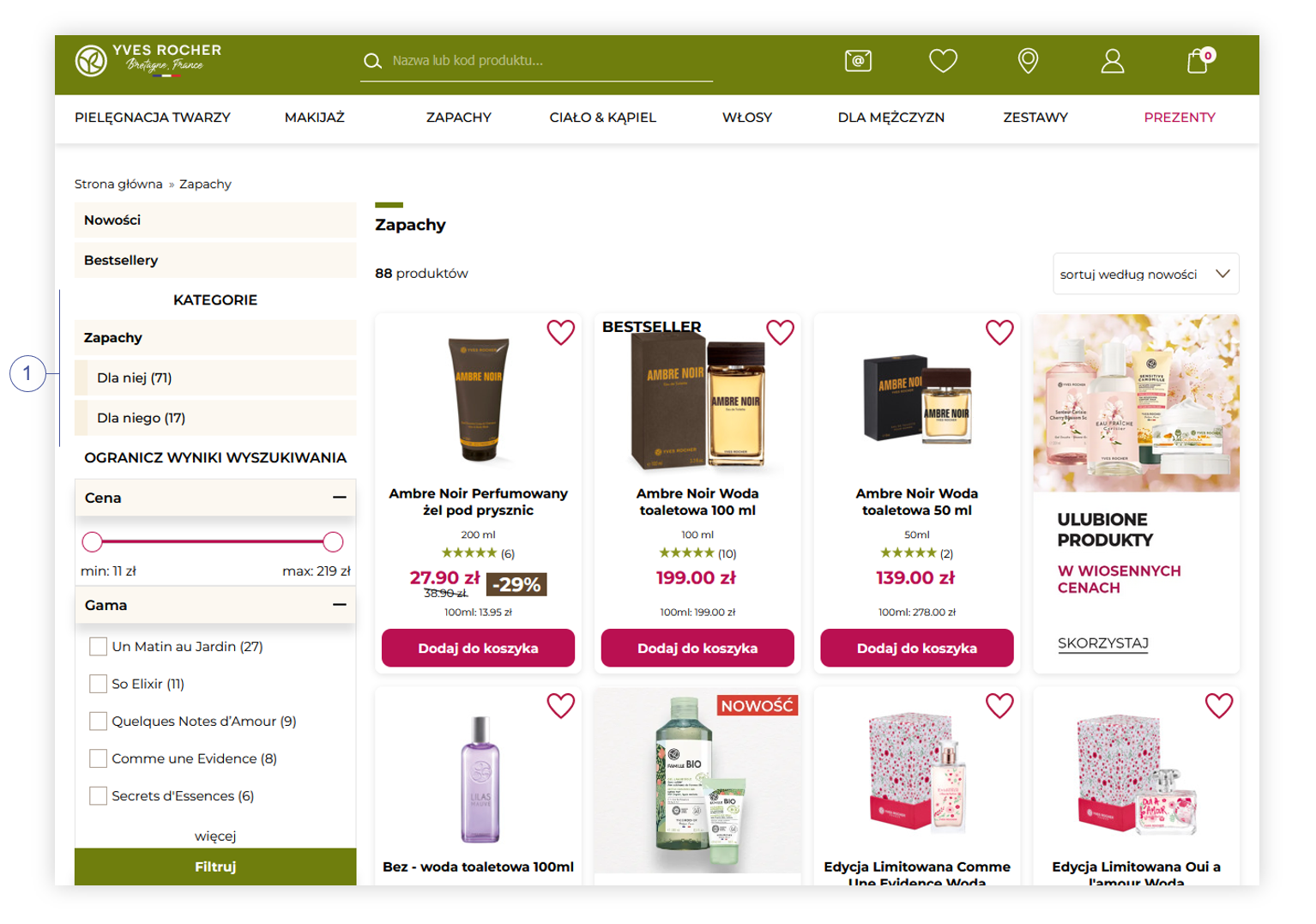
In this article, you will learn about catalog categorization functionality, which allows you to create and edit categories. Categories are visible in the product catalog as well as during the product search **<span style="color: #4054a0;">(1)</span>**, and allow customers to click on them in order to filter out products depending on products assigned to the selected category.

The default URL to the category page is constructed as: /c/category1\[/category2\]\[/category3\], for example, /c/make-up/face/powders.  
The prefix c can be modified by changing the **category\_url** translation.

<span class="wysiwyg-color-black" style="color: #d23a4e;">![caution.svg](https://knowledge.tauceti-digital.com/uploads/images/gallery/2024-11/12041014838940.png) **Warning**</span> <span class="wysiwyg-color-black" style="display: block; margin-top: 10px;"> <font color="#000000"> It's not recommended to change the translation after some time of using the default one, as it will ruin SEO. </font> </span> <span class="wysiwyg-color-black"></span><span class="wysiwyg-color-black"></span><span class="wysiwyg-color-black"></span><span class="wysiwyg-color-black"></span>

<table id="bkmrk-visualization-of-the" style="margin-right: auto; margin-left: auto; height: 44px; width: auto;"><tbody><tr style="height: 22px;"><td class="wysiwyg-text-align-center" style="text-align: center; vertical-align: middle; height: 22px; width: auto;">![POWERPNT_B3eCFXSLWR.png](https://knowledge.tauceti-digital.com/uploads/images/gallery/2024-11/8853132209948.png)</td></tr><tr style="height: 22px;"><td class="wysiwyg-text-align-center" style="text-align: center; vertical-align: middle; height: 22px; width: auto;"><span class="wysiwyg-font-size-medium">*Visualization of the product category page* </span></td></tr></tbody></table>

The category page state consists of:

- Category selection (part of category URL). Any filter functionalities never modify it.
- Page number (`page` query parameter).
- Items per page selection (`pp` query parameter).
- Sort method selection (`sort` query parameter).
- Features filter selection (`f` query parameter).
- Price range selection (`pp` query parameter).
- Store selection (`shop` query parameter).
- \*Only available in store\* filter (`is` query parameter).
- Filter to \*New products\* only (`news` query parameter).
- Filter to \*Bestsellers\* only (`bestsellers` query parameter).

The following sections describe the behavior of all category page elements.<span class="wysiwyg-color-black" style="color: #44549b;"></span><span style="color: #4054a0;"></span>

Table of contents:

1. [ Category management](#bkmrk-category-management)
    1. [Filters section](#bkmrk-filters-section)
    2. [Elements section](#bkmrk-elements-section)
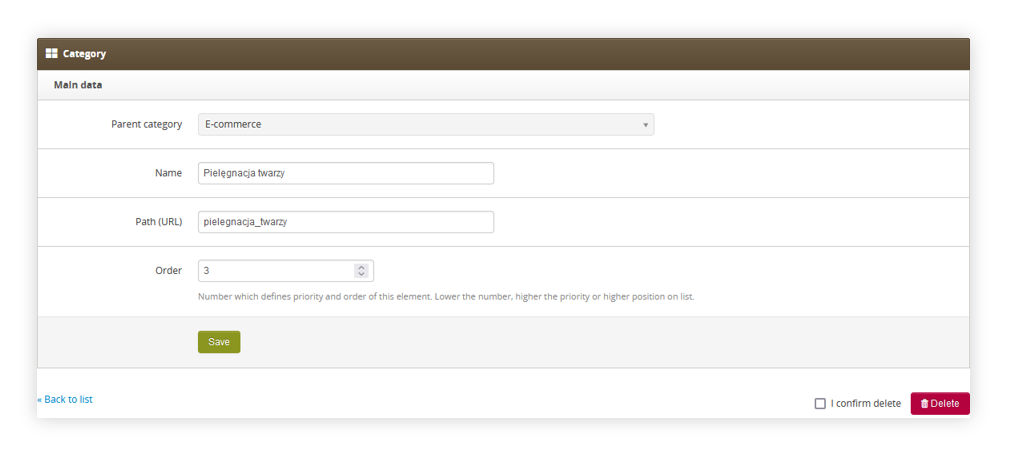
    3. [Editing and creating categories](#bkmrk-editing-and-creating)
2. [ Changes made during the implementation of Categories functionality](#bkmrk-changes-made-during-)
    1. [Product page breadcrumb](#bkmrk-product-page-breadcr)
    2. [Removal of the Tag page (`/tag`)](#bkmrk-removal-of-the-tag-p)
    3. [Features behavior](#bkmrk-features-behavior)

---

# ![Screenshot_2020-04-29_at_19.12.41.png](https://knowledge.tauceti-digital.com/uploads/images/gallery/2024-11/12041014834716.png) Category management

All categories can be managed through the admin panel. The categories tab is located in:

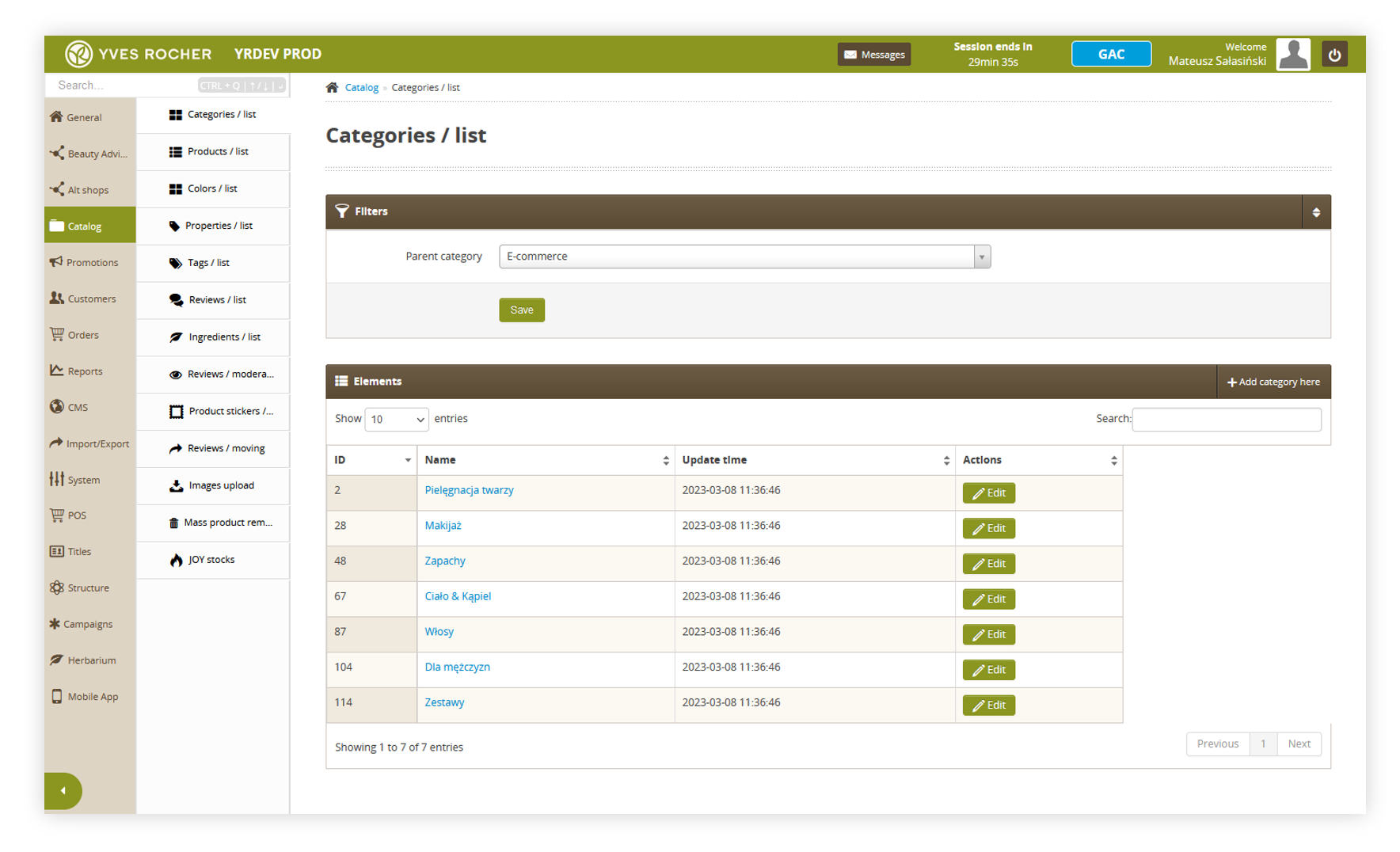
***Catalog &gt; Categories / list***

Categories can be additonally managed using the product catalog import / export.

<span class="wysiwyg-color-black" style="color: #44549b;">![info2.svg](https://knowledge.tauceti-digital.com/uploads/images/gallery/2024-11/12041014842908.png) **Remember**</span><span class="wysiwyg-color-black" style="display: block; margin-top: 10px;">You can learn more about import / export of the catalog in the [Product catalog export and import](https://knowledge.tauceti-digital.com/books/e-commerce/page/product-catalog-export-and-import) article.  
</span>

<span class="wysiwyg-color-black" style="color: #d23a4e;">![caution.svg](https://knowledge.tauceti-digital.com/uploads/images/gallery/2024-11/12041014838940.png) **Warning**</span> <span class="wysiwyg-color-black" style="display: block; margin-top: 10px;"> <font color="#000000">Up to three categories can be created in one path (excluding the default E-commerce one).   
For example, in the case of the path:   
***E-commerce &gt; Category1 &gt; Category 2 &gt; Category3 &gt; Category4***  
Category4 won't be accessible on the e-commerce platform and trying to access it via URL will result in a 404 error.  
</font></span><span class="wysiwyg-color-black"></span><span class="wysiwyg-color-black"></span><span class="wysiwyg-color-black"></span><span class="wysiwyg-color-black"></span>

<table id="bkmrk-visualization-of-the-1" style="margin-right: auto; margin-left: auto; height: 44px; width: auto;"><tbody><tr style="height: 22px;"><td class="wysiwyg-text-align-center" style="text-align: center; vertical-align: middle; height: 22px; width: auto;">![POWERPNT_J3yU4Y8yM6.png](https://knowledge.tauceti-digital.com/uploads/images/gallery/2024-11/8852266865564.png)</td></tr><tr style="height: 22px;"><td class="wysiwyg-text-align-center" style="text-align: center; vertical-align: middle; height: 22px; width: auto;"><span class="wysiwyg-font-size-medium">*Visualization of the categories / list tab* </span></td></tr></tbody></table>

## Filters section

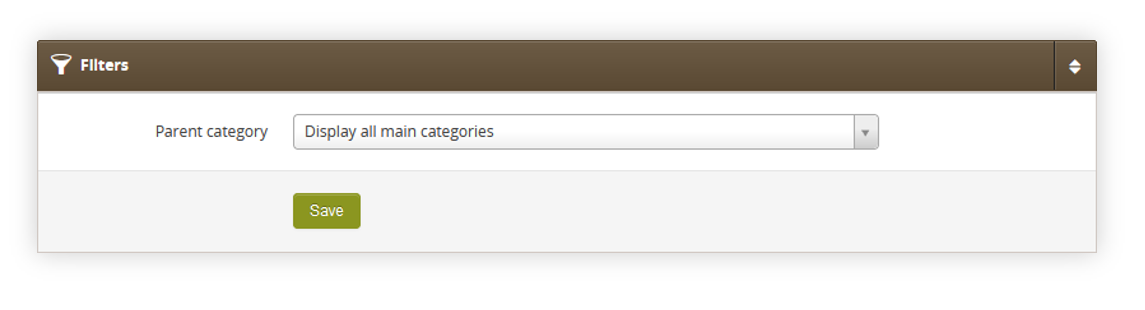
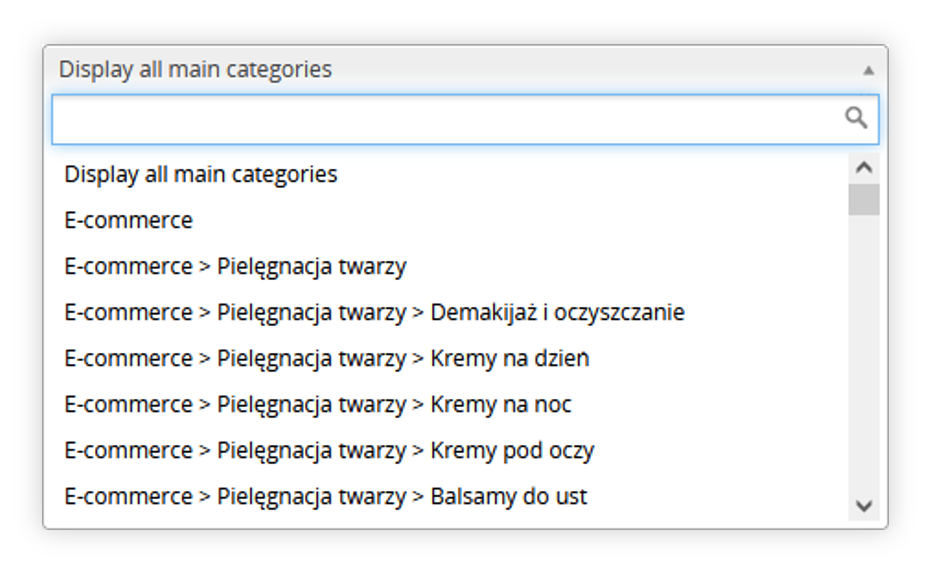
In the filters section, you can see the current parent category, and switch to another one using the drop-down menu. You are additionally able to change the current filter by clicking on a category. This method is described in the [Elements section.](#bkmrk-elements-section)

<table id="bkmrk-visualization-of-the-2" style="margin-right: auto; margin-left: auto; height: 44px; width: 700px;"><tbody><tr style="height: 22px;"><td class="wysiwyg-text-align-center" style="text-align: center; vertical-align: middle; height: 22px; width: 688px;">![POWERPNT_Zs2KPx4NHG.png](https://knowledge.tauceti-digital.com/uploads/images/gallery/2024-11/8852298471196.png)</td></tr><tr style="height: 22px;"><td class="wysiwyg-text-align-center" style="text-align: center; vertical-align: middle; height: 22px; width: 688px;"><span class="wysiwyg-font-size-medium">*Visualization of the filters section* </span></td></tr></tbody></table>

<table id="bkmrk-visualization-of-the-3" style="margin-right: auto; margin-left: auto; height: 44px; width: 700px;"><tbody><tr style="height: 22px;"><td class="wysiwyg-text-align-center" style="text-align: center; vertical-align: middle; height: 22px; width: 688px;">![POWERPNT_gyuPckxaSM.png](https://knowledge.tauceti-digital.com/uploads/images/gallery/2024-11/8852298520860.png)</td></tr><tr style="height: 22px;"><td class="wysiwyg-text-align-center" style="text-align: center; vertical-align: middle; height: 22px; width: 688px;"><span class="wysiwyg-font-size-medium">*Visualization of the categories drop-down menu* </span></td></tr></tbody></table>

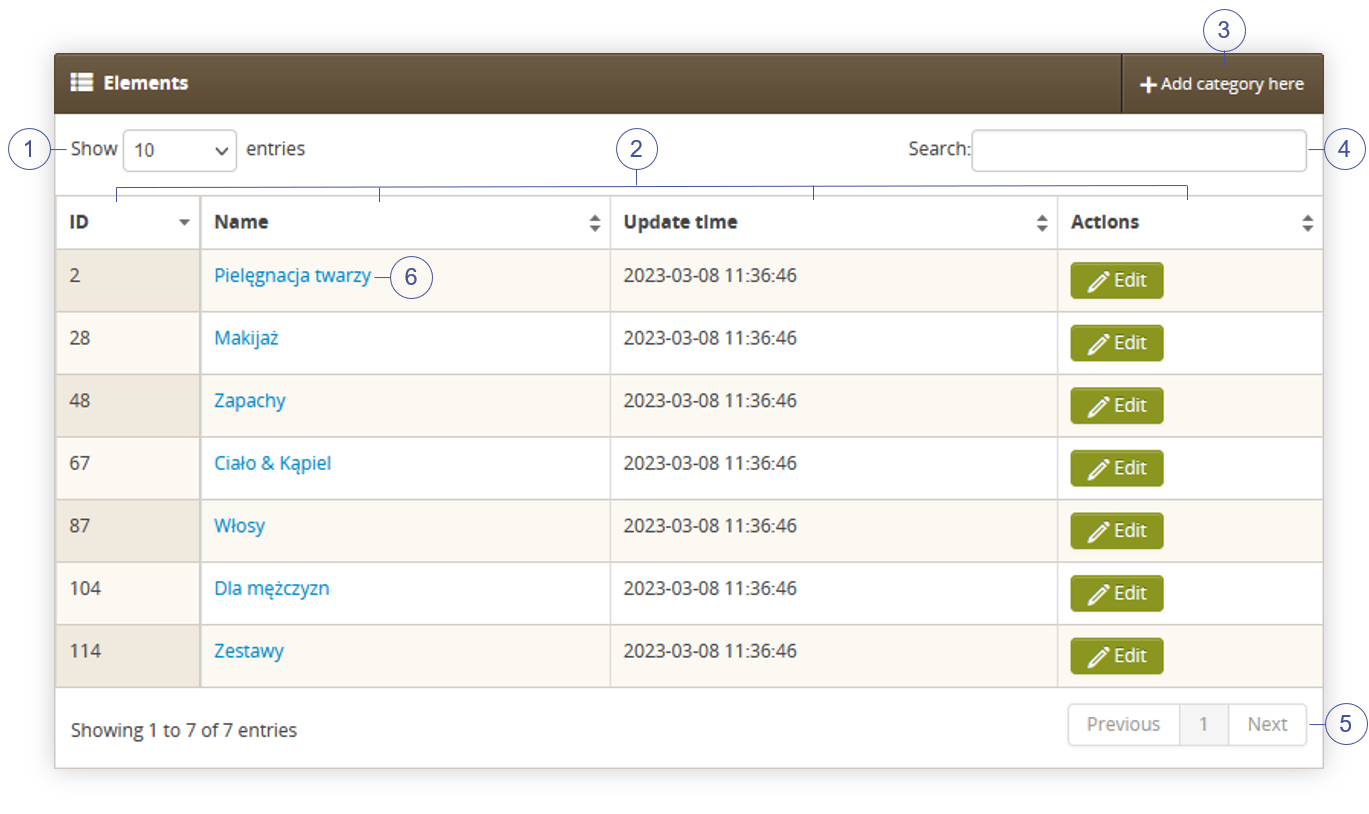
## Elements section

In the elements section, you can see all categories in a selected parent category.

<table id="bkmrk-visualization-of-the-4" style="margin-right: auto; margin-left: auto; height: 44px; width: auto;"><tbody><tr style="height: 22px;"><td class="wysiwyg-text-align-center" style="text-align: center; vertical-align: middle; height: 22px; width: auto;">![POWERPNT_9M4J5TC58S.png](https://knowledge.tauceti-digital.com/uploads/images/gallery/2024-11/8852509014172.png)</td></tr><tr style="height: 22px;"><td class="wysiwyg-text-align-center" style="text-align: center; vertical-align: middle; height: 22px; width: auto;"><span class="wysiwyg-font-size-medium">*Visualization of the elements section* </span></td></tr></tbody></table>

Below you will find a description of possible actions.

- Select the **Show X entries** **<span style="color: #4054a0;">(1)</span>** field to set the number of categories, displayed on one page (min 10 / max 100).
- The names of the columns **<span style="color: #4054a0;">(2)</span>** that contain information about a given category. Each column is susceptible to sorting. To sort the records, click on the title of the column in question.  
    
    - **ID** - An internal ID of a category
    - **Name** - A name of the category. These names are visible to the customers on a website. Category names can be opened by clicking on them **<span style="color: #4054a0;">(6)</span>**, and it will open the elements tab with a selected category as a parent category.
    - **Update time** - Date and hour when the selected category has been updated last time.
    - **Actions** - An edit button, which allows editing a selected category. The main e-commerce category cannot be edited. You can read more about adding and editing categories in the [Editing and creating categories](#bkmrk-editing-and-creating) section.
- Select the **Add category here** **<span style="color: #4054a0;">(3)</span>** button to go to the adding the new category in a current parent category. You can read more about adding and editing categories in the [Editing and creating categories](#bkmrk-editing-and-creating) section.
- **Search box** **<span style="color: #4054a0;">(4)</span>** where you can search for the desired category by their category name.
- **Page buttons** **<span style="color: #4054a0;">(5)</span>**, which allows user to change the page of currently viewed categories.

## Editing and creating categories

Whenever adding a new category or editing one you will be redirected to the following page.

<table id="bkmrk-visualization-of-the-5" style="margin-right: auto; margin-left: auto; height: 44px; width: auto;"><tbody><tr style="height: 22px;"><td class="wysiwyg-text-align-center" style="text-align: center; vertical-align: middle; height: 22px; width: auto;">![POWERPNT_f2agi9gA92.png](https://knowledge.tauceti-digital.com/uploads/images/gallery/2024-11/8852250417948.png)</td></tr><tr style="height: 22px;"><td class="wysiwyg-text-align-center" style="text-align: center; vertical-align: middle; height: 22px; width: auto;"><span class="wysiwyg-font-size-medium">*Visualization of the editing of a category* </span></td></tr></tbody></table>

Below you will find a description of possible actions.

- **Parent category** - A field where the current parent category is displayed. This field  
    cannot be edited.
- **Name** - A name of the category. This name will be visible to the customers.
- **Path (URL)** - An URL of the category. This URL will be visible in the website URL whenever the customer selects this category or one under it.
- **Order** - Number which defines the priority and order of this element. Lower the number, higher the priority, or higher position on the list.
- **Save** - Button, which saves the changes made to the category.
- **Delete** - A button that deletes a selected category and all the categories under it. It is only available when editing the category. In order to be able to press it you have to press the "I confirm delete" checkbox beforehand.

---

# ![Screenshot_2020-04-29_at_19.12.41.png](https://knowledge.tauceti-digital.com/uploads/images/gallery/2024-11/12041014834716.png) Changes made during the implementation of Categories functionality

## Product page breadcrumb

The breadcrumb has been modified to use the product's main category.

## Removal of the Tag page (`/tag`)

The legacy way to create categories by links to selected feature sets has been removed.

Marketing links to, for example, product lines should be directed to promotion pages instead.

## Features behavior

The existing behavior of features has been modified.

Previously, it never displayed features that were selected but did not exist in found products (after filtration). It generated scenarios when the user selected 3 filters but could remove only one or none of them.

Now, users always see all selected features, even if they returned 0 products. They can be seen and removed from the features filter menu and quick filter removal element.

It's useful when selected feature set results in an empty products list. Previously, the user could not see selected features nor remove them.

# Expired elements deactivation

# ![Screenshot_2020-04-29_at_19.12.41.png](https://knowledge.tauceti-digital.com/uploads/images/gallery/2024-11/nLxscreenshot-2020-04-29-at-19-12-41-png.png) Getting started

In this article, you can learn about the expired elements deactivation functionality, which allows you to automatically deactivate CMS, promotion, and mobile app elements when the current date is after the end date. Deactivated elements save up server memory and increase website responsiveness. It also helps with better admin panel filtering and navigation, as unused elements won't be visible as "active" anymore, so it will be easier to find currently used ones.

Table of contents:

1. [ Configuring the functionality](#bkmrk-configuring-the-func-1)

---

# ![Screenshot_2020-04-29_at_19.12.41.png](https://knowledge.tauceti-digital.com/uploads/images/gallery/2024-11/nLxscreenshot-2020-04-29-at-19-12-41-png.png) Configuring the functionality

By default this functionality is disabled. In order to enable it you have to navigate to:

***System &gt; System / Settings &gt; Built-in functions &gt; Expired elements deactivation***

<table id="bkmrk-visualization-of-the" style="margin-right: auto; margin-left: auto; height: 44px; width: auto;"><tbody><tr style="height: 22px;"><td class="wysiwyg-text-align-center" style="text-align: center; vertical-align: middle; height: 22px; width: 688px;">![POWERPNT_rdRGCKrn3t.png](https://knowledge.tauceti-digital.com/uploads/images/gallery/2024-11/7545615419292.png)</td></tr><tr style="height: 22px;"><td class="wysiwyg-text-align-center" style="text-align: center; vertical-align: middle; height: 22px; width: 688px;"><span class="wysiwyg-font-size-medium">*Visualization of the functionality system settings* </span></td></tr></tbody></table>

In the Expired elements deactivation tab you can find a single switch called **Deactivation enabled**, by enabling it you are enabling the automatic deactivation of elements with expired end date. Elements are deactivated 2 weeks after the end date expiration.

The affected elements are:

- CMS blocks
- CMS pages
- Altshops
- Product stickers
- Cart promotion rules
- Promotion pages
- Opensets
- Private offers
- Sliders
- Layout banners
- Popups
- Mobile app elements: articles, carousels, cms elements, current offers, homepage products, sub campaigns

The command is set to run every day at 2 am.

# Delivery point widget

# ![Screenshot_2020-04-29_at_19.12.41.png](https://knowledge.tauceti-digital.com/uploads/images/gallery/2024-11/2ZKscreenshot-2020-04-29-at-19-12-41-png.png) Getting started

In this article, you will find information about the delivery point widget. The delivery point widget allows selecting delivery services that deliver to parcels to be shown as one delivery option during the order process and will both be visible on the map at the same time with customization options.

<table id="bkmrk-visualization-of-the" style="margin-right: auto; margin-left: auto; height: 44px; width: auto;"><tbody><tr style="height: 22px;"><td class="wysiwyg-text-align-center" style="text-align: center; vertical-align: middle; height: 22px; width: auto;">![POWERPNT_MnU3VaDQ3Q.png](https://knowledge.tauceti-digital.com/uploads/images/gallery/2024-11/7490987754012.png)</td></tr><tr style="height: 22px;"><td class="wysiwyg-text-align-center" style="text-align: center; vertical-align: middle; height: 22px; width: auto;"><span class="wysiwyg-font-size-medium">*Visualization of the delivery point widget functionality* </span></td></tr></tbody></table>

Table of contents:

1. [ Configuring the delivery point widget](#bkmrk-configuring-the-deli-1)
    1. [Delivery types / list configuration](#bkmrk-delivery-types-%2F-lis)
    2. [System / settings configuration](#bkmrk-system-%2F-settings-co)
2. [ Customer perspective](#bkmrk-customer-perspective)

---

# ![Screenshot_2020-04-29_at_19.12.41.png](https://knowledge.tauceti-digital.com/uploads/images/gallery/2024-11/2ZKscreenshot-2020-04-29-at-19-12-41-png.png) Configuring the delivery point widget

## Delivery types / list configuration

In order to add multiple delivery options to one delivery widget you have to navigate to delivery types and turn on the switches on the desired delivery options.  
You can access delivery types tab in the:  
***System &gt; Delivery types / list***

<table id="bkmrk-visualization-of-the-1" style="margin-right: auto; margin-left: auto; height: 44px; width: auto;"><tbody><tr style="height: 22px;"><td class="wysiwyg-text-align-center" style="text-align: center; vertical-align: middle; height: 22px; width: auto;">![POWERPNT_Xyx5kth6EU.png](https://knowledge.tauceti-digital.com/uploads/images/gallery/2024-11/7490971810716.png)</td></tr><tr style="height: 22px;"><td class="wysiwyg-text-align-center" style="text-align: center; vertical-align: middle; height: 22px; width: auto;"><span class="wysiwyg-font-size-medium">*Visualization of the delivery types / list* </span></td></tr></tbody></table>

In the **Delivery types / list** expand your desired delivery option that delivers to the parcels and select the new **<label class="control-label" for="row_is_in_dp_group_18">Is in delivery point group? <span style="color: #4054a0;">(1)</span> </label>**<label class="control-label" for="row_is_in_dp_group_18">switch. By turning this switch ON you are adding the selected delivery option to the group. Multiple delivery options can be in the group.</label>

<span class="wysiwyg-color-black" style="color: #44549b;">![info2.svg](https://knowledge.tauceti-digital.com/uploads/images/gallery/2024-11/5r5info2-svg.png) **Remember**</span><span class="wysiwyg-color-black" style="display: block; margin-top: 10px;">In order for a delivery method to be visible for the customers it needs to be enabled both in the **Delivery types / list** and in the desired altshop. You can find more information about activating the delivery types in the altshops in the [Delivery costs / list - browsing and managing delivery costs](https://tauceti.zendesk.com/hc/en-us/articles/5603143969564) article.</span>

<div class="controls" id="bkmrk--1"></div>## System / settings configuration

For further configuration of the functionality you have to navigate to:

***System &gt; System / settings &gt; Built-in options &gt; Delivery point map***

<table id="bkmrk-visualization-of-the-2" style="margin-right: auto; margin-left: auto; height: 44px; width: auto;"><tbody><tr style="height: 22px;"><td class="wysiwyg-text-align-center" style="text-align: center; vertical-align: middle; height: 22px; width: auto;">![POWERPNT_zn2DpntqT8.png](https://knowledge.tauceti-digital.com/uploads/images/gallery/2024-11/8579421451548.png)</td></tr><tr style="height: 22px;"><td class="wysiwyg-text-align-center" style="text-align: center; vertical-align: middle; height: 22px; width: auto;"><span class="wysiwyg-font-size-medium">*Visualization of the delivery point map settings* </span></td></tr></tbody></table>

In the delivery point map you can find the following options:

- <label class="control-label" for="settings_delivery_point_map_default_lat"><label class="control-label" for="settings_delivery_point_map_default_lat"> **Default latitude** - A d</label></label>efault map center latitude when user location cannot be obtained
- **Default longitude** - A default map center longitude when user location cannot be obtained
- **Default zoom** - A default zoom level when user location cannot be obtained. This value can be set between 0 and 21, where 21 is the closest one, and 0 farthest away.
- **Clustering enabled** - Enables clustering of delivery points on the map. It groups them when the map is zoomed out, but introduces a significant performance penalty.

---

# ![Screenshot_2020-04-29_at_19.12.41.png](https://knowledge.tauceti-digital.com/uploads/images/gallery/2024-11/2ZKscreenshot-2020-04-29-at-19-12-41-png.png) Customer perspective

The new delivery point widget can be accessed by the customers in the cart process on the "Select the delivery method" step

<table id="bkmrk-visualization-of-the-3" style="margin-right: auto; margin-left: auto; height: 44px; width: auto;"><tbody><tr style="height: 22px;"><td class="wysiwyg-text-align-center" style="text-align: center; vertical-align: middle; height: 22px; width: auto;">![POWERPNT_eJPSkGWJZ6.png](https://knowledge.tauceti-digital.com/uploads/images/gallery/2024-11/7490987656220.png)</td></tr><tr style="height: 22px;"><td class="wysiwyg-text-align-center" style="text-align: center; vertical-align: middle; height: 22px; width: auto;"><span class="wysiwyg-font-size-medium">*Visualization of the delivery method step in the cart process* </span></td></tr></tbody></table>

When customer selects the delivery point map he will see points near his location if he allowed for a location sharing on their device or a default view configured in the [System / settings](#bkmrk-system-%2F-settings-co).

Customer is able to search the map for their desired delivery point and if there are too many parcels to show them next to eachother they are being merged into one single icon with a number of parcels in this region **<label class="control-label" for="row_is_in_dp_group_18"><span style="color: #4054a0;">(1)</span></label>**.

Customers are also able to deselect the delivery companies they do not prefer **<label class="control-label" for="row_is_in_dp_group_18"><span style="color: #4054a0;">(2)</span></label>**.

<table id="bkmrk-visualization-of-the-4" style="margin-right: auto; margin-left: auto; height: 44px; width: auto;"><tbody><tr style="height: 22px;"><td class="wysiwyg-text-align-center" style="text-align: center; vertical-align: middle; height: 22px; width: auto;">![POWERPNT_79LkhrBZ3R.png](https://knowledge.tauceti-digital.com/uploads/images/gallery/2024-11/7490971596188.png)</td></tr><tr style="height: 22px;"><td class="wysiwyg-text-align-center" style="text-align: center; vertical-align: middle; height: 22px; width: auto;"><span class="wysiwyg-font-size-medium">*Visualization of the delivery point map (desktop)* </span></td></tr></tbody></table>

<table id="bkmrk-visualization-of-the-5" style="margin-right: auto; margin-left: auto; height: 44px; width: auto;"><tbody><tr style="height: 22px;"><td class="wysiwyg-text-align-center" style="text-align: center; vertical-align: middle; height: 22px; width: auto;">![POWERPNT_j5abY8ze9T.png](https://knowledge.tauceti-digital.com/uploads/images/gallery/2024-11/7490987748892.png)</td></tr><tr style="height: 22px;"><td class="wysiwyg-text-align-center" style="text-align: center; vertical-align: middle; height: 22px; width: auto;"><span class="wysiwyg-font-size-medium">*Visualization of the delivery point map (mobile)* </span></td></tr></tbody></table>

<table id="bkmrk-visualization-of-the-6" style="margin-right: auto; margin-left: auto; height: 44px; width: auto;"><tbody><tr style="height: 22px;"><td class="wysiwyg-text-align-center" style="text-align: center; vertical-align: middle; height: 22px; width: auto;">![POWERPNT_VeYqqgSw9N.png](https://knowledge.tauceti-digital.com/uploads/images/gallery/2024-11/7490987818780.png)</td></tr><tr style="height: 22px;"><td class="wysiwyg-text-align-center" style="text-align: center; vertical-align: middle; height: 22px; width: auto;"><span class="wysiwyg-font-size-medium">*Visualization of the delivery points (mobile)* </span></td></tr></tbody></table>

# Campaigns and titles

# ![Screenshot_2020-04-29_at_19.12.41.png](https://knowledge.tauceti-digital.com/uploads/images/gallery/2024-11/9635874445596.png) Getting started

In this article, you can find how campaigns are created and accepted after a certain period of time and the associated titles and qualifiers by which the application is able to promote consumers who have met the conditions.

**Campaign** is a process that works for a selected period of time. Campaigns count all the orders made with their value and according to qualifiers promote or demote customers that met   
set requirements.

**Title** is a customer rank that affects his used altshop and with that possibly products, promotions, and content on the website. A title can be possibly promoted or demoted depending on set qualifiers and the customer result of the campaign.

**Qualifier** is a JSON function that set various requirements in order to promote users if they are met.<span style="color: #4054a0;"></span>

Table of contents:

1. [ Campaigns](#bkmrk-campaigns)
    1. [Creating new campaign](#bkmrk-creating-new-campaig)
    2. [Accepting completed campaign](#bkmrk-accepting-completed-)
2. [ Titles](#bkmrk-titles-1)
    1. [Creating new titles](#bkmrk-creating-new-titles)
    2. [Qualifiers](#bkmrk-qualifiers)

---

# ![Screenshot_2020-04-29_at_19.12.41.png](https://knowledge.tauceti-digital.com/uploads/images/gallery/2024-11/9635874445596.png) Campaigns

Campaign as a process decides based on qualifiers what account will be promoted or demoted to the next title depending on customer purchase history.  
Campaigns can be found in the admin panel under ***Campaigns &gt; View***.

<span class="wysiwyg-color-black" style="color: #d23a4e;">![caution.svg](https://knowledge.tauceti-digital.com/uploads/images/gallery/2024-11/9635874447388.png) **Warning**</span> <span class="wysiwyg-color-black" style="display: block; margin-top: 10px;"> <font color="#000000"> Campaigns were created with the intention to be handled regularly. Whenever a campaign is ready to be accepted and calculated it should be done as soon as possible. There shouldn't be a situation, where two campaigns at once are ready to be accepted and calculated.  
Calculating both campaigns at once will result in an error and calculation freeze, which will result in the campaign system being unusable until fixed by Tau Ceti.  
</font> </span> <span class="wysiwyg-color-black"></span><span class="wysiwyg-color-black"></span><span class="wysiwyg-color-black"></span><span class="wysiwyg-color-black"></span>

<table id="bkmrk-visualization-of-the" style="margin-right: auto; margin-left: auto; height: 44px; width: 729px;"><tbody><tr style="height: 22px;"><td class="wysiwyg-text-align-center" style="text-align: center; vertical-align: middle; height: 22px; width: 717px;">![POWERPNT_gn4SpxTEKW.png](https://knowledge.tauceti-digital.com/uploads/images/gallery/2024-11/7057736035996.png)</td></tr><tr style="height: 22px;"><td class="wysiwyg-text-align-center" style="text-align: center; vertical-align: middle; height: 22px; width: 717px;"><span class="wysiwyg-font-size-medium">*Visualization of the campaigns list* </span></td></tr></tbody></table>

In the campaign view, You can filter campaigns whether they are active or not. The campaign is seen as active only when the current date is between the specified date range.  
For example, if a campaign has a range of 1/11/2020 – 30/11/2020 it will be visible as active only if the current day is in this range.

In this view, you can see all past, currently active, and future campaigns with their information like:

- **ID** – System ID of the campaign, it cannot be changed. The system recognizes various components on the website by their ID.
- **Short name** – Short name of the campaign. It is specified automatically by the system. The name depends on the year and the number of the campaign.
- **Name** – Full name of the campaign.
- **Start date** – Date on which the campaign will start. The set time is always local time.
- **End date** – End date of the campaign. After the end date is reached the campaign will receive “**Campaign ready for acceptance”** status, which will allow the user to accept the campaign and process user title changes. More on accepting the completed campaign can be found on [Accepting completed campaign](#Accepting). The set time is always local time.
- **Status** – Current status of the campaign. you have three statuses: 
    - **Not processed** – Campaign did not end yet. This status will be visible on current and future campaigns in the admin panel.
    - **Campaign ready for acceptance** – Campaign ended and still hasn’t been processed by the Yves Rocher employee.
    - **Campaign closed** – Campaign ended and has been processed.

This page also has **Add** button **<span style="color: #4054a0;">(1)</span>** located in the top right corner of the Campaigns table. This button will create a new campaign. More on creating a new campaign can be read in [Creating new campaign](#bkmrk-creating-new-campaig) section.

## Creating new campaign

In order to create a new campaign you need to click **Add** button **<span style="color: #4054a0;">(1)</span>**.

<table id="bkmrk-visualization-of-the-1" style="margin-right: auto; margin-left: auto; height: 44px; width: auto;"><tbody><tr style="height: 22px;"><td class="wysiwyg-text-align-center" style="text-align: center; vertical-align: middle; height: 22px; width: auto;">![POWERPNT_DidmfL6ThU.png](https://knowledge.tauceti-digital.com/uploads/images/gallery/2024-11/7057759167644.png)</td></tr><tr style="height: 22px;"><td class="wysiwyg-text-align-center" style="text-align: center; vertical-align: middle; height: 22px; width: auto;"><span class="wysiwyg-font-size-medium">*Visualization of the creating of the new campaign* </span></td></tr></tbody></table>

In order to create a new campaign you need to specify information like:

1. **Name** – A Long name of the campaign.
2. **Campaign Year** – Year of the campaign. This year will be visible on the short name of the campaign in the admin panel.
3. **Campaign Number** – Number of the campaign, it’s usually set to a current campaign month. This number will be visible on the short name of the campaign.
4. **Start date** – Start date of the campaign. The set time is always local time.
5. **End date** – End date of the campaign. After the end date is reached the campaign will receive “**Campaign ready for acceptance”** status, which will allow a user to accept the campaign and process user title changes. More on accepting the completed campaigns can be found on [Accepting completed campaign](#bkmrk-accepting-completed-). The set time is always local time.
6. **Altshops** – Altshops on which created campaign will gain orders information.

After you fill in all the necessery fields you can save our newly configured campaign by pressing the **Save** button **<span style="color: #4054a0;">(2)</span>**.

With our campaign saved it’ll activate automatically on a set start date and end on the end date. A campaign that ended is not closed or processed and it needs to be accepted manually by the employee in order to grant customers promotions and demotions.  
More on accepting the campaigns can be found in [Accepting completed campaign](#bkmrk-accepting-completed-) section.

## Accepting completed campaign

When the campaign is over, the user of the administration panel will be given the opportunity to move to campaign acceptance by selecting the **Results acceptance** button. After selecting the button, the application will start the operation of calculating and promoting the customers that participated in the campaign.

<span class="wysiwyg-color-black" style="color: #d23a4e;">![caution.svg](https://knowledge.tauceti-digital.com/uploads/images/gallery/2024-11/9635874447388.png) **Warning**</span> <span class="wysiwyg-color-black" style="display: block; margin-top: 10px;"> <font color="#000000">In case two campaigns are ready for acceptance at once, please accept only one campaign, wait for it to calculate (so the report for this campaign can be accessed), and then proceed with accepting the other campaign. Accepting both campaigns at once will result in an integration freeze and they won't get calculated until fixed by the Tau Ceti team.</font> </span> <span class="wysiwyg-color-black"></span><span class="wysiwyg-color-black"></span><span class="wysiwyg-color-black"></span><span class="wysiwyg-color-black"></span>

The campaign acceptance process consists of four stages, described below:

![Picture2.png](https://knowledge.tauceti-digital.com/uploads/images/gallery/2024-11/7057736183708.png)

### Commission

<table id="bkmrk-visualization-of-the-2" style="margin-right: auto; margin-left: auto; height: 44px; width: auto;"><tbody><tr style="height: 22px;"><td class="wysiwyg-text-align-center" style="text-align: center; vertical-align: middle; height: 22px; width: auto;">![POWERPNT_vZS88s6f2Q.png](https://knowledge.tauceti-digital.com/uploads/images/gallery/2024-11/7057759366940.png)</td></tr><tr style="height: 22px;"><td class="wysiwyg-text-align-center" style="text-align: center; vertical-align: middle; height: 22px; width: auto;"><span class="wysiwyg-font-size-medium">*Visualization of the commision view* </span></td></tr></tbody></table>

This step was used to determine what commission Member Club customers will get.  
As Member club is mostly abandoned functionality, this step can be skipped.

### Titles

<table id="bkmrk-visualization-of-the-3" style="margin-right: auto; margin-left: auto; height: 44px; width: auto;"><tbody><tr style="height: 22px;"><td class="wysiwyg-text-align-center" style="text-align: center; vertical-align: middle; height: 22px; width: auto;">![POWERPNT_jsJAZyZ3cB.png](https://knowledge.tauceti-digital.com/uploads/images/gallery/2024-11/7057736107804.png)</td></tr><tr style="height: 22px;"><td class="wysiwyg-text-align-center" style="text-align: center; vertical-align: middle; height: 22px; width: auto;"><span class="wysiwyg-font-size-medium">*Visualization of the titles view* </span></td></tr></tbody></table>

In this step, you can see all customers that participated in the selected campaign.  
From customer information, you can see their MC hash, first and last name, e-mail address, and phone number. you can also see their title statuses:

1. **Status** – Status of the title qualifier. It can be above qualifier, which will promote the customer, or below qualifier which won’t do anything if a customer meets current qualifier conditions. If a customer doesn’t meet current qualifier conditions he can be demoted if a title is configured like so.
2. **Overdue** – invoice payment status. That was MC functionality. Not used anymore.
3. **Current title** – Customer current title.
4. **New title** – Customer's new title, which will be assigned to him after acceptance of the campaign. It can be set or changed with “**Change title”**

In this step you can manually change the title of the customer just in case there is a need.

### Hierarchy changes

Changes in the hierarchy are member club functionality that isn’t used anymore, this step can be skipped.

### Confirmation

This step is the last step of campaign acceptance.

<table id="bkmrk-visualization-of-the-4" style="margin-right: auto; margin-left: auto; height: 44px; width: auto;"><tbody><tr style="height: 22px;"><td class="wysiwyg-text-align-center" style="text-align: center; vertical-align: middle; height: 22px; width: auto;">![POWERPNT_brmtdLJpeG.png](https://knowledge.tauceti-digital.com/uploads/images/gallery/2024-11/7057759167132.png)</td></tr><tr style="height: 22px;"><td class="wysiwyg-text-align-center" style="text-align: center; vertical-align: middle; height: 22px; width: auto;"><span class="wysiwyg-font-size-medium">*Visualization of the confirmation view* </span></td></tr></tbody></table>

In this step, you can see the number of customers with the above and below statuses with their total percentage. After ensuring that the campaign is correct and promotions and demotions are correct, you can close the campaign with the **Close campaign** button **<span style="color: #4054a0;">(4)</span>**.

With the campaign closed all the customers that had the Above status will be promoted depending on the qualifiers to the new title or demoted depending on the title settings.

---

# ![Screenshot_2020-04-29_at_19.12.41.png](https://knowledge.tauceti-digital.com/uploads/images/gallery/2024-11/9635874445596.png) Titles

Titles as customer ranks allow us to set specific qualifiers for them in order to create a title hierarchy, which will give us more options to manage what customers will be able to see on the website based on their order history.  
Titles can be found in the admin panel under ***Titles &gt; View.***

<table id="bkmrk-visualization-of-the-5" style="margin-right: auto; margin-left: auto; height: 44px; width: auto;"><tbody><tr style="height: 22px;"><td class="wysiwyg-text-align-center" style="text-align: center; vertical-align: middle; height: 22px; width: auto;">![POWERPNT_zmkqVa7mT6.png](https://knowledge.tauceti-digital.com/uploads/images/gallery/2024-11/7057736244764.png)</td></tr><tr style="height: 22px;"><td class="wysiwyg-text-align-center" style="text-align: center; vertical-align: middle; height: 22px; width: auto;"><span class="wysiwyg-font-size-medium">*Visualization of the titles section* </span></td></tr></tbody></table>

Titles can be filtered by their activity (if they’re active or not). Filtered activity is read from “**is active?**” field.

In the Titles tab you can see basic information about the title:

- **ID** – The system ID of the title, it cannot be changed. The system recognizes various components on the website by their ID.
- **Title** – Full title name
- **Short title** – Short title name usually used in promotions and qualifiers options.
- **Is active?** – check If the selected title is currently active.
- **Primary** – Member club functionality that isn’t used anymore.

You can create new titles with **Add** <span>button **<span style="color: #4054a0;">(1)</span>** located on the top right corner of the table. More on creating titles can be found on </span>[Creating new titles ](#bkmrk-creating-new-titles)located on the page below.

## Creating new titles

If there’s a need to create a new title you can do it by pressing **Add** button <span>**<span style="color: #4054a0;">(1)</span>**</span> located in the top right corner of the titles section.

Creating or editing the title is separated by sections. The first one is the **Title** section**.**

<table id="bkmrk-visualization-of-the-6" style="margin-right: auto; margin-left: auto; height: 44px; width: auto;"><tbody><tr style="height: 22px;"><td class="wysiwyg-text-align-center" style="text-align: center; vertical-align: middle; height: 22px; width: auto;">![POWERPNT_A9BP3V6r2y.png](https://knowledge.tauceti-digital.com/uploads/images/gallery/2024-11/7057736286364.png)</td></tr><tr style="height: 22px;"><td class="wysiwyg-text-align-center" style="text-align: center; vertical-align: middle; height: 22px; width: auto;"><span class="wysiwyg-font-size-medium">*Visualization of the title section* </span></td></tr></tbody></table>

In the Title section you need to specify:

1. **Title** – A name of the title
2. **Short title** – Short name of the title (e.g. T0, TS, TG)
3. **Is active?** – switch if the title is active

There’s also **a Leadership** switch. This was Member Club functionality, so it’s not used anymore. It should be left on OFF.  
The next sections are **Qualifiers** and **Promotion / demotion rules**.

<table id="bkmrk-visualization-of-the-7" style="margin-right: auto; margin-left: auto; height: 44px; width: auto;"><tbody><tr style="height: 22px;"><td class="wysiwyg-text-align-center" style="text-align: center; vertical-align: middle; height: 22px; width: auto;">![POWERPNT_yyFiNTjFET.png](https://knowledge.tauceti-digital.com/uploads/images/gallery/2024-11/7057759419292.png)</td></tr><tr style="height: 22px;"><td class="wysiwyg-text-align-center" style="text-align: center; vertical-align: middle; height: 22px; width: auto;"><span class="wysiwyg-font-size-medium">*Visualization of the Qualifiers and Promotion / demotion sections* </span></td></tr></tbody></table>

In the Qualifiers section, you need to select our created qualifier and apply rules to it  
(e.g. **Orders count from 1 &gt;= 1**).  
More on qualifiers can be found in the [Qualifiers](#bkmrk-qualifiers) section.

In **Promotion / demotion rules** section you have various fields you can customize:

- **Number of campaigns** – In this field, you can select a number of campaigns that will be used to check qualifiers. E.g. if it’s set to 2, the customer needs to meet qualifier requirements for 2 campaigns in order to promote / demote. This field is in most cases left on 1.
- **Demote to** – Drop down menu which allows us to select other titles that are supposed to be lower in the hierarchy. That customer with this title will be demoted if doesn’t meet current title qualifier requirements.

![Picture10.png](https://knowledge.tauceti-digital.com/uploads/images/gallery/2024-11/7057759368092.png)

- **Allow demotion to** – In this field you can specify other titles that customers can be demoted.

<span class="wysiwyg-color-black" style="color: #44549b;">![info2.svg](https://knowledge.tauceti-digital.com/uploads/images/gallery/2024-11/9635874448412.png) **Example**</span><span class="wysiwyg-color-black" style="display: block; margin-top: 10px;">Based on the title promotion path set to **T0 &gt; TS &gt; TG** and with a customer that has current title **TG.**  
If a Customer with a title **TG** doesn’t anymore meet the requirements for that title in the next campaign, he’ll be demoted to **TS** if **Demote to** is set to **TS**.  
With set **Allow demotion to: T0** when a customer also doesn’t meet requirements for **TS** title, he’ll be demoted to **T0** title.  
As normal demotion path would go **TG &gt; TS &gt; T0** because on this campaign he doesn’t meet requirements for **TG** so the next check for **TS** qualifier requirement will be on the next campaign it’ll demote **TG &gt; T0** as system checks, that customer also doesn’t meet requirements for **TS** so it demotes him 2 titles at the same time to the **T0** title.</span>

- **Promote to** – Drop-down menu which allows selecting titles that are supposed to be higher in the hierarchy. If that customer met the qualifier requirements for the next title,  
    he will be promoted.
- **Promote only if matches qualifiers of next title** – Switch that will read the qualifiers of the next title. It can be used when in the current title there are no specified qualifiers, so when **T0** title has no qualifiers and the next title in the hierarchy, **TS** has “**Orders count from 1 &gt;= 1”** qualifier it will promote the customer to the **TS** title if he makes 1 or more orders in the selected campaign.
- **Allow promotion to** – In this field you can specify other titles that customers can be promoted to. This work same as with **Allow demotion to**
- **Current Title path** – In this section, you can see the current title path. Current title will be bolded out. Example of the title path:

There are also sections:

- **Credit policy**
- **Commission**
- **Reports access**
- **Dashboard tabs access**

But as they’re Member club functionalities they’re not used or supported anymore, so they’ll be skipped in this documentation.

## Qualifiers

Qualifiers are the requirements that need to be met in order to promote the customer to the next title or in case the customer does not meet the requirements he will be possibly demoted depending on the current title setup.

Qualifiers can be found in ***Titles &gt; Qualifiers***

<table id="bkmrk-visualization-of-the-8" style="margin-right: auto; margin-left: auto; height: 44px; width: auto;"><tbody><tr style="height: 22px;"><td class="wysiwyg-text-align-center" style="text-align: center; vertical-align: middle; height: 22px; width: auto;">![POWERPNT_gXJJHYykdc.png](https://knowledge.tauceti-digital.com/uploads/images/gallery/2024-11/7057759226780.png)</td></tr><tr style="height: 22px;"><td class="wysiwyg-text-align-center" style="text-align: center; vertical-align: middle; height: 22px; width: auto;"><span class="wysiwyg-font-size-medium">*Visualization of the qualifiers section* </span></td></tr></tbody></table>

In the qualifiers section you can see basic information about qualifiers:

- **ID** – System ID of the qualifier. It cannot be changed. The system recognizes various components on the website by their ID.
- **Type –** Type of the qualifier. You currently have 3 qualifier types: 
    - **Orders count** – This type will count the number of the orders
    - **Orders value** – This type will count the value of the orders
    - **Dependent members count** – This type is from Member Club functionality, which is not supported anymore.
- **Name –** Name of the qualifier
- **Public name –** Public name of the qualifier. It’s Member club functionality so it’s not visible anywhere anymore.
- **Public name (short) –** Short public name of the qualifier. It’s Member club functionality so it’s not visible anywhere anymore.
- **Is active? –** Check if the qualifier is currently active.

You can add new qualifiers with the **Add** button <span>**<span style="color: #4054a0;">(2)</span>**</span> or edit existing ones.

<table id="bkmrk-visualization-of-the-9" style="margin-right: auto; margin-left: auto; height: 44px; width: 635px;"><tbody><tr style="height: 22px;"><td class="wysiwyg-text-align-center" style="text-align: center; vertical-align: middle; height: 22px; width: 623px;">![POWERPNT_P4p8HWUQc6.png](https://knowledge.tauceti-digital.com/uploads/images/gallery/2024-11/7057759357980.png)</td></tr><tr style="height: 22px;"><td class="wysiwyg-text-align-center" style="text-align: center; vertical-align: middle; height: 22px; width: 623px;"><span class="wysiwyg-font-size-medium">*Visualization of the qualifiers section* </span></td></tr></tbody></table>

The fields you can find while adding or editing qualifiers are:

- **Type** – Type of the qualifier. You currently have 3 qualifier types: 
    - **Orders count** – This type will count the number of the orders
    - **Orders value** – This type will count the value of the orders
    - **Dependent members count** – This type is from Member Club functionality, which is not supported anymore.
- **Name** – Name of the qualifier
- **Public name** - Public name of the qualifier. It’s Member club functionality so it’s not visible anywhere anymore.
- **Public name (short)** - Short public name of the qualifier. It’s Member club functionality so it’s not visible anywhere anymore.
- **Description** – Description of the qualifier. It’s Member club functionality so it’s not visible anywhere anymore.
- **Image (SVG)** – Image of the qualifier. It was used by Member club functionality so It doesn’t do anything now.
- **Is active?** – Switch if the selected qualifier is active.
- **Parameters** – JSON parameters of the qualifier.

<span class="wysiwyg-color-black" style="color: #44549b;">![info2.svg](https://knowledge.tauceti-digital.com/uploads/images/gallery/2024-11/9635874448412.png) **Example**</span><span class="wysiwyg-color-black" style="display: block; margin-top: 10px;">With parameter JSON set to:   
{   
 "orders\_count\_from": 1,   
 "only\_orders\_from\_campaign": false   
}   
The qualifier counts all the orders from 1st created order as orders\_count\_from is set to 1 even those orders without the campaign because only\_orders\_from\_campaign is set to false. So when you set this qualifier in Title settings to Qualifier &gt;= 1 the customer will be promoted to the set title when he creates 1 or more orders and created campaign gets processed as titles are granted after the campaign is processed by the employee.</span>

As qualifiers are wide in range of possibilities the documentation of the parameters is separate and can be found when editing or creating new qualifiers on the website below the parameters section.

<table id="bkmrk-visualization-of-the-10" style="margin-right: auto; margin-left: auto; height: 44px; width: auto;"><tbody><tr style="height: 22px;"><td class="wysiwyg-text-align-center" style="text-align: center; vertical-align: middle; height: 22px; width: auto;">![POWERPNT_LGxBjkCPuL.png](https://knowledge.tauceti-digital.com/uploads/images/gallery/2024-11/7057759289628.png)</td></tr><tr style="height: 22px;"><td class="wysiwyg-text-align-center" style="text-align: center; vertical-align: middle; height: 22px; width: auto;"><span class="wysiwyg-font-size-medium">*Visualization of the parameter documentation* </span></td></tr></tbody></table>

# Omnibus price history

# ![Screenshot_2020-04-29_at_19.12.41.png](https://knowledge.tauceti-digital.com/uploads/images/gallery/2024-11/AaCscreenshot-2020-04-29-at-19-12-41-png.png) Getting started

In this article, you can learn about the omnibus price history functionality. This functionality allows showing the customers if the current product catalog price is the lowest catalog price in the last X days or not **<span style="color: #4054a0;">(1)</span>** when the promotion price is applied to the product. If the price is not the lowest one, there will be information about the lowest price in the last X days. The price check occurs every day at 01:05, 09:05, 16:05, and 23:30. This functionality also introduces a new price history report.

<table id="bkmrk-visualization-of-the" style="margin-right: auto; margin-left: auto; height: 44px; width: 692px;"><tbody><tr style="height: 22px;"><td class="wysiwyg-text-align-center" style="text-align: center; vertical-align: middle; height: 22px; width: 680.167px;">![POWERPNT_ZE57iSEqFU.png](https://knowledge.tauceti-digital.com/uploads/images/gallery/2024-11/7473573038236.png)</td></tr><tr style="height: 22px;"><td class="wysiwyg-text-align-center" style="text-align: center; vertical-align: middle; height: 22px; width: 680.167px;"><span class="wysiwyg-font-size-medium">*Visualization of the omnibus functionality on a product page (desktop)* </span></td></tr></tbody></table>

<table id="bkmrk-visualization-of-the-1" style="margin-right: auto; margin-left: auto; height: 44px; width: 692px;"><tbody><tr style="height: 22px;"><td class="wysiwyg-text-align-center" style="text-align: center; vertical-align: middle; height: 22px; width: 680.167px;">![POWERPNT_TwTDsZVZgC.png](https://knowledge.tauceti-digital.com/uploads/images/gallery/2024-11/8016725164316.png)</td></tr><tr style="height: 22px;"><td class="wysiwyg-text-align-center" style="text-align: center; vertical-align: middle; height: 22px; width: 680.167px;"><span class="wysiwyg-font-size-medium">*Visualization of the omnibus functionality on a product page (mobile)* </span></td></tr></tbody></table>

Table of contents:

1. [ Configuring the integration](#bkmrk-configuring-the-inte-1)
2. [ Product price history](#bkmrk-product-price-histor)
3. [ Customer perspective](#bkmrk-customer-perspective)

---

# ![Screenshot_2020-04-29_at_19.12.41.png](https://knowledge.tauceti-digital.com/uploads/images/gallery/2024-11/AaCscreenshot-2020-04-29-at-19-12-41-png.png) Configuring the integration

In order to turn on the integration, you have to navigate to:

***System &gt; System / settings &gt; Built-in functions &gt; Omnibus price history***

Below you will find a description of possible actions.

<table id="bkmrk-visualization-of-the-2" style="margin-right: auto; margin-left: auto; height: 47px; width: 692px;"><tbody><tr style="height: 22px;"><td class="wysiwyg-text-align-center" style="text-align: center; vertical-align: middle; height: 25px; width: 680.167px;">![POWERPNT_tKhLupjaRP.png](https://knowledge.tauceti-digital.com/uploads/images/gallery/2024-11/6319166780828.png)</td></tr><tr style="height: 22px;"><td class="wysiwyg-text-align-center" style="text-align: center; vertical-align: middle; height: 22px; width: 680.167px;"><span class="wysiwyg-font-size-medium">*Visualization of the omnibus price history system settings* </span></td></tr></tbody></table>

- <label class="control-label" for="settings_omnibus_display_price_info">**Display information about the lowest price** - An ON / OFF switch that enables the integration on the website.  
    </label>
- <label class="control-label" for="settings_omnibus_price_history_days">**Show lowest price from \[...\] days** - A field where you can define from how many days back the lowest price should be read. The price check occurs every day at 01:05, 09:05, 16:05, and 23:30.  
    </label>
- <label class="control-label" for="settings_omnibus_price_storage_days"><label class="control-label" for="settings_omnibus_price_storage_days">**Store prices for \[...\] days** - A field where you can define for how many days the prices should be stored. Cannot be lower than the count of days used to detect the lowest price. Stored prices are used in the product's price history report. You can read more about this report in the [ Product price history](#bkmrk-product-price-histor) chapter.  
    </label></label>

---

# ![Screenshot_2020-04-29_at_19.12.41.png](https://knowledge.tauceti-digital.com/uploads/images/gallery/2024-11/AaCscreenshot-2020-04-29-at-19-12-41-png.png) Product price history

With this integration, a new report has been created. The product price history report can be found in:

***Reports &gt; Products price history***

<span class="wysiwyg-color-black" style="color: #44549b;">![info2.svg](https://knowledge.tauceti-digital.com/uploads/images/gallery/2024-11/88Tinfo2-svg.png) **Remember**</span><span class="wysiwyg-color-black" style="display: block; margin-top: 10px;">Prices are updated four times per day. The report contains prices for every product which was active in the default altshop on a given day. If a product was not active in the default alt shop, there will be no row for a given product and day. Only default altshop prices are used. Prices history is stored for X days (configurable in the system settings). You can learn more about altshops in the [Alt shops - Introduction](https://tauceti.zendesk.com/hc/en-us/articles/360017301600) article.  
The SKU column in the report is just to allow for faster data analysis. Data is stored per product, not per SKU, as all SKUs assigned to a single product always have the same price.  
</span>

Below you will find a description of possible actions.

<table id="bkmrk-visualization-of-the-3" style="margin-right: auto; margin-left: auto; height: 44px; width: 705px;"><tbody><tr style="height: 22px;"><td class="wysiwyg-text-align-center" style="text-align: center; vertical-align: middle; height: 22px; width: 693.167px;">![POWERPNT_JbdcWypvUR.png](https://knowledge.tauceti-digital.com/uploads/images/gallery/2024-11/6319166595996.png)</td></tr><tr style="height: 22px;"><td class="wysiwyg-text-align-center" style="text-align: center; vertical-align: middle; height: 22px; width: 693.167px;"><span class="wysiwyg-font-size-medium">*Visualization of the products price history* </span></td></tr></tbody></table>

- **Date range** - A range of dates from which price history will be exported.
- **Product SKU** - A list of SKUs separated by commas that will be exported.

You can export the report with an **Apply filters** button. It is possible to export the report without any filters applied, then all available SKUs will be generated in the report with a date range between the first time the integration was enabled and the current time.

Below, you will see all available columns in the exported XLSX file.

<table id="bkmrk-visualization-of-the-4" style="margin-right: auto; margin-left: auto; height: 44px; width: 692px;"><tbody><tr style="height: 22px;"><td class="wysiwyg-text-align-center" style="text-align: center; vertical-align: middle; height: 22px; width: 680.167px;">![POWERPNT_NXJfMUuwk6.png](https://knowledge.tauceti-digital.com/uploads/images/gallery/2024-11/6319166683548.png)</td></tr><tr style="height: 22px;"><td class="wysiwyg-text-align-center" style="text-align: center; vertical-align: middle; height: 22px; width: 680.167px;"><span class="wysiwyg-font-size-medium">*Visualization of the products price history xlx file* </span></td></tr></tbody></table>

- **Product\_id** - An internal ID of a product
- **Product\_sku** - Products SKU.
- **Date** - A date where a price was registered
- **Price** - A registered price for a selected day.

---

# ![Screenshot_2020-04-29_at_19.12.41.png](https://knowledge.tauceti-digital.com/uploads/images/gallery/2024-11/AaCscreenshot-2020-04-29-at-19-12-41-png.png) Customer perspective

With the functionality turned on, customers will see in every place on the website where products are visible (for example product catalog, promotion pages, in the cart) information if the current catalog price is the lowest one with a percentage of how much bigger / smaller it is to the current price **<span style="color: #4054a0;">(1)</span>**.

This information is only visible when a selected product has applied a promotional price. Products without a promotional price will not have visible omnibus functionality.

Below you will see examples of the functionality on the website

<table id="bkmrk-visualization-of-the-5" style="margin-right: auto; margin-left: auto; height: 44px; width: 692px;"><tbody><tr style="height: 22px;"><td class="wysiwyg-text-align-center" style="text-align: center; vertical-align: middle; height: 22px; width: 680.167px;">![POWERPNT_ZE57iSEqFU.png](https://knowledge.tauceti-digital.com/uploads/images/gallery/2024-11/7473573038236.png)</td></tr><tr style="height: 22px;"><td class="wysiwyg-text-align-center" style="text-align: center; vertical-align: middle; height: 22px; width: 680.167px;"><span class="wysiwyg-font-size-medium">*Visualization of the omnibus functionality when current catalog price is higher than previous one* </span></td></tr></tbody></table>

<table id="bkmrk-visualization-of-the-6" style="margin-right: auto; margin-left: auto; height: 44px; width: 692px;"><tbody><tr style="height: 22px;"><td class="wysiwyg-text-align-center" style="text-align: center; vertical-align: middle; height: 22px; width: 680.167px;">![POWERPNT_WeM5WgwNc6.png](https://knowledge.tauceti-digital.com/uploads/images/gallery/2024-11/7473510961308.png)</td></tr><tr style="height: 22px;"><td class="wysiwyg-text-align-center" style="text-align: center; vertical-align: middle; height: 22px; width: 680.167px;"><span class="wysiwyg-font-size-medium">*Visualization of the omnibus functionality when current catalog price is lower than previous one*</span></td></tr></tbody></table>

<table id="bkmrk-visualization-of-the-7" style="margin-right: auto; margin-left: auto; height: 44px; width: 692px;"><tbody><tr style="height: 22px;"><td class="wysiwyg-text-align-center" style="text-align: center; vertical-align: middle; height: 22px; width: 680.167px;">![POWERPNT_hKJtW8bJA3.png](https://knowledge.tauceti-digital.com/uploads/images/gallery/2024-11/7473510976796.png)</td></tr><tr style="height: 22px;"><td class="wysiwyg-text-align-center" style="text-align: center; vertical-align: middle; height: 22px; width: 680.167px;"><span class="wysiwyg-font-size-medium">*Visualization of the products in the product catalog (desktop* </span></td></tr></tbody></table>

<table id="bkmrk-visualization-of-the-8" style="margin-right: auto; margin-left: auto; height: 44px; width: 692px;"><tbody><tr style="height: 22px;"><td class="wysiwyg-text-align-center" style="text-align: center; vertical-align: middle; height: 22px; width: 680.167px;">![POWERPNT_eAPSbvYDpR.png](https://knowledge.tauceti-digital.com/uploads/images/gallery/2024-11/8016741381532.png)</td></tr><tr style="height: 22px;"><td class="wysiwyg-text-align-center" style="text-align: center; vertical-align: middle; height: 22px; width: 680.167px;"><span class="wysiwyg-font-size-medium">*Visualization of the products in the product catalog (mobile)* </span></td></tr></tbody></table>

# Simplified mobile top menu

# ![Screenshot_2020-04-29_at_19.12.41.png](https://knowledge.tauceti-digital.com/uploads/images/gallery/2024-11/k49screenshot-2020-04-29-at-19-12-41-png.png) Getting started

This article describes simplified mobile top menu functionality, that shows top menu categories in the mobile view <span lang="PL">**<span style="color: #4054a0;">(1)</span>**</span>. This functionality allows partners to decide, if they prefer to use top menu for mobile version of the website.

<span class="wysiwyg-color-black" style="color: #44549b;">![info2.svg](https://knowledge.tauceti-digital.com/uploads/images/gallery/2024-11/uXainfo2-svg.png) **Remember**</span><span class="wysiwyg-color-black" style="display: block; margin-top: 10px;">The content visible in the top menu is configured in CMS &gt; Top menu / list. More information regarding top menu can be found in **\[UNDER CONTRUCTION\]** article.</span><span class="wysiwyg-color-black" style="display: block; margin-top: 10px;"></span><span class="wysiwyg-color-black" style="display: block; margin-top: 10px;"></span><span class="wysiwyg-color-black" style="display: block; margin-top: 10px;"></span><span class="wysiwyg-color-black" style="display: block; margin-top: 10px;"></span><span class="wysiwyg-color-black" style="display: block; margin-top: 10px;"></span><span class="wysiwyg-color-black" style="display: block; margin-top: 10px;"></span><span class="wysiwyg-color-black" style="display: block; margin-top: 10px;"></span>

<table id="bkmrk-visualization-of-the" style="margin-right: auto; margin-left: auto;"><tbody><tr><td class="wysiwyg-text-align-center">![POWERPNT_6uecHPhVbY.png](https://knowledge.tauceti-digital.com/uploads/images/gallery/2024-11/powerpnt-6uechphvby-png.png)</td></tr><tr><td class="wysiwyg-text-align-center"><span id="bkmrk-visualization-of-the-1"><span class="wysiwyg-font-size-medium">*Visualization of the mobile view of the home page.* </span></span></td></tr></tbody></table>

Table of contents:

1. <span>[Turning on the functionality](#bkmrk-turning-on-the-funct-1)</span>
2. <span>[Customer perspective](#bkmrk-customer-perspective)</span>

---

# ![Screenshot_2020-04-29_at_19.12.41.png](https://knowledge.tauceti-digital.com/uploads/images/gallery/2024-11/k49screenshot-2020-04-29-at-19-12-41-png.png) Turning on the functionality

When turned on, simplified mobile top menu will be visible at all times on the mobile version of the website. It can be turned on in the **Admin panel &gt; System &gt; System / Settings &gt; Built-in functions &gt; Top menu.**

<table id="bkmrk-visualization-of-the-2" style="margin-right: auto; margin-left: auto; width: 634px;"><tbody><tr><td class="wysiwyg-text-align-center" style="width: 622.4px;">![POWERPNT_rp9nDqJG9g.png](https://knowledge.tauceti-digital.com/uploads/images/gallery/2024-11/powerpnt-rp9ndqjg9g-png.png)</td></tr><tr><td class="wysiwyg-text-align-center" style="width: 622.4px;"><span id="bkmrk-visualization-of-the-3"><span class="wysiwyg-font-size-medium">*Visualization of the top menu tab*</span></span></td></tr></tbody></table>

In **Top menu** tab we can find **Simplified mobile menu** <span lang="PL">**<span style="color: #4054a0;">(1)</span>**</span> switch, which will turn on the functionality when it’s turned on.

---

# ![Screenshot_2020-04-29_at_19.12.41.png](https://knowledge.tauceti-digital.com/uploads/images/gallery/2024-11/k49screenshot-2020-04-29-at-19-12-41-png.png) Customer perspective

With the functionality turned off, customer will see the old top menu, where he needs to click on the menu in the top right corner in order to see available categories on the website

<table id="bkmrk-visualization-of-the-4" style="margin-right: auto; margin-left: auto;"><tbody><tr><td class="wysiwyg-text-align-center">![POWERPNT_aSa29kbdyK.png](https://knowledge.tauceti-digital.com/uploads/images/gallery/2024-11/powerpnt-asa29kbdyk-png.png)</td></tr><tr><td class="wysiwyg-text-align-center"><span id="bkmrk-visualization-of-the-5"><span class="wysiwyg-font-size-medium">*Visualization of the mobile top menu when functionality is turned off* </span></span></td></tr></tbody></table>

With functionality turned on, the customer will see available categories in the top menu <span lang="PL">**<span style="color: #4054a0;">(1)</span>**</span> and will be able to scroll through them and select the desired one, which will redirect him to that web page.

<table id="bkmrk-visualization-of-the-6" style="margin-right: auto; margin-left: auto;"><tbody><tr><td class="wysiwyg-text-align-center">![POWERPNT_6uecHPhVbY.png](https://knowledge.tauceti-digital.com/uploads/images/gallery/2024-11/powerpnt-6uechphvby-png.png)</td></tr><tr><td class="wysiwyg-text-align-center"><span id="bkmrk-visualization-of-the-7"><span class="wysiwyg-font-size-medium">*Visualization of the mobile top menu when functionality is turned on* </span></span></td></tr></tbody></table>